Session sharing
Overview
Session sharing places an active Kasm Workspaces session into sharing mode and generates a unique URL. You share that URL with other authenticated users so they can view or interact with the same session in real time. This guide configures the group settings that govern sharing, then walks through initiating and managing a shared session. As a result, teams collaborate on documents, code, and designs, experts deliver remote assistance, and presenters run live demonstrations without provisioning additional workspaces.
Any authenticated user can join a shared session if the URL is known. Share the URL only with trusted individuals. Avoid exposing sensitive or confidential information during shared sessions.
Prerequisites
Before you begin, confirm the following:
- Administrator access to the Kasm Workspaces deployment, with permission to manage Group Settings.
- An active Kasm session that you can place into sharing mode.
- A list of the authenticated users who should receive the shared session URL.
Solution approach
This guide progresses through the following phases:
- Configure the group settings that control session sharing.
- Initiate and distribute a shared session.
- Manage participant control and video settings.
Detailed steps
Configure the group settings that control session sharing
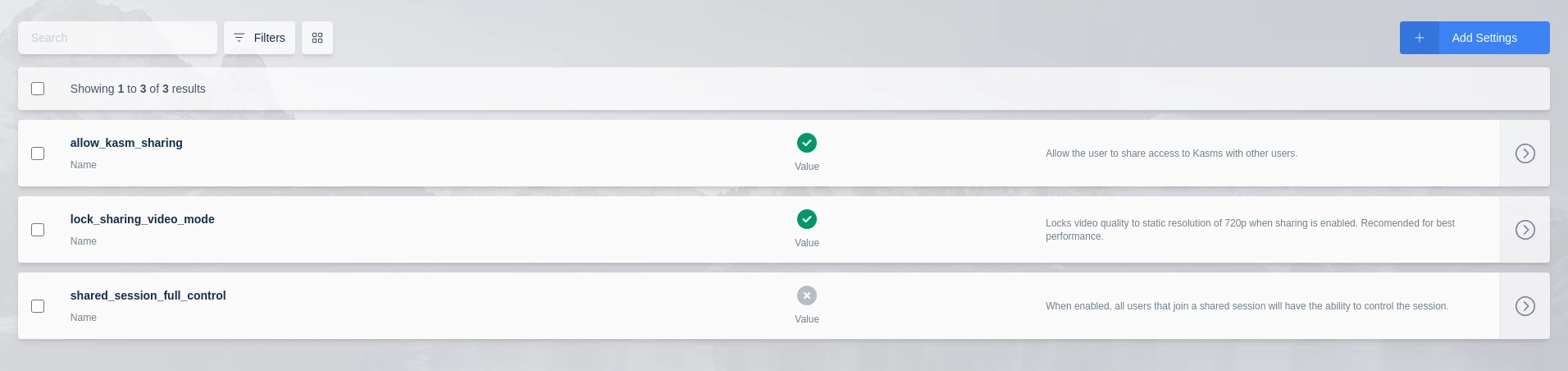
The shared session control panel item appears only when an administrator configures the relevant Group Settings. Set the following Group Settings to match the collaboration you intend to support.
- Set allow_kasm_sharing to True (Default: True). This setting enables the shared session control panel item for users in the group.
- Decide who can control a shared session. By default, only the initiator controls the session, and all other participants are in view-only mode.
- To let every participant control the mouse and keyboard, enable shared_session_full_control (Default: False).
- Decide whether the initiator can change the streaming video mode. By default, lock_sharing_video_mode (Default: True) fixes the resolution and aspect ratio. Disable it to let the initiator raise the resolution or match their browser window.
Multiple users interacting with a single shared session at the same time can produce an inconsistent user experience. Mixing video mode resolutions across participants with different screen sizes or resolutions can also produce an inconsistent experience.
Initiate and distribute a shared session
After the group settings are in place, the session initiator generates the shared URL from within an active session.
- Launch a Kasm session.
- Expand the control panel and click the Share Instance button.
- Click Share Session. Kasm copies the URL to your clipboard automatically and displays a notification.
- Send the copied URL to the trusted users who should join the shared session.
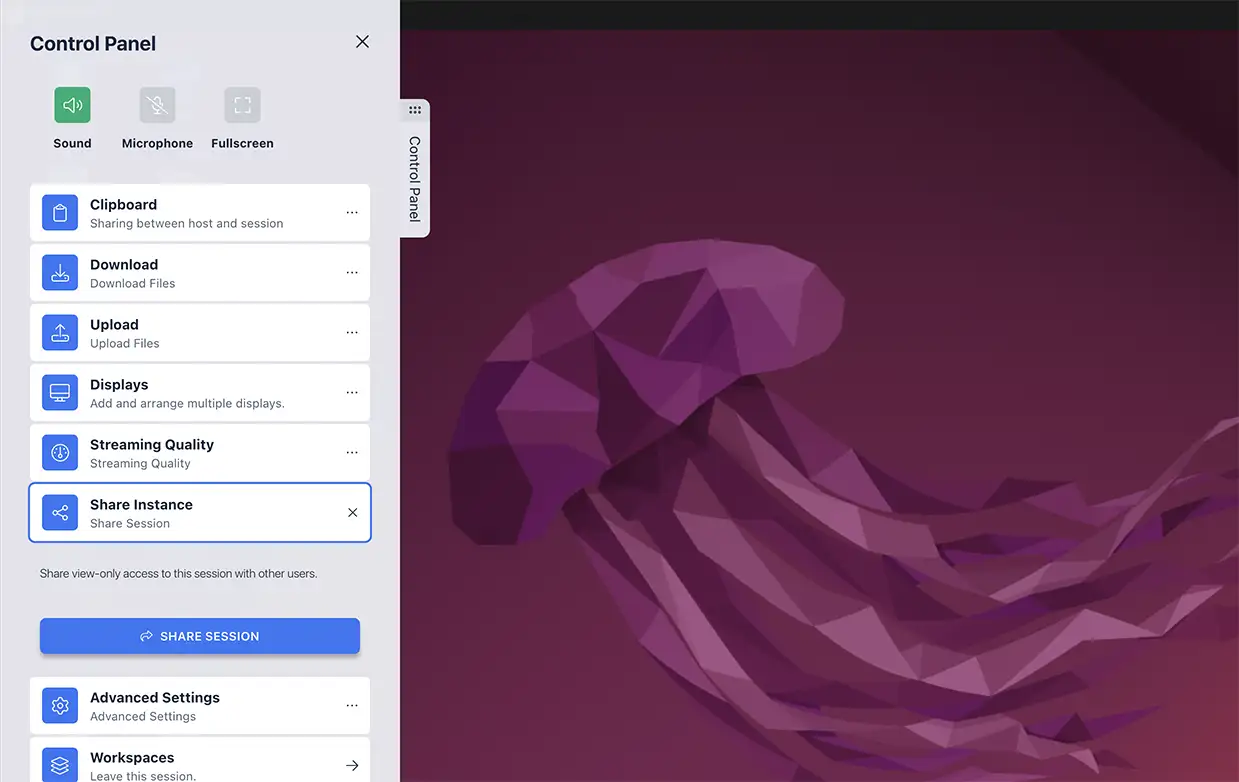
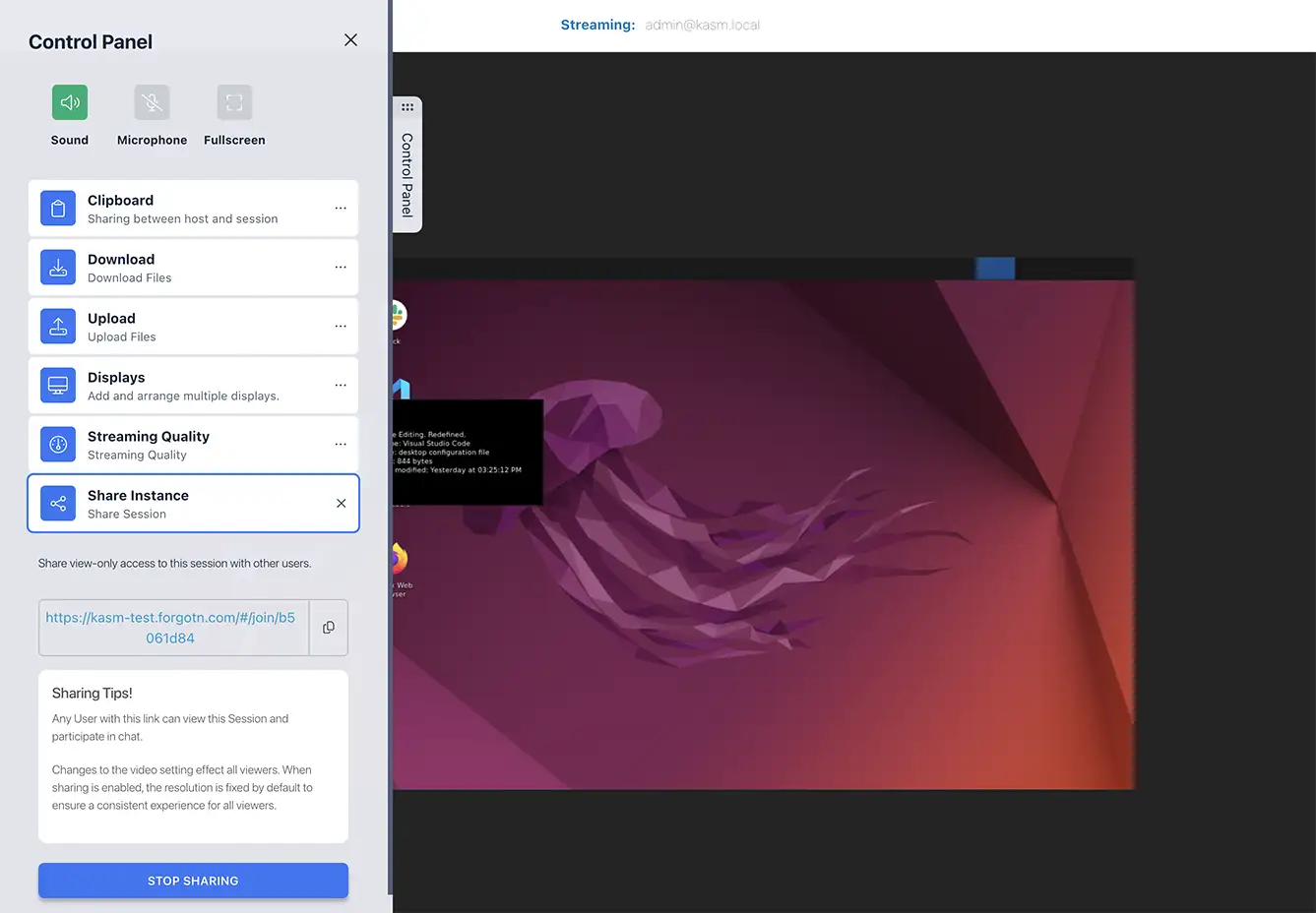
You can also retrieve the URL again, or stop sharing, from the control panel menu.
Manage participant control and video settings
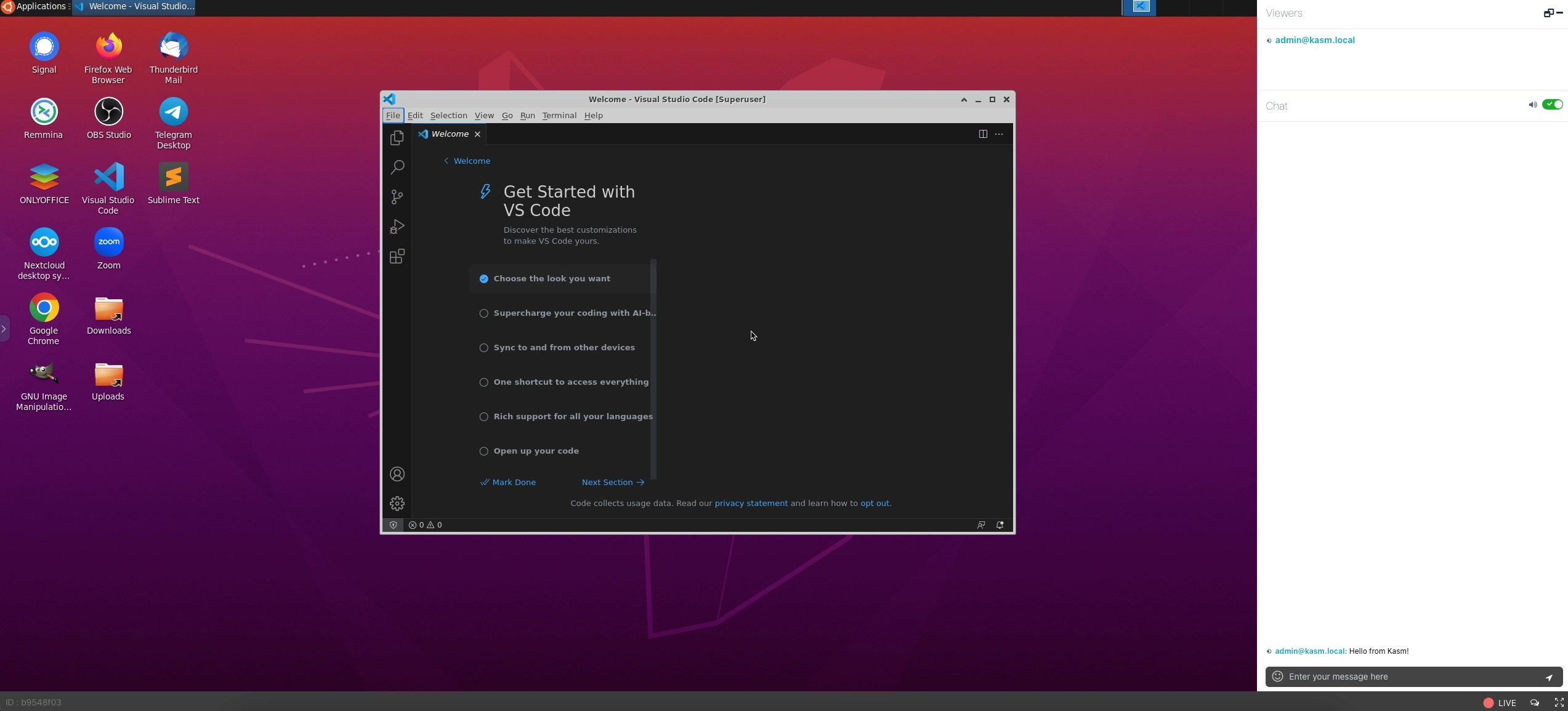
Once participants join, the shared session frames them in a user interface that shows who is viewing. Use the following behavior to manage the experience during the session.
- Review the participant list to see who is currently viewing the shared session.
- Confirm who holds control. The initiator controls the session by default, and participants stay in view-only mode unless the initiator grants control or shared_session_full_control is enabled.
- Adjust video settings if allowed. Kasm fixes the streaming resolution and aspect ratio to 720p by default to reduce bandwidth consumption and keep the experience consistent.
- If the administrator disabled lock_sharing_video_mode, the initiator can raise the resolution or match the stream to their browser window.
Common troubleshooting steps
- The Share Instance option does not appear. Confirm that the administrator set allow_kasm_sharing to True for the user's group.
- Participants cannot control the session. By default, only the initiator has control. Enable shared_session_full_control to let every participant control the mouse and keyboard.
- The video resolution cannot be changed. The lock_sharing_video_mode setting fixes the resolution at 720p by default. Disable it so the initiator can change the video settings.
- An unexpected user joined the session. Any authenticated user with the URL can join. Stop sharing from the control panel menu, then reshare and distribute the new URL only to trusted users.
- The experience is inconsistent for participants. Simultaneous control by multiple users, or mixed video resolutions across different screen sizes, can degrade the experience. Limit active control to one user and keep a consistent video mode.