AutoScale scheduling
Overview
Running AutoScale compute around the clock wastes money when workspace demand is predictable. This guide configures AutoScale schedules that keep a configuration active only during the periods you define, such as business hours, shifts, or scheduled training. You set the active days, start time, end time, and time zone for each schedule. As a result, the deployment provisions capacity when users need it and scales down to cut cost during off-hours, without disrupting active sessions.
Prerequisites
Before you begin, confirm the following:
- Administrator access to the Kasm Workspaces deployment, with permission to manage Pools and AutoScale configurations.
- An existing AutoScale configuration for a Docker Agent Pool or a Server Pool. For background on how AutoScale provisions and destroys compute, see the AutoScale overview.
- The local time zone in which each schedule should apply.
Solution approach
This guide progresses through the following phases:
- Open the schedule tab on the AutoScale configuration.
- Add one or more schedules.
- Verify schedule activation.
Detailed steps
Open the schedule tab
- In the Kasm Workspaces UI, go to Infrastructure > Pools.
- Edit the Pool that contains the target configuration, open the AutoScale Configurations tab, and edit the configuration. Alternatively, open All AutoScale Configs and edit the configuration directly.
- Open the Schedule tab.
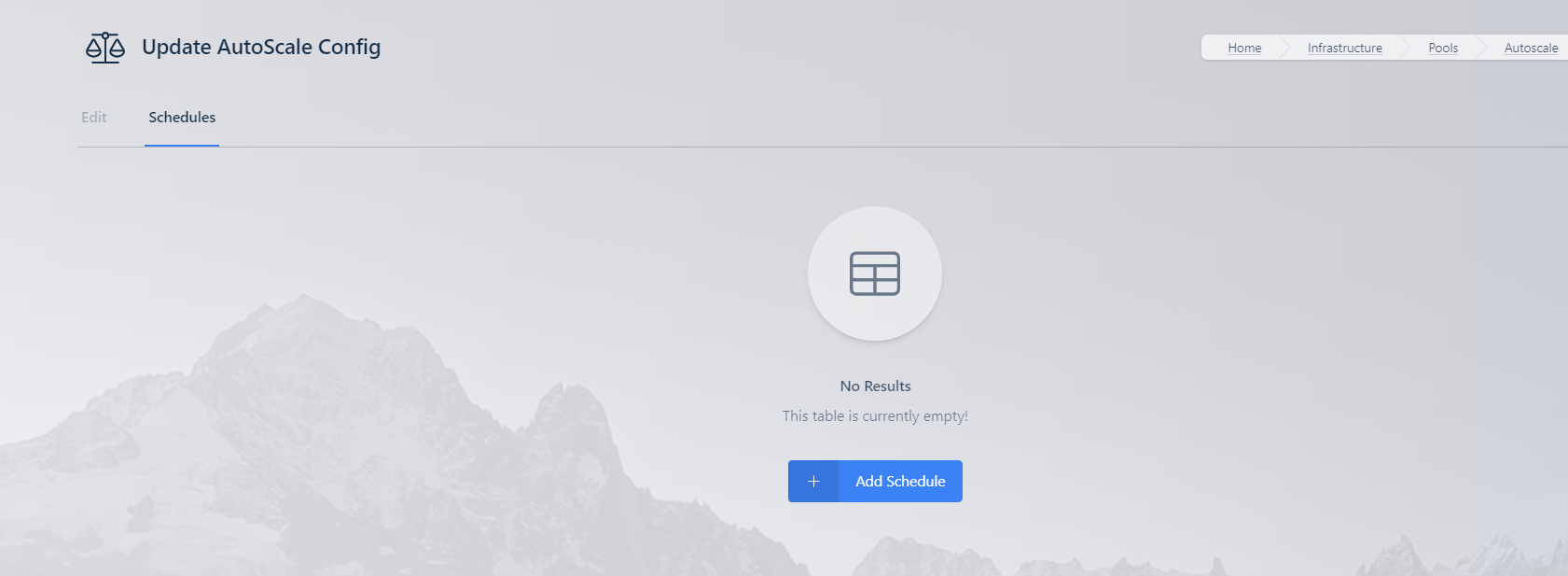
Schedules are managed on the Schedule tab of an AutoScale configuration. When no schedule is defined, the configuration is active unless it is disabled. When at least one schedule exists, the configuration is active only during a defined window.
Add a schedule
- On the Schedule tab, click Add Schedule.
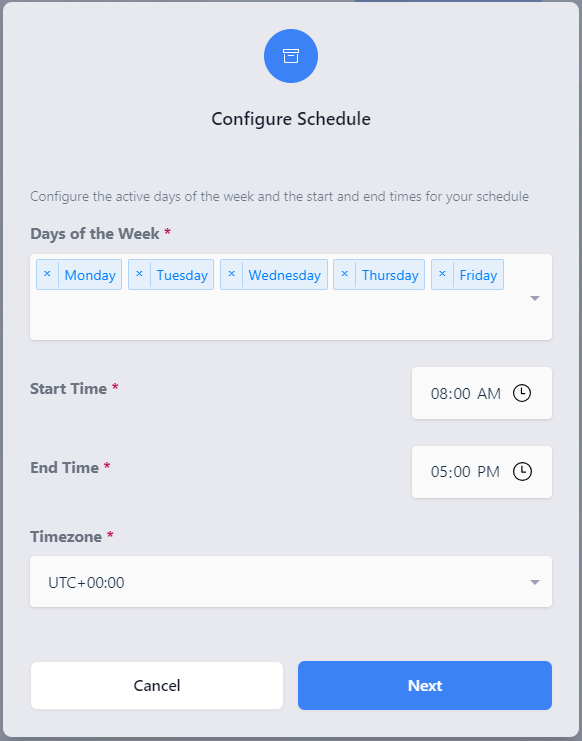
- Select the days of the week the schedule should be active.
- Set the Start Time and End Time.
- Select the Timezone. Kasm converts the time stored in the database to the specified time zone when it determines whether a schedule is active.
- Save the schedule.
A single AutoScale configuration supports multiple schedules. Use additional schedules to cover several active periods in one day, continuous multi-day windows, or overnight windows. For an overnight window, set an end time earlier than the start time. The configuration then activates at the start time on each selected day and deactivates at the end time on the following day. For worked examples, see Common schedule patterns.
Kasm does not scale down a server that has active sessions. Existing sessions continue uninterrupted when a schedule becomes inactive. When an AutoScale configuration for Docker Agents becomes inactive, Kasm removes unused staged sessions. Kasm also assigns no new staged or user-created sessions to the Docker Agents in that configuration.
An inactive AutoScale configuration provisions no compute. To keep workspaces available around the clock, consider two configurations. One configuration holds minimal standby capacity for off-hours, and the other holds fuller capacity for peak hours. Setting the off-hours standby CPU, memory, and GPU to 0 fulfills session demand on demand, which trades faster startup for lower idle cost.
Verify schedule activation
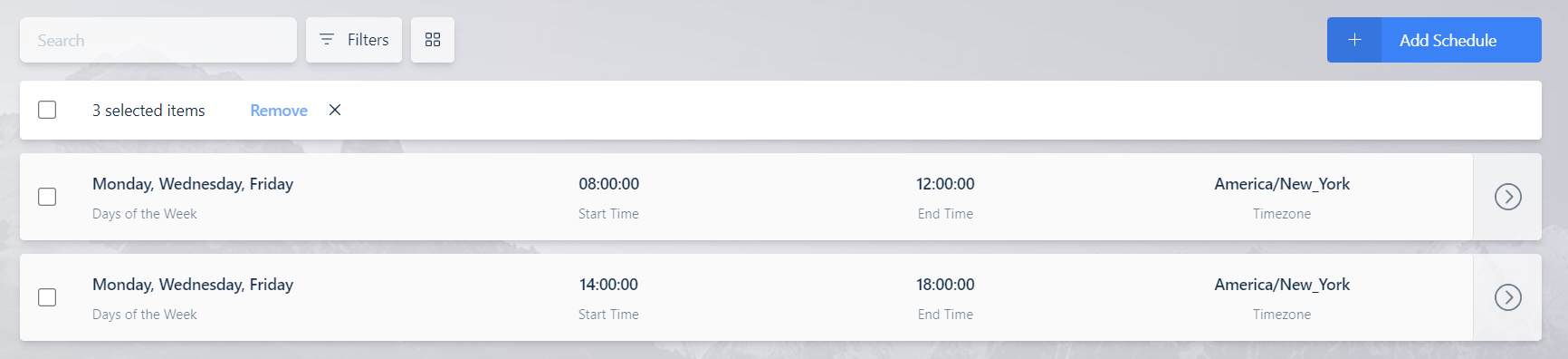
- On the Schedule tab, confirm that the schedule list shows the days, times, and time zone you defined.
- During an active window, confirm that the configuration provisions the standby capacity you configured.
- Outside the active window, confirm that no new sessions are assigned and that idle compute scales down after existing sessions end.
Common schedule patterns
The following examples show how to combine schedules to meet common demand patterns. Each example uses the Add Schedule screen described in Add a schedule.
Standard business hours
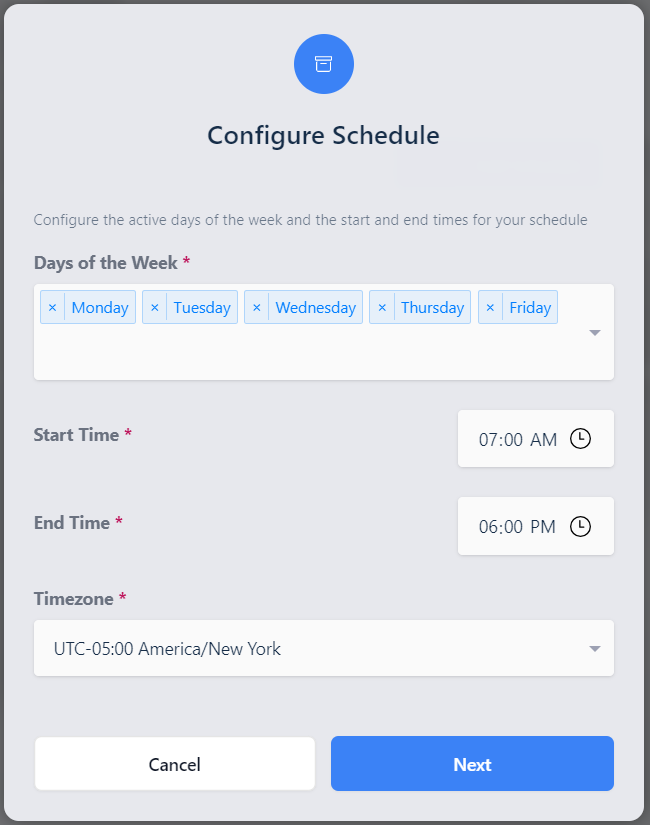
A business runs core hours of 8 a.m. to 5 p.m., Monday through Friday. The schedule activates AutoScale at 7 a.m. and deactivates it at 6 p.m. on each weekday. Compute is ready before the 8 a.m. start time. Costs are reduced overnight and over the weekend, when there is no business need for the compute.
Continuous multi-day window
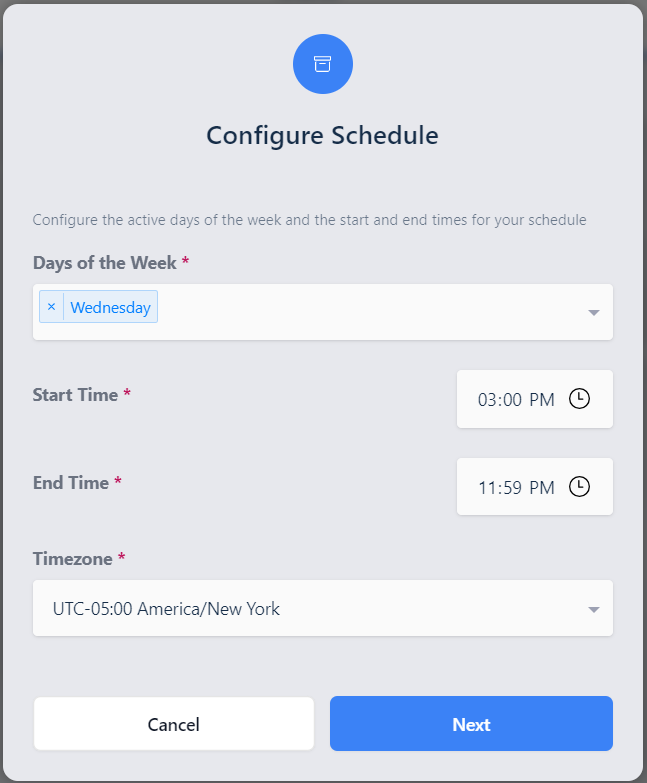
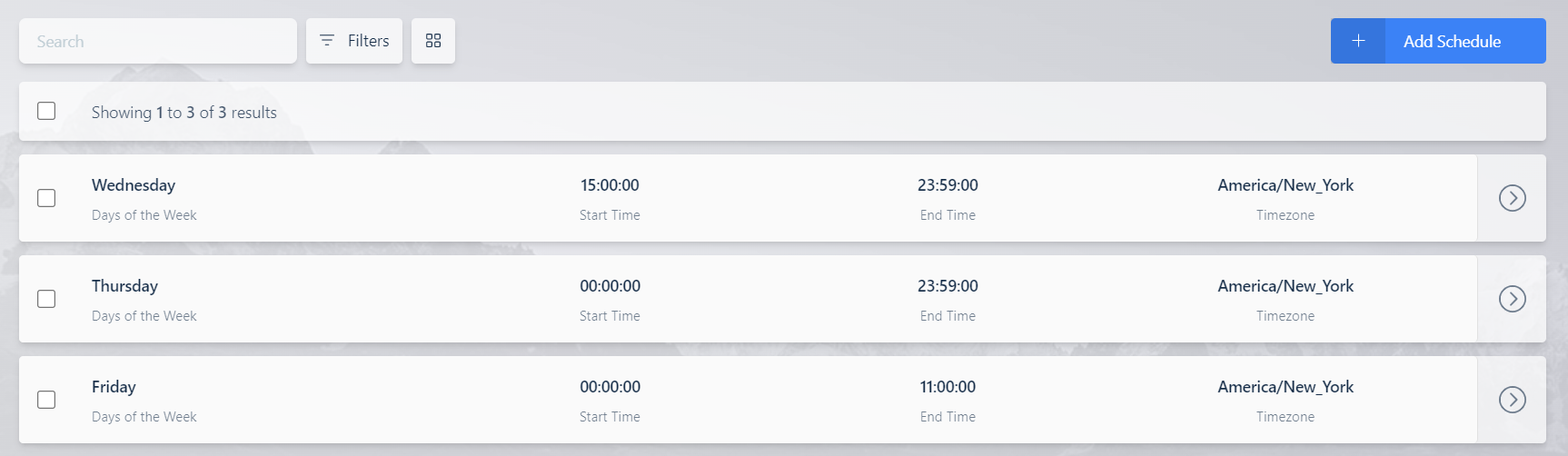
To keep compute online continuously from 3 p.m. Wednesday until 11 a.m. Friday, create three schedules on the same AutoScale configuration.
First, select Wednesday, with a start time of 3:00 p.m. and an end time of 11:59 p.m.
Second, select Thursday, with a start time of 12:00 a.m. and an end time of 11:59 p.m.
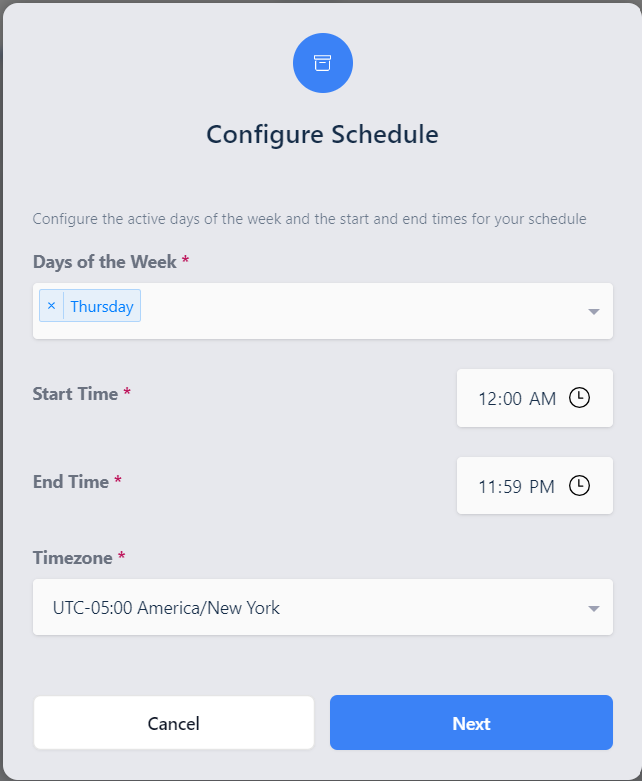
Third, select Friday, with a start time of 12:00 a.m. and an end time of 11:00 a.m.
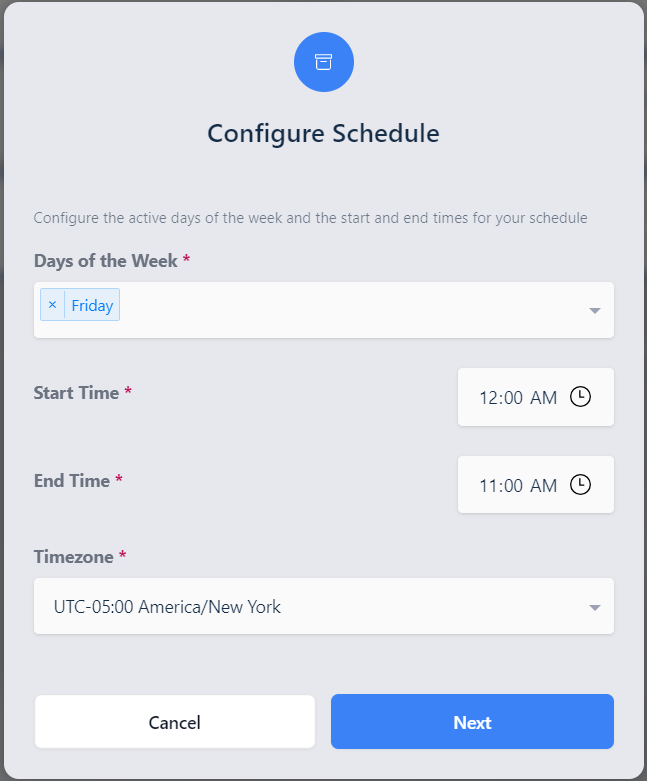
Together, the three schedules provide continuous coverage across the multi-day window.
Overnight window
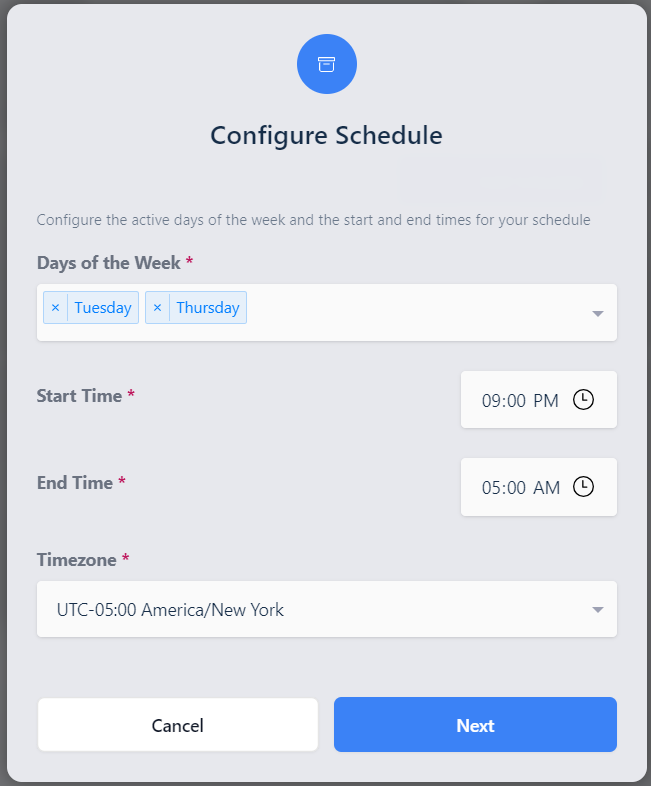
An overnight window has a start time later than its end time. The configuration activates at the start time on each selected day and deactivates at the end time on the following day. In this example, the configuration activates on Tuesday and Thursday at 9:00 p.m. and deactivates on Wednesday and Friday at 5:00 a.m.
Multiple periods in one day
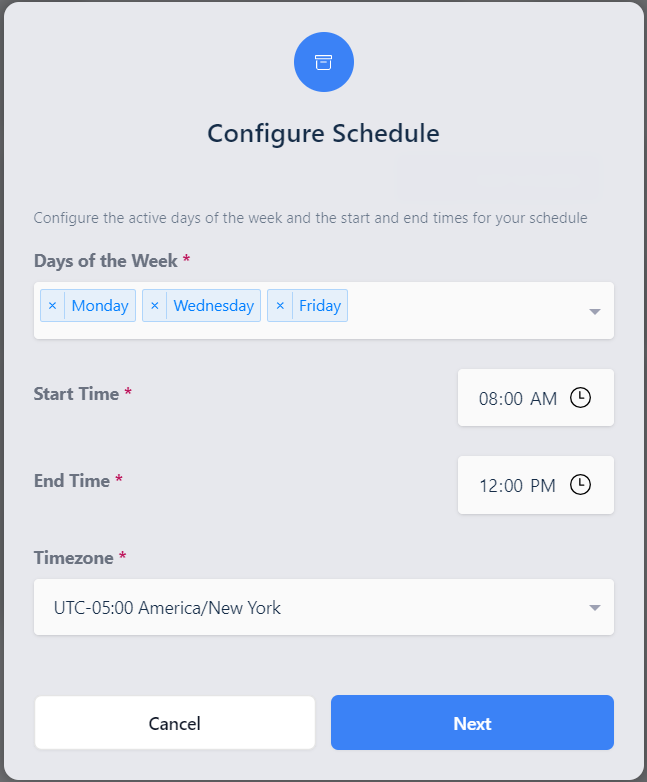
To define more than one active period in a single day, create one schedule per period. In this example, a morning period runs from 8:00 a.m. to 12:00 p.m. on Monday, Wednesday, and Friday.
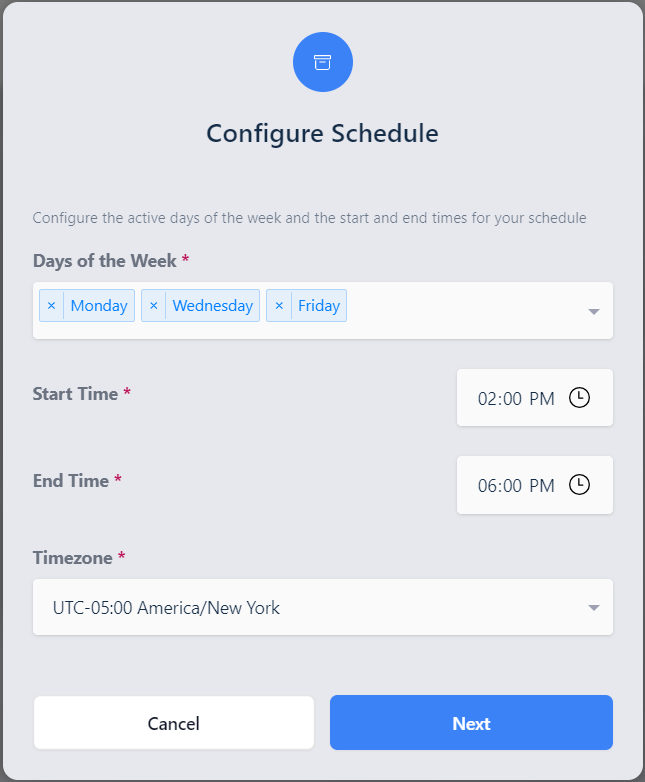
An afternoon period runs from 2:00 p.m. to 6:00 p.m. on the same days.
Together, the two schedules cover both periods while leaving the midday gap inactive.
Common troubleshooting steps
- The schedule activates at the wrong time, or not at all. Kasm evaluates each schedule in the time zone you select, converting the time stored in the database to that zone. Confirm that the Timezone, Start Time, End Time, and selected days match the intended local schedule.
- An overnight window does not stay active past midnight. A window that crosses midnight requires a start time later than the end time on the selected start day. The configuration then deactivates at the end time on the following day. Alternatively, define one schedule per day, as shown in the continuous multi-day pattern.
- Compute does not scale down when a schedule becomes inactive. Kasm does not scale down a server or agent that has active sessions. Confirm that sessions have ended. For Docker Agents, the configuration removes unused staged sessions and assigns no new sessions while inactive.
- No sessions are available during off-hours. An inactive AutoScale configuration provisions no standby compute. Add a second configuration with minimal standby capacity, or set the standby CPU, memory, and GPU to 0 so that demand is fulfilled on demand.
- The configuration is inactive when you expect it to be active. Once any schedule exists, the configuration is active only within a defined window. Confirm that the configuration is enabled and that at least one schedule covers the intended time.