Chrome and Firefox managed policies
Overview
Administrators often need browsers in a workspace to start with a consistent, governed configuration rather than leaving each user to set bookmarks, extensions, and policies by hand. This guide applies managed policies to Google Chrome and Mozilla Firefox in container workspaces, so every launched session enforces the same bookmarks, extensions, and enterprise controls. You apply policies through the File Mapping feature in the Admin UI, or by baking policy files into a custom Workspace Docker image. The result is a centrally governed browser experience that reduces support tickets and extends enterprise browser policy to non-managed and bring-your-own devices.
For the full set of configurable Chrome policies, see Chrome Enterprise policy documentation. For Firefox, see the Firefox policy templates.
Prerequisites
Before you begin, confirm the following:
- Administrator access to the Kasm Workspaces deployment, with permission to edit Workspace, User, or Group definitions.
- A container-based Workspace that runs Chrome or Firefox.
- For the custom image method, the ability to build images by following the building images guide.
- For Chrome Enterprise enrollment, an active Chrome Enterprise subscription with Google.
Solution approach
This guide progresses through the following phases:
- Apply Chrome policies with File Mappings.
- Apply Chrome policies with a custom Docker image.
- Apply Firefox policies with File Mappings.
- Apply Firefox policies with a custom Docker image.
Choose the File Mapping method to manage policies in the Admin UI without rebuilding images. Choose the custom image method to bake policies directly into a Workspace image. Each phase covers managed bookmarks and managed extensions, and the Chrome File Mapping phase also covers Chrome Enterprise enrollment.
Video tutorial
This video walks through Chrome managed policies with Kasm Workspaces.
Detailed steps
Apply Chrome policies with File Mappings
File Mappings define file content and the path where that content is placed inside a container-based session. You can add File Mappings to a User, Group, or Workspace definition. The following examples add File Mappings to a Workspace definition.
Managed bookmarks
Use the ManagedBookmarks Chrome policy to build bookmarks into the bookmarks bar.
- Create a managed policy for bookmarks using the following example.
{
    "BookmarkBarEnabled": true,
    "ManagedBookmarks":[
        {
            "toplevel_name":"Managed Bookmarks"
        },
        {
            "name":"Google",
            "url":"google.com"
        },
        {
            "name":"Youtube",
            "url":"youtube.com"
        },
        {
            "name":"Chrome links",
            "children":[
                {
                    "name":"Chromium",
                    "url":"chromium.org"
                },
                {
                    "name":"Chromium Developers",
                    "url":"dev.chromium.org"
                }
            ]
        }
    ]
}
-
From the Admin panel in Kasm Workspaces, go to Workspaces and edit the target Workspace definition.
-
Scroll to the bottom of the Edit Workspace page and click Add File Mapping. Provide a name and description.
-
Set the destination to
/etc/opt/chrome/policies/managed/bookmarks.json, paste your policy JSON into the Content section, and click Add.
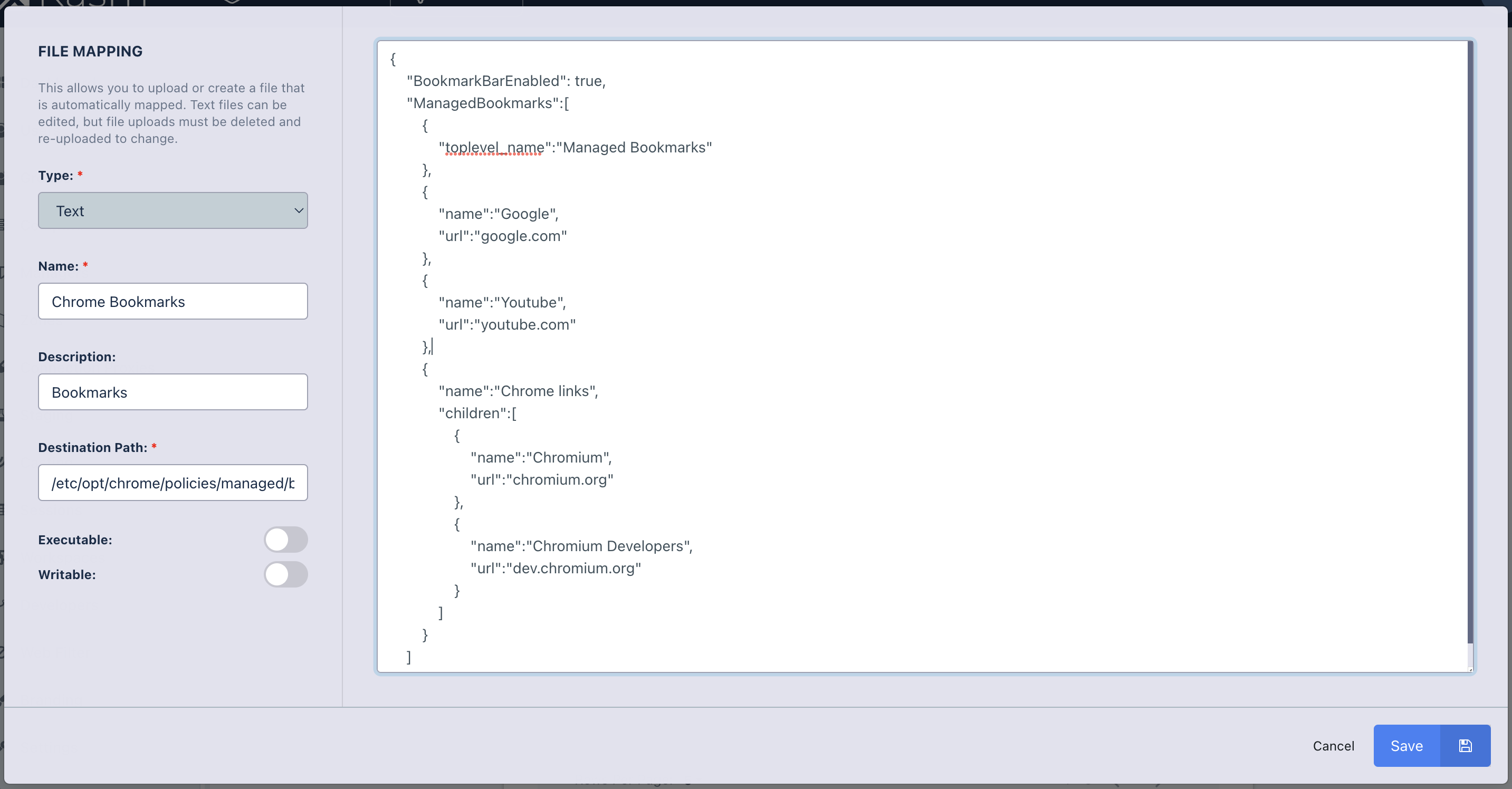
The next Workspace launched creates the file /etc/opt/chrome/policies/managed/bookmarks.json with the content you defined.
Managed extensions
Use the ExtensionSettings Chrome policy to install extensions into the image.
- Find a Chrome extension to add. This example uses uBlock Origin from the Chrome Web Store. Note the URL.
https://chrome.google.com/webstore/detail/ublock-origin/cjpalhdlnbpafiamejdnhcphjbkeiagm?hl=en
- Create a managed policy to specify the extensions to install. The extension ID is copied from the Chrome Web Store URL.
{
    "ExtensionSettings": {
        "*": {
            "installation_mode": "blocked"
        },
        "cjpalhdlnbpafiamejdnhcphjbkeiagm": {
            "installation_mode": "force_installed",
            "update_url": "https://clients2.google.com/service/update2/crx",
            "toolbar_pin" : "force_pinned"
        }
    }
}
-
From the Admin panel in Kasm Workspaces, go to Workspaces and edit the target Workspace definition.
-
Open the File Mapping tab and click Add File Mapping. Provide a name and description.
-
Set the destination to
/etc/opt/chrome/policies/managed/extensions.json, paste your policy JSON into the Content section, and click Save.
Google Chrome Enterprise
Google Chrome Enterprise is a business-focused version of Chrome that adds enhanced security, centralized management, and productivity controls. Administrators can manage browser settings, policies, and updates across the organization from a single console.
Kasm Workspaces lets Chrome Enterprise customers enroll their Chrome workspaces into the Chrome Enterprise ecosystem. Enrollment extends enterprise browser policies to otherwise non-managed or bring-your-own devices. It also gives contractors and third parties a zero-installation enterprise browser experience.
- Obtain an enrollment token by following the Google Chrome Enterprise enrollment token instructions. An active Chrome Enterprise subscription with Google is required.
- In the Workspace you want to enroll, open the File Mapping section and create a new file mapping.
- Set the Type field to Text.
- Set the Name and Description fields to
Chrome Enrollment Token. - Set the Destination Path field to
/etc/opt/chrome/policies/enrollment/CloudManagementEnrollmentToken. - Ensure the Executable and Writeable options are disabled.
- Paste your enrollment token, for example
f1a2b3c4-d5e6-f7a8-1234-5b6c7d8e9f0a, into the body area to the right. Add no other characters, such as whitespace or line breaks. - Click Save.
- By default, if enrollment fails because the token is invalid or revoked, Chrome starts in an unmanaged state. To prevent Chrome from starting without a valid enrollment token, add another file mapping.
- Set the Type field to Text.
- Set the Name and Description fields to
Force Chrome Enrollment. - Set the Destination Path field to
/etc/opt/chrome/policies/enrollment/CloudManagementEnrollmentOptions. - Ensure the Executable and Writeable options are disabled.
- Paste
Mandatoryinto the body area to the right. Add no other characters, such as whitespace or line breaks. - Click Save.
Because Kasm Workspaces is a containerized platform, all Chrome browsers on a single agent share the same device ID for enrollment. This sharing does not affect the enforcement of Chrome Enterprise policies, but it may restrict device-level tracking. User tracking through Google Workspace user accounts remains unaffected.
Apply Chrome policies with a custom Docker image
A second method bakes Chrome managed policies into a custom Docker image. This example edits the Kasm Chrome Dockerfile, but any desktop Dockerfile that installs Chrome works. For build instructions, see the building images guide.
Managed bookmarks
Use the ManagedBookmarks Chrome policy to build bookmarks into the bookmarks bar.
- Create a file named
bookmarks.jsonwith the following contents.
{
    "BookmarkBarEnabled": true,
    "ManagedBookmarks":[
        {
            "toplevel_name":"Managed Bookmarks"
        },
        {
            "name":"Google",
            "url":"google.com"
        },
        {
            "name":"Youtube",
            "url":"youtube.com"
        },
        {
            "name":"Chrome links",
            "children":[
                {
                    "name":"Chromium",
                    "url":"chromium.org"
                },
                {
                    "name":"Chromium Developers",
                    "url":"dev.chromium.org"
                }
            ]
        }
    ]
}
- Add the following line just before the
End Customizationsline in thedockerfile-kasm-chromefile.
COPY ./bookmarks.json /etc/opt/chrome/policies/managed/bookmarks.json
- Build the image by following the building images guide.
Managed extensions
Use the ExtensionSettings Chrome policy to install extensions into the image.
- Find a Chrome extension to add. This example uses uBlock Origin from the Chrome Web Store. Note the URL.
https://chrome.google.com/webstore/detail/ublock-origin/cjpalhdlnbpafiamejdnhcphjbkeiagm?hl=en
- Create a file named
extensions.jsonwith the following contents. The extension ID is copied from the Chrome Web Store URL.
{
    "ExtensionSettings": {
        "*": {
            "installation_mode": "blocked"
        },
        "cjpalhdlnbpafiamejdnhcphjbkeiagm": {
            "installation_mode": "force_installed",
            "update_url": "https://clients2.google.com/service/update2/crx",
            "toolbar_pin" : "force_pinned"
        }
    }
}
- Add the following line just before the
End Customizationsline in thedockerfile-kasm-chromefile.
COPY ./extensions.json /etc/opt/chrome/policies/managed/extensions.json
- Build the image by following the building images guide.
Apply Firefox policies with File Mappings
You can add File Mappings to a User, Group, or Workspace definition. The following examples add File Mappings to a Workspace definition to manage Firefox policies.
Managed bookmarks
Use the ManagedBookmarks Firefox policy to build bookmarks into the bookmarks bar.
- Create a managed policy for bookmarks using the following example.
{
  "policies": {
    "DisplayBookmarksToolbar": "always",
    "ManagedBookmarks": [
      {
        "toplevel_name": "My managed bookmarks folder"
      },
      {
        "url": "example.com",
        "name": "Example"
      },
      {
        "name": "Mozilla links",
        "children": [
          {
            "url": "https://mozilla.org",
            "name": "Mozilla.org"
          },
          {
            "url": "https://support.mozilla.org/",
            "name": "SUMO"
          }
        ]
      }
    ]
  }
}
-
From the Admin panel in Kasm Workspaces, go to Workspaces and edit the target Workspace definition.
-
Scroll to the bottom of the Edit Workspace page and click Add File Mapping. Provide a name and description.
-
Set the destination to
/etc/firefox/policies/policies.json, paste your policy JSON into the Content section, and click Add.
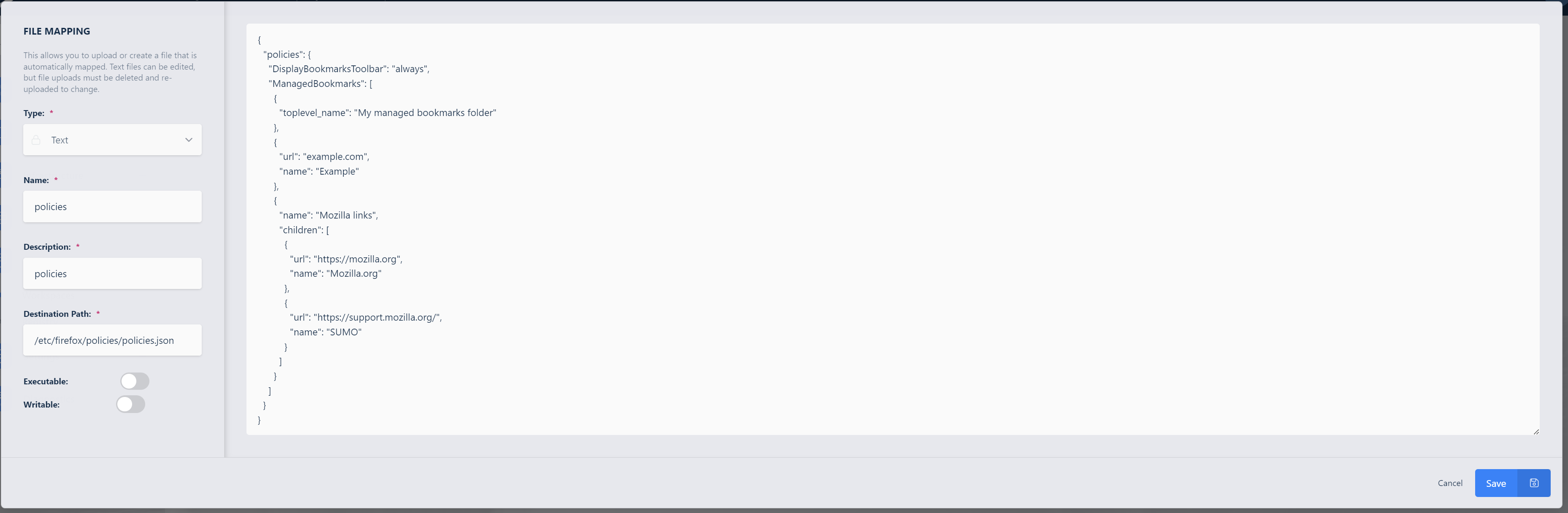
The next Workspace launched creates the file /etc/firefox/policies/policies.json with the content you defined.
Managed extensions
Use the ExtensionSettings Firefox policy to install extensions into the image.
- Find a Firefox extension to add. This example uses uBlock Origin from the Firefox Browser Add-ons store. Note the URL.
https://addons.mozilla.org/en-US/firefox/addon/ublock-origin/
-
Firefox requires a specific extension ID for each add-on. To obtain the extension ID, install the extension manually in Firefox, then open
about:support. The Add-ons section lists every installed extension. Copy the extension ID for your add-on. -
Create your managed policy using the following example. The extension ID in this example is
uBlock0@raymondhill.net. Replace it with your copied extension ID. Theinstall_urlfield has been modified to remove the extension version, such as-1.57.2. In this example, the original download URL washttps://addons.mozilla.org/firefox/downloads/file/4261710/ublock_origin-1.57.2.xpi. Removing the version from most download URLs downloads the latest version of the add-on. To obtain a download URL, select an extension from the Firefox add-ons extensions directory, then copy the URL from the Download File link on the extension page.
{
  "policies": {
    "ExtensionSettings": {
      "*": {
        "installation_mode": "blocked",
        "allowed_types": ["extension"]
      },
      "uBlock0@raymondhill.net": {
        "installation_mode": "force_installed",
        "install_url": "https://addons.mozilla.org/firefox/downloads/file/4261710/ublock_origin.xpi"
      }
    }
  }
}
-
From the Admin panel in Kasm Workspaces, go to Workspaces and edit the target Workspace definition.
-
Open the File Mapping tab and click Add File Mapping. Provide a name and description.
-
Set the destination to
/etc/firefox/policies/policies.json, paste your policy JSON into the Content section, and click Save.
Apply Firefox policies with a custom Docker image
A second method bakes Firefox managed policies into a custom Docker image. This example edits the Kasm Firefox Dockerfile, but any desktop Dockerfile that installs Firefox works. For build instructions, see the building images guide.
Managed bookmarks
Use the ManagedBookmarks Firefox policy to build bookmarks into the bookmarks bar.
- Create a file named
policies.jsonwith the following contents.
{
  "policies": {
    "DisplayBookmarksToolbar": "always",
    "ManagedBookmarks": [
      {
        "toplevel_name": "My managed bookmarks folder"
      },
      {
        "url": "example.com",
        "name": "Example"
      },
      {
        "name": "Mozilla links",
        "children": [
          {
            "url": "https://mozilla.org",
            "name": "Mozilla.org"
          },
          {
            "url": "https://support.mozilla.org/",
            "name": "SUMO"
          }
        ]
      }
    ]
  }
}
- Add the following line just before the
End Customizationsline in thedockerfile-kasm-firefoxfile.
COPY ./policies.json /etc/firefox/policies/policies.json
- Build the image by following the building images guide.
Managed extensions
Use the ExtensionSettings Firefox policy to install extensions into the image.
- Find a Firefox extension to add. This example uses uBlock Origin from the Firefox Browser Add-ons store.
https://addons.mozilla.org/en-US/firefox/addon/ublock-origin/
-
Firefox requires a specific extension ID for each add-on. To obtain the extension ID, install the extension manually in Firefox, then open
about:support. The Add-ons section lists every installed extension. Copy the extension ID for your add-on. -
Create a file named
policies.jsonwith the following contents. The extension ID in this example isuBlock0@raymondhill.net. Replace it with your copied extension ID. Theinstall_urlfield has been modified to remove the extension version, such as-1.57.2. In this example, the original download URL washttps://addons.mozilla.org/firefox/downloads/file/4261710/ublock_origin-1.57.2.xpi. Removing the version from most download URLs downloads the latest version of the add-on. To obtain a download URL, select an extension from the Firefox add-ons extensions directory, then copy the URL from the Download File link on the extension page.
{
  "policies": {
    "ExtensionSettings": {
      "*": {
        "installation_mode": "blocked",
        "allowed_types": ["extension"]
      },
      "uBlock0@raymondhill.net": {
        "installation_mode": "force_installed",
        "install_url": "https://addons.mozilla.org/firefox/downloads/file/4261710/ublock_origin.xpi"
      }
    }
  }
}
- Add the following line just before the
End Customizationsline in thedockerfile-kasm-firefoxfile.
COPY ./policies.json /etc/firefox/policies/policies.json
- Build the image by following the building images guide.
Common troubleshooting steps
- Policies do not apply to new sessions. File Mappings apply only to Workspaces launched after the mapping is saved. Launch a new session, and confirm the destination path matches the browser exactly:
/etc/opt/chrome/policies/managed/for Chrome and/etc/firefox/policies/policies.jsonfor Firefox. - A forced extension fails to install. Confirm the extension ID is correct. For Chrome, copy the ID from the Chrome Web Store URL. For Firefox, install the extension manually and read the ID from
about:support. - A Firefox extension installs an outdated version. The
install_urlmust omit the version suffix, such as-1.57.2, so that Firefox downloads the latest published add-on. - Chrome starts unmanaged after enrollment. Confirm the enrollment token is valid and pasted with no extra whitespace or line breaks. To require enrollment, add the
CloudManagementEnrollmentOptionsfile mapping with the valueMandatory. - Device-level tracking does not distinguish Chrome browsers. All Chrome browsers on a single agent share one device ID. Policy enforcement is unaffected, but device-level tracking is limited. Track users through Google Workspace user accounts instead.