Configure Kasm Workspaces AutoScale on Google Cloud (GCP)
Overview
Workspace demand on Google Cloud (GCP) rises and falls through the day, and paying for idle compute during quiet periods wastes budget. This guide configures Kasm Workspaces AutoScale to provision and destroy Docker Agents on GCP automatically in response to demand. The result is elastic capacity that meets peak load and reduces idle infrastructure between sessions. AutoScale on GCP supports bursty contractor, training, investigation, and AI workloads without manual provisioning.
Prerequisites
Confirm the following before you begin:
- Administrator access to a Google Cloud (GCP) project with permission to manage IAM, Compute Engine, and networking.
- A working Kasm Workspaces deployment. See the single-server installation guide if you need to deploy Kasm first.
- Knowledge of the deployment zone and pool that the AutoScaled agents will join. A deployment zone is a logical grouping of Kasm infrastructure components, and a pool groups Docker Agents for load balancing.
- The target GCP region, zone, network, and subnetwork for the provisioned instances.
- A machine image for the AutoScaled agents. Build a custom image first only if your agents require baked-in customizations.
Solution approach
This guide progresses through the following phases:
- Prepare the GCP service account and credentials.
- Configure the GCP VM provider in Kasm.
- Validate that provisioning and downscaling work.
Detailed steps
Prepare the GCP service account and credentials
-
In the Google Cloud console, open IAM & Admin > Service Accounts and create a service account for Kasm AutoScale.
-
Grant the service account the Compute Admin role so Kasm can provision and destroy compute instances.
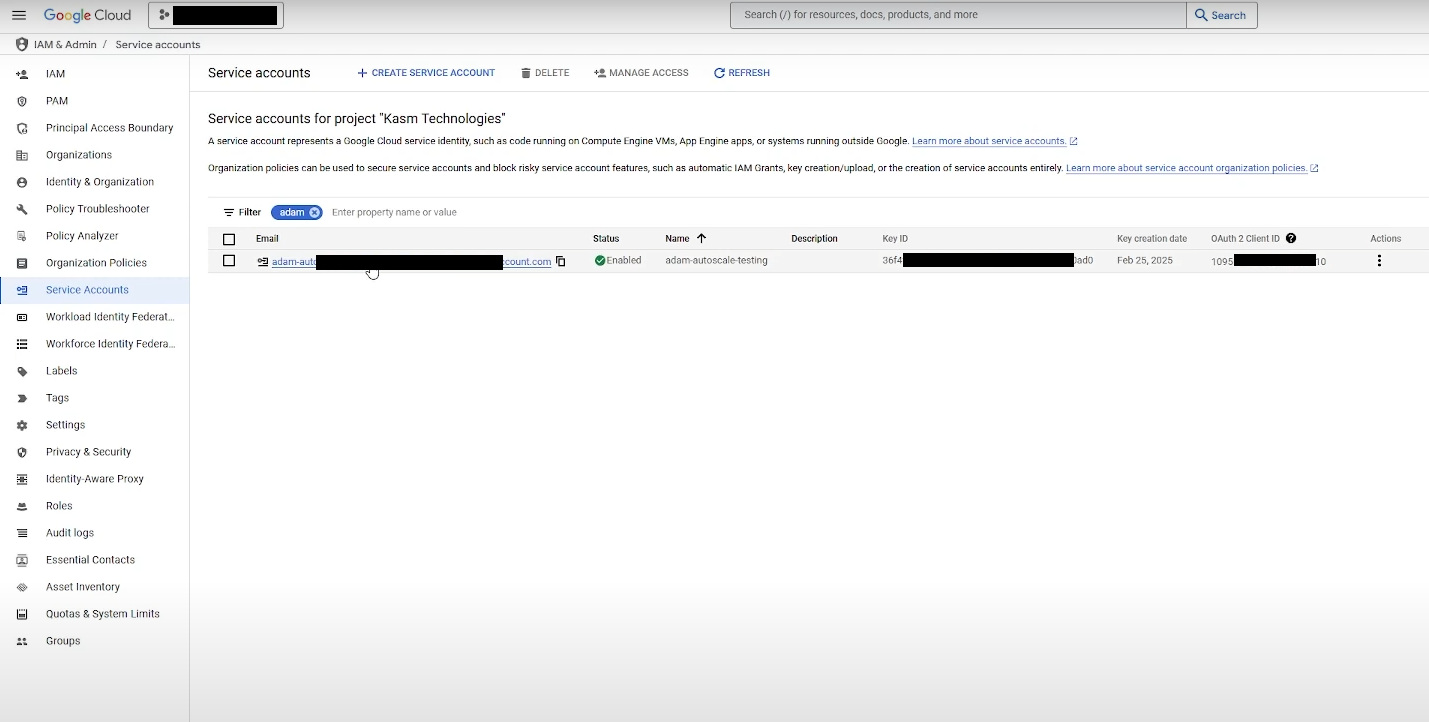
Create Service Account in GCP -
Open the new service account and select the Keys tab.
-
Select Add Key > Create new key, choose the JSON key type, and select Create. The console downloads a JSON key file that contains the authentication details Kasm needs to provision instances.
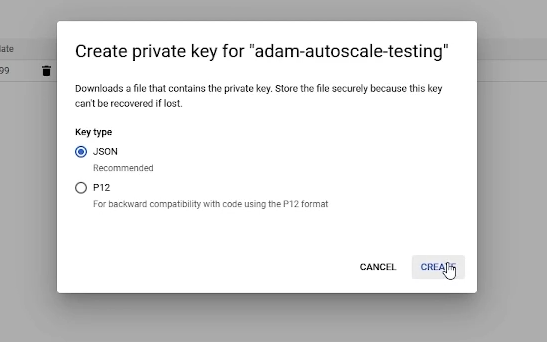
Create Key in GCP
The JSON key grants programmatic access to provision and destroy compute instances. Store it securely, never commit it to version control, and rotate it on a regular schedule.
Configure the GCP VM provider in Kasm
In the Kasm administrator console, open Infrastructure > VM Providers and add a Google Cloud (GCP) provider. Paste the contents of the downloaded JSON key into the GCP Credentials field, then complete the remaining fields described below.
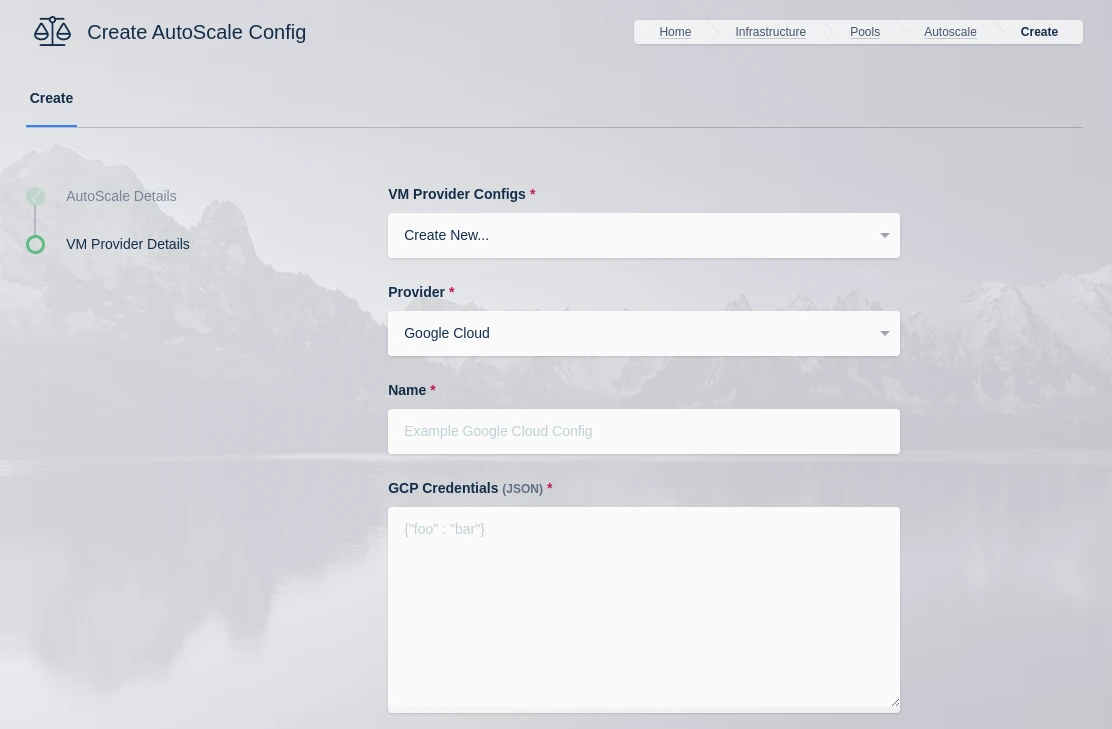
| Name | Description |
|---|---|
| Name | An identifying name for this provider configuration e.g. Google Cloud (GCP) Docker Agent AutoScale Provider |
| GCP Credentials | The JSON formatted credentials for the service account used to authenticate with GCP: Ref |
| Max Instances | The maximum number of GCP compute instances to provision regardless of the need for additional resources. |
| Project ID | The Google Cloud Project ID (e.g pensive-voice-547511) |
| Region | The region to provision the new compute instances. (e.g us-east4) |
| Zone | The zone the new compute instance will be provisioned in (e.g us-east4-b) |
| Machine Type | The Machine type for the GCP compute instances. (e.g e2-standard-2) |
| Machine Image | The Machine Image to use for the new compute instance. (e.g projects/ubuntu-os-cloud/global/img/ubuntu-2204-lts) |
| Boot Volume Size | Select the boot volume size to assign the compute instance. The admin console accepts Bytes/GB and stores the value as bytes (gcp_boot_volume_bytes). API integrations must submit the number of bytes in whole GB (10^9) increments. |
| Disk Type | The disk type for the new instance. (e.g pd-ssd, pd-standard, etc.) |
| Customer Managed Encryption Key (CMEK) | The optional path to the Customer Managaged Encryption Key (CMEK) (e.g projects/pensive-voice-547511/locations/global/keyRings/my-keyring/cryptoKeys/my-key |
| Network | The path of the Network to attach the new instance. (e.g projects/pensive-voice-547511/global/networks/default) |
| Sub Network | The path of the Sub Network to attach the new instance.(e.g projects/pensive-voice-547511/regions/us-east4/subnetworks/default) |
| Public IP | If checked, a public IP will be assigned to the new instances |
| Network Tags (JSON) | A JSON list of the Network Tags to assign the new instance. (e.g ["https-server", "foo", "bar"]) |
| Custom Labels (JSON) | A JSON dictionary of Custom Labels to assign the new instance (e.g {"foo": "bar", "bin":"baz"}) |
| Metadata (JSON) | A JSON list of metadata objects to add to the instance. (e.g [{"key": "ssh-keys", "value":"user1:ssh-rsa <key contents> user1"}]) Reference |
| Service Account (JSON) | A JSON dictionary representing for a service account to attach to the instance. (e.g {"email": "service-account@example.com", "scopes":["https://www.googleapis.com/auth/cloud-platform"]}) Reference |
| Guest Accelerators (JSON) | A JSON list representing the guest accelerators (e. GPUs) to attach to the instance. (e.g [{"acceleratorType":"projects/<project-id>/zones/<zone>/acceleratorTypes/nvidia-tesla-t4","acceleratorCount":1}]) Reference |
| GCP Config Override (JSON) | A JSON dictionary that can be used to customize attributes of the VM request. The only attributes that cannot be overridden are name and labels (e.g {"shieldedInstanceConfig":{"enableIntegrityMonitoring":true,"enableSecureBoot":true,"enableVtpm":true}} Reference |
| VM Installed OS Type | The family of the OS installed on the VM (e.g. linux or windows). |
| Startup Script Type | The type of startup script to execute, this determines the key used when creating the GCP startup script metadata. Windows Startup Scripts Linux Startup Scripts |
| Startup Script | When instances are provisioned, this script is executed and is responsible for installing and configuring the Kasm Agent. Bash is supported on Linux instances and Powershell for Windows instance. Example scripts can be found on our Github repo |
After you complete the fields, select Submit to save the provider configuration.
Validate provisioning and downscaling
- If you configured non-zero standby or minimum available session values, agents begin provisioning immediately. Otherwise, generate demand with the following steps.
- Make one or more workspaces available. Open Workspaces > Registry and set the target workspaces to available.
- Open the Workspaces dashboard and launch enough sessions to exceed your standby thresholds.
- Monitor the new agents under Infrastructure > Docker Agents as Kasm provisions them.
- Confirm that matching VM instances appear in the Google Cloud (GCP) console.
- Validate downscaling. Terminate the sessions to reduce resource usage, then confirm that Kasm removes the agents after the configured back-off period.
Common troubleshooting steps
- Instances fail to provision. Confirm that the service account holds the Compute Admin role and that the JSON credentials are pasted in full. Verify that the Project ID, Region, and Zone values are valid and consistent.
- Provisioning fails with a quota error. Check the Compute Engine quotas for the target region and machine type, and confirm that Max Instances does not exceed your available quota.
- Agents provision but never register. Confirm that the startup script installs and configures the Kasm Agent, and that the agent can reach the Kasm Manager on the required ports. Review the AutoScale startup scripts for reference.
- Agents do not downscale. Confirm that sessions have ended and that the configured back-off period has elapsed before the agents are removed.