Configure fixed infrastructure endpoints in Kasm Workspaces
Overview
Kasm Workspaces can broker browser-based access to fixed remote endpoints that use RDP, VNC, SSH, or KasmVNC. Each endpoint is an external server that stays online and waits for a connection, and Kasm does not manage the server itself. This guide adds an endpoint as a server in Kasm, publishes it to users as a Workspace, and optionally groups several servers into a pool.
Prerequisites
- A working Kasm Workspaces deployment with administrator access.
- An external RDP, VNC, SSH, or KasmVNC server that is online and reachable from the Kasm deployment.
- The connection details for the server, including host, port, and credentials.
Solution approach
This guide progresses through the following phases:
- Add the remote server.
- Publish the server as a Workspace.
- Configure advanced settings.
- Group servers into a pool, when load balancing is required.
Detailed steps
Add the remote server
Create a server record under Infrastructure, then Servers, then Add. The connection fields depend on the protocol. The example values below use placeholders that you replace with your own.
- RDP
- VNC
- SSH
- KasmVNC
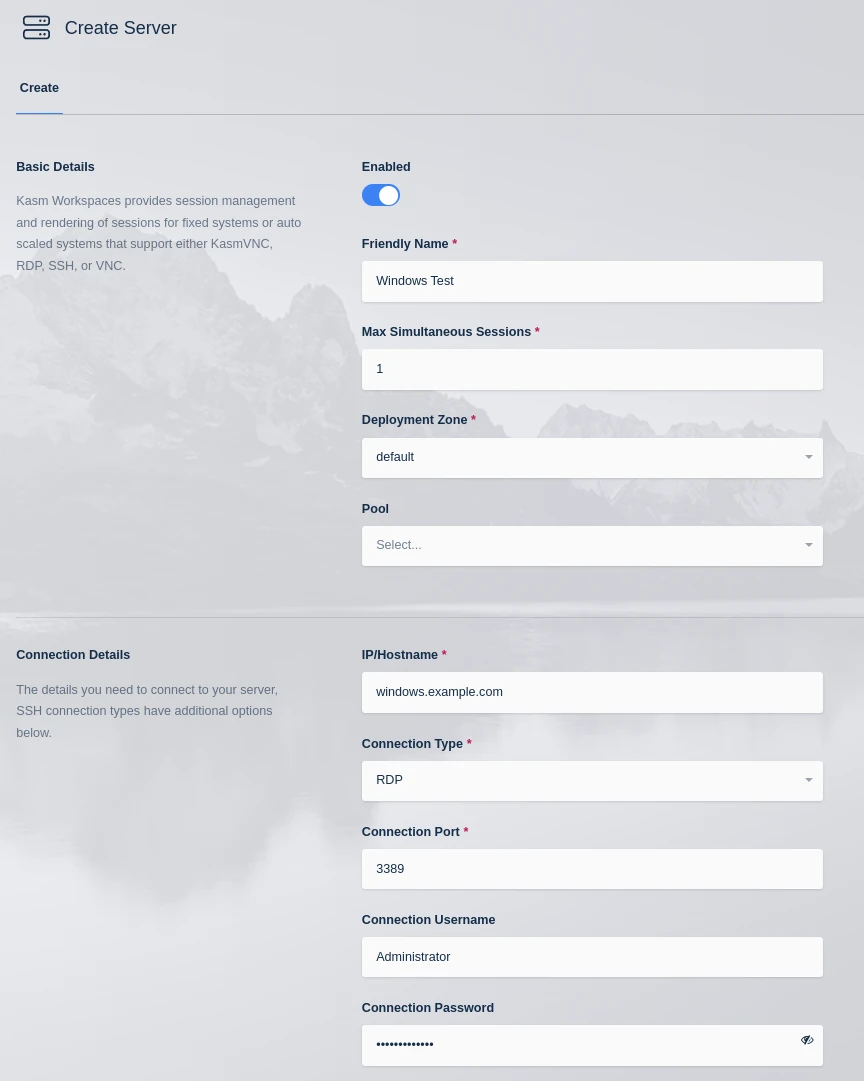
An RDP endpoint is an external Windows server with RDP enabled. Use connection details such as the following:
Host: windows.example.com
Port: 3389
User: Administrator
Password: <password>
Set Max Simultaneous Sessions to 1 for a single Windows server without sharing.
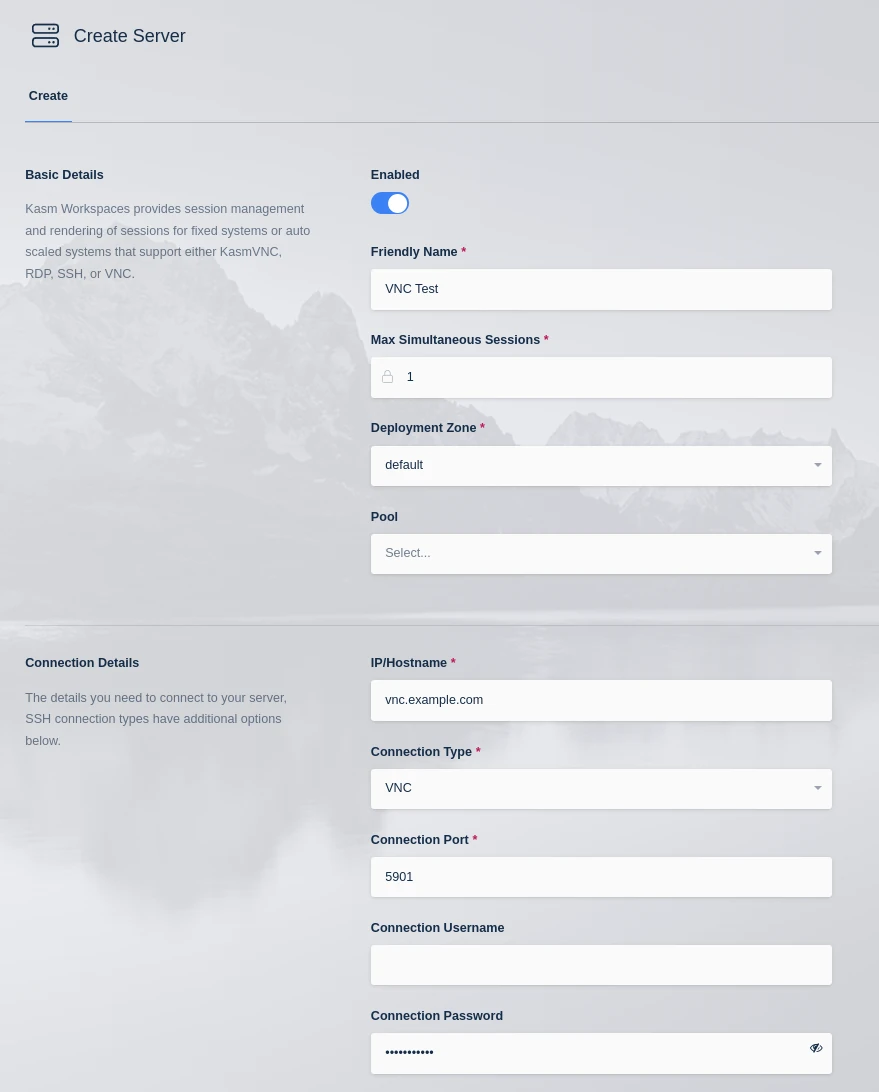
A VNC endpoint is an external Linux server with VNC installed and configured. Use connection details such as the following:
Host: vnc.example.com
Port: 5901
Password: <password>
Set Max Simultaneous Sessions to 1, because VNC allows only one user to have control.
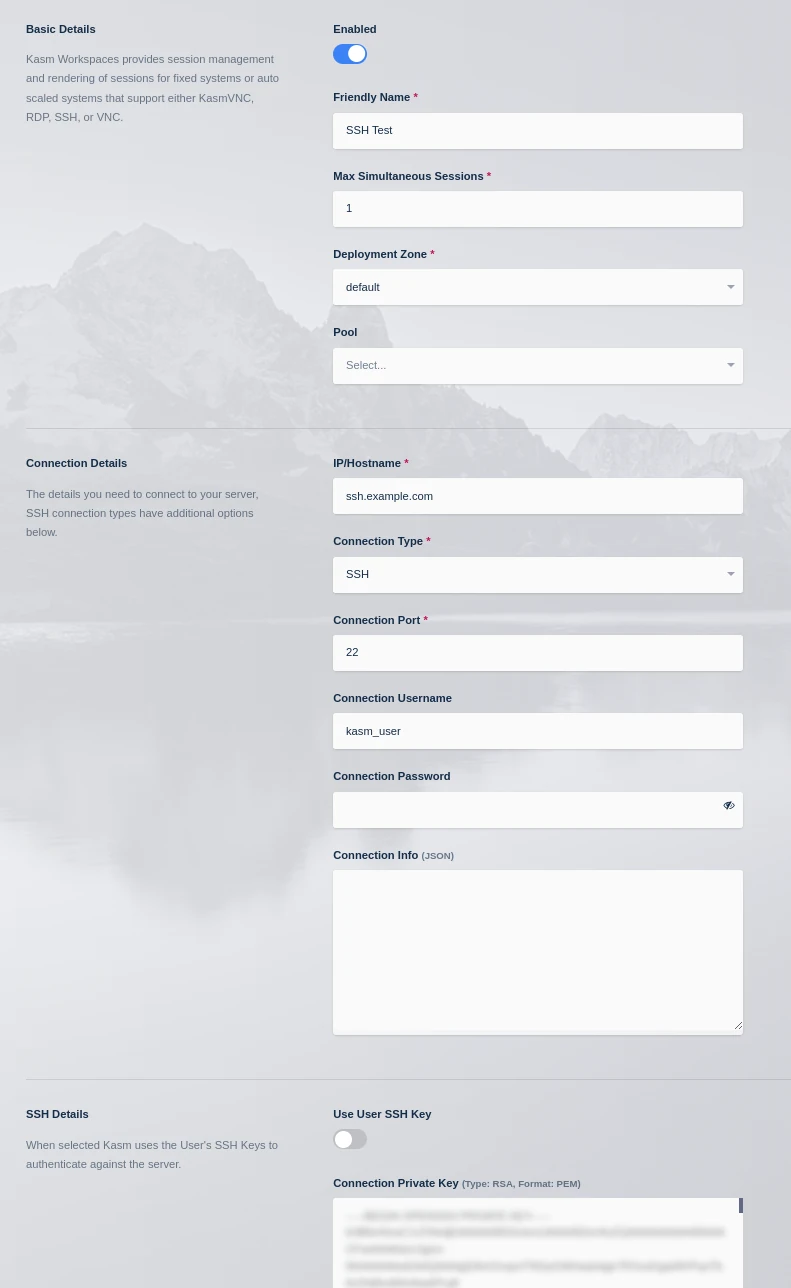
An SSH endpoint is an external Linux server with SSH enabled. Use connection details such as the following:
Host: ssh.example.com
Port: 22
User: Administrator
Connection Private Key: <private-key>
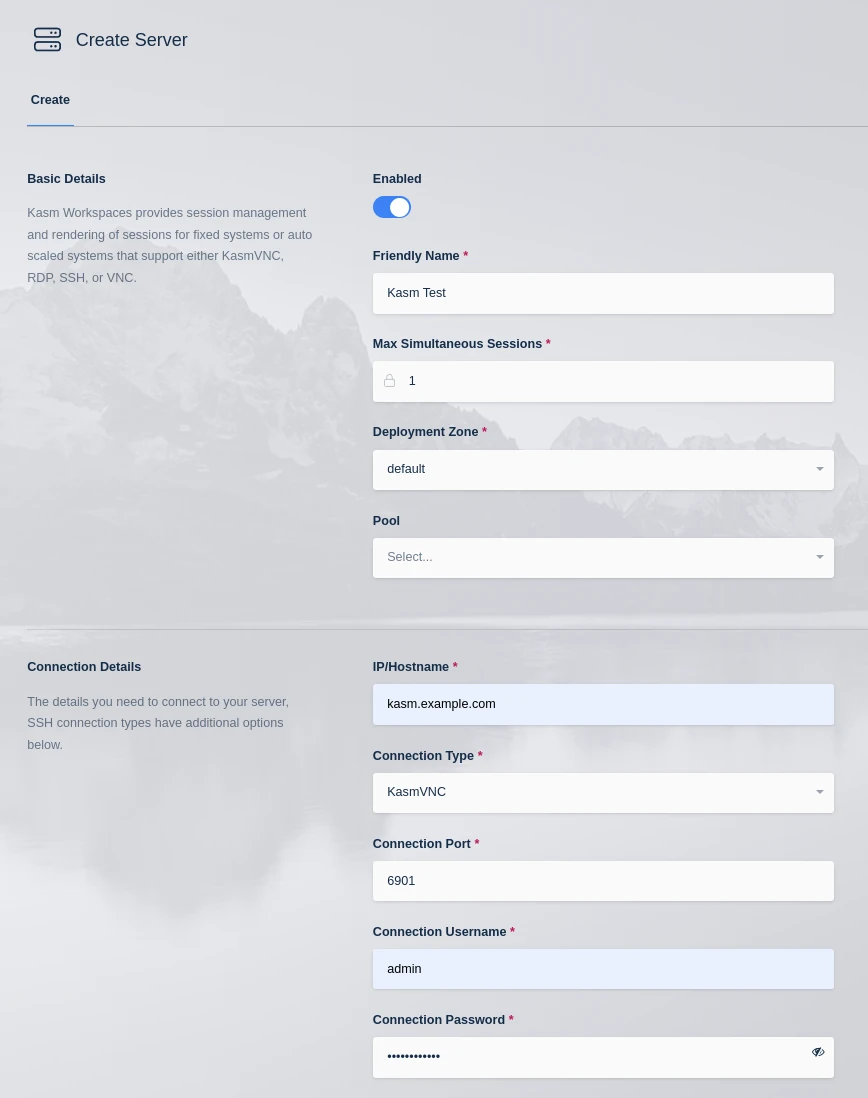
A KasmVNC endpoint is an external standalone Linux machine running KasmVNC, which provides an enhanced web-based connection. Use connection details such as the following:
Host: kasm.example.com
Port: 6901
User: admin
Password: <password>
Click Save to create the server.
Publish the server as a Workspace
Link the server to a Workspace so users can launch it from the user dashboard.
- Navigate to Workspaces, then Workspaces, then Add Workspace.
- Select Server as the Workspace Type.
- Provide a friendly name and a description.
- Check Enabled.
- Select the server you created from the Server drop-down.
- Click Save.
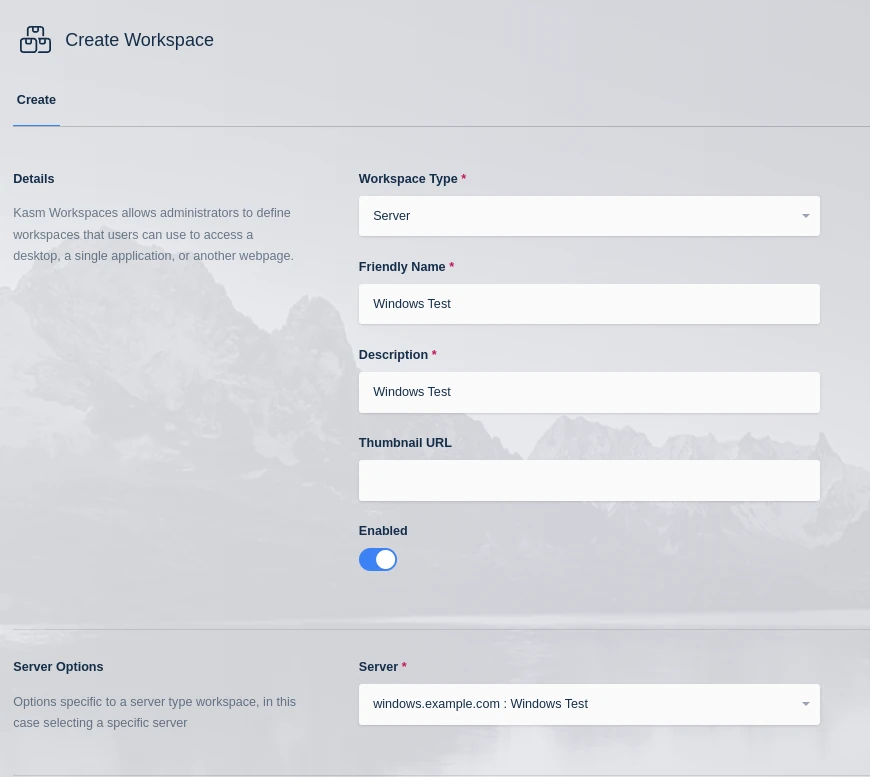
The server is now available to launch from the user dashboard.

Configure advanced settings
Connection info (JSON) settings are documented in the global settings reference. Use them on a per-server basis to override the defaults under Settings.
File upload and download, screenshots, and resource monitoring are available only on a Windows RDP server with the Kasm Desktop Service installed. For installation instructions, see Kasm Desktop Service. Connections to standard RDP servers still work without these features when the service is not installed.
To force the user to log in when launching a Workspace, omit the connection credentials on the server record:
- RDP: omit Connection Username and Connection Password.
- VNC: omit Connection Password.
- SSH: omit Connection Username and the Connection Password or Connection Private Key.
When the credentials are omitted, the user receives a web-based login page each time they launch the Workspace.
For SSH locale and timezone support, the SSH server must allow Guacamole to set two environment variables. In the sshd_config of the target server, set AcceptEnv TZ and AcceptEnv LANG. Install any locales to be used, and define them with localedef as the ISO 639-1 language code, an underscore, the ISO 3166 territory code, and the encoding. For example, en_GB.UTF-8 is English, United Kingdom, encoded in UTF-8. Kasm assumes UTF-8 for all encodings.
Group servers into a pool
Individual servers can be grouped into a pool and launched from a single Workspace that uses any available server in the pool.
- From the Admin dashboard, navigate to Infrastructure, then Pools, then Add.
- Assign a name and select Server under Type.
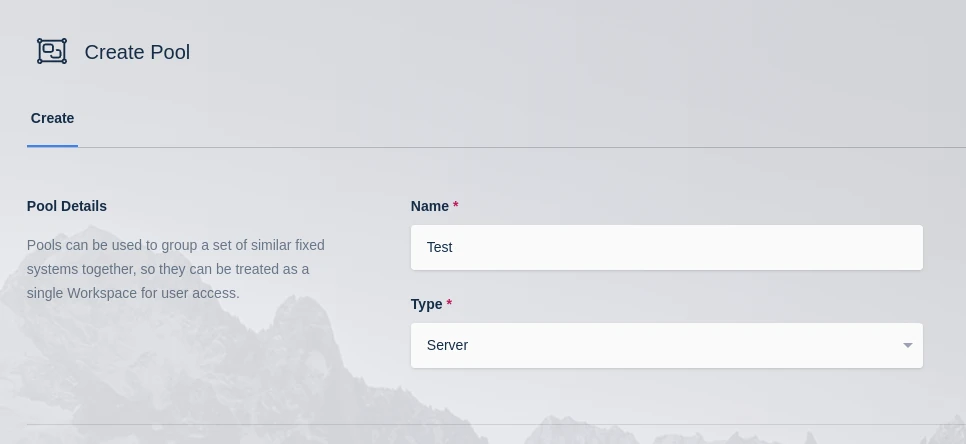
- Click Save, then add new servers or assign existing servers to the pool.
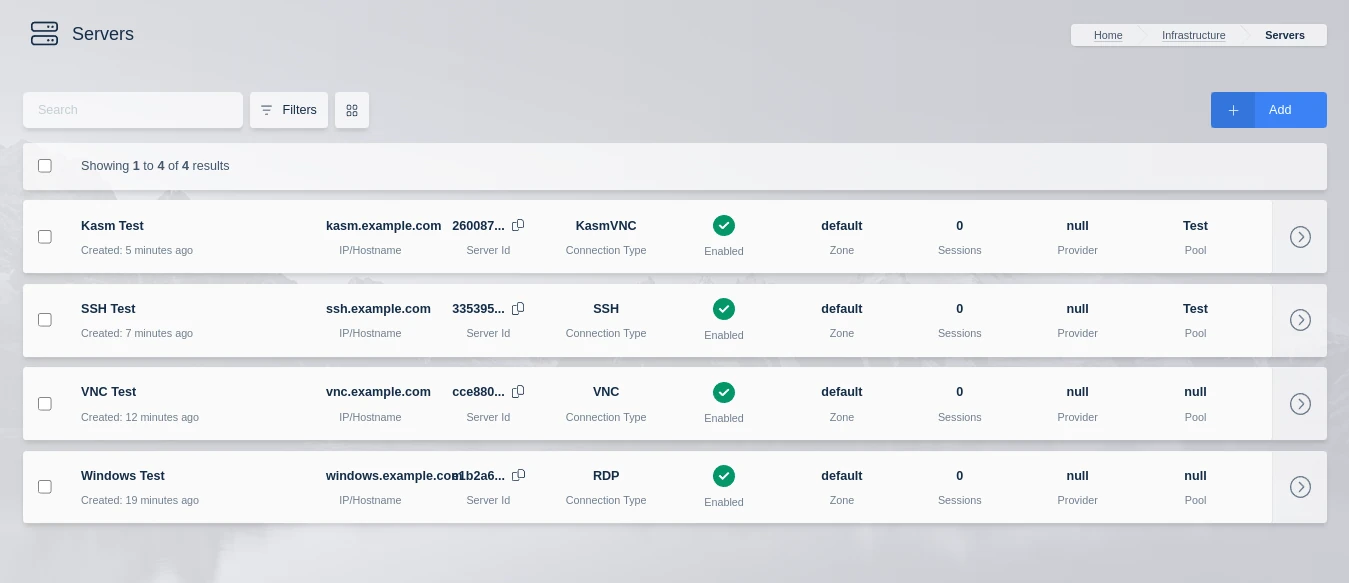
A pool can hold any combination of server endpoints. In production, the pool is typically a set of similar virtual or bare-metal servers. You can also assign a server to a pool by editing the server and selecting the pool under the Pool setting.
- Navigate to Workspaces, then Workspaces, then Add Workspace.
- Select Pool as the Workspace Type, provide a friendly name and description, check Enabled, and select the pool from the Pool drop-down.
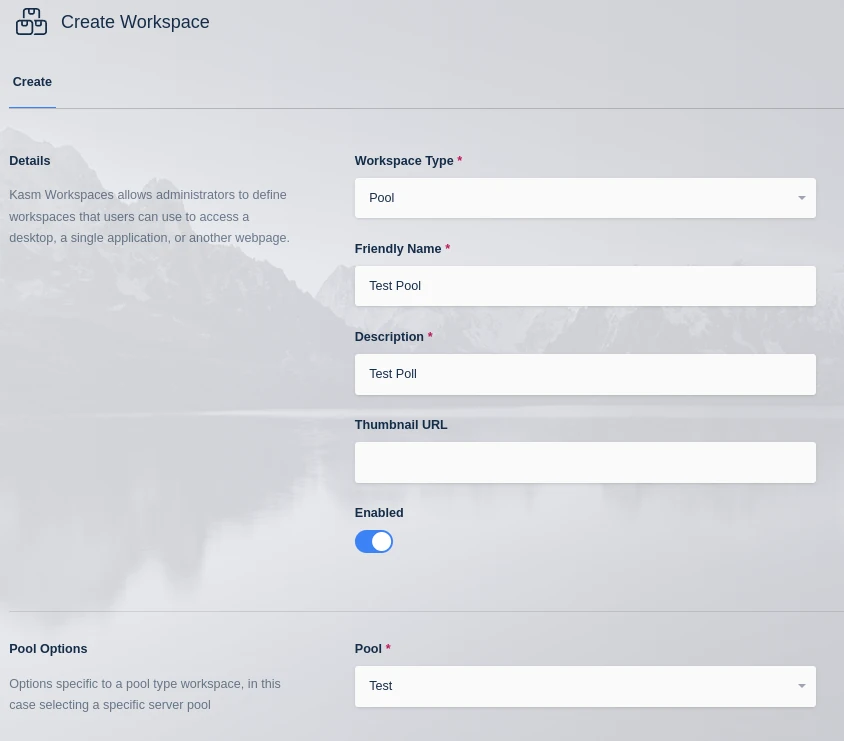
- Click Save.
The pool of servers is now available to launch from the user dashboard.

Common troubleshooting steps
- The connection to the endpoint fails. Confirm the host and port, verify that the server is online and reachable from the Kasm deployment, and confirm the credentials.
- A second user cannot connect to a VNC server. VNC allows one controlling user. Confirm that Max Simultaneous Sessions is set to 1.
- Windows file transfer or monitoring is unavailable. Install the Kasm Desktop Service on the Windows RDP server. See Kasm Desktop Service.
- SSH locale or timezone is not applied. Confirm that
AcceptEnv TZandAcceptEnv LANGare set insshd_configand that the required locales are installed.