Configure remote macOS access in Kasm Workspaces over VNC
Overview
Kasm Workspaces brokers browser-based access to a macOS system through the built-in VNC service that macOS exposes as Remote Management. This guide enables Remote Management on the macOS system, adds the system as a VNC server in Kasm, and publishes it to users as a Workspace. The result is governed, audited remote access to macOS hardware through the same interface that Kasm provides for containers and other servers.
Prerequisites
- A working Kasm Workspaces deployment with administrator access.
- A macOS system that is reachable from the Kasm deployment over VNC, which uses port 5900 by default.
- A macOS user account with permission to enable Remote Management.
Solution approach
This guide progresses through the following phases:
- Enable Remote Management on macOS.
- Add the macOS system as a server in Kasm.
- Publish the server as a Workspace.
Detailed steps
Enable Remote Management on macOS
Remote Management exposes the VNC service that Kasm connects to.
- Open the Settings app on the macOS system and go to the General section.
- Scroll down and click Sharing.
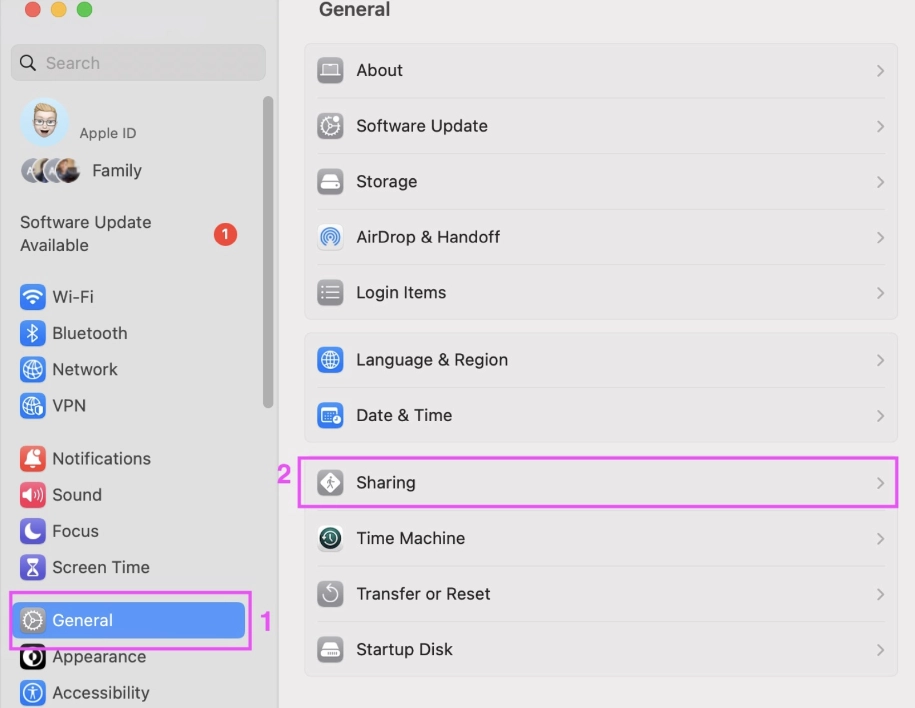
- In Sharing, find Remote Management and enable it.
- Click the information icon next to the Remote Management toggle.
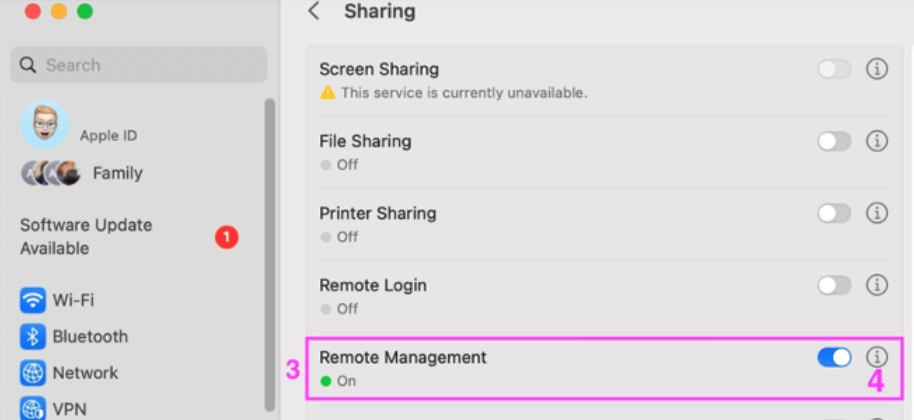
- To restrict the options further, click the computer settings button, clear all the checkboxes, and click OK.
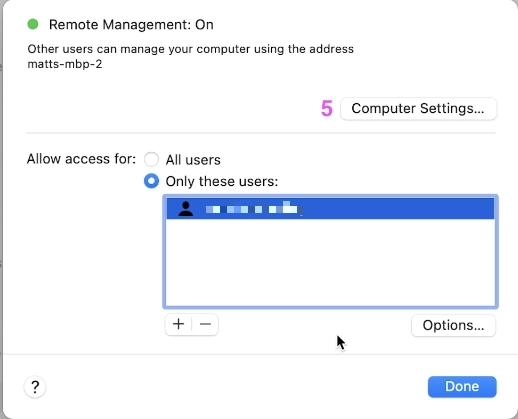
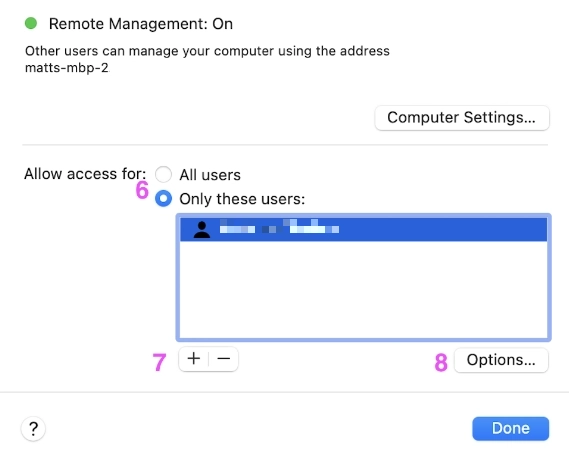
- Change the access option from All Users to Only these users.
- Add your user account to the list of allowed users.
- Click your user account, select Options, and configure the following:
- Check Observe to allow viewing the macOS system remotely.
- Check Control to allow remote control of the macOS system.
- Click OK to save the settings.
Add the macOS system as a server in Kasm
- Log in to Kasm as an administrator.
- Go to Infrastructure, then Servers.
- In the servers list, click Add.
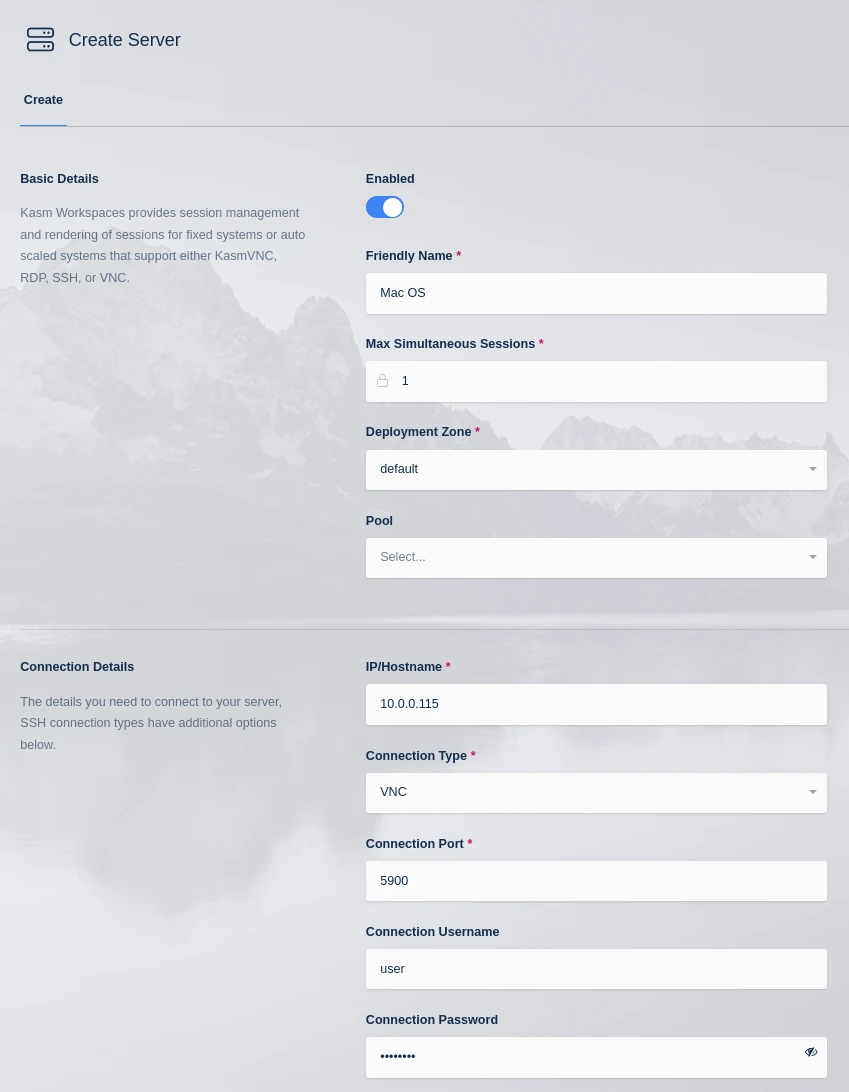
- In the Create Server panel, provide the following information:
- A friendly name to identify the server.
- The IP address of the macOS system.
- VNC as the connection type, which is the remote access protocol macOS uses.
- The port
5900, the default port for VNC. - The macOS username and password to authenticate the connection.
- Max Simultaneous Sessions set to 1, which ensures exclusive access to the server.
- The deployment zone.
- Click Save.
Publish the server as a Workspace
A Workspace makes the macOS system accessible to users.
- Log in to Kasm as an administrator.
- Go to Workspaces, then Workspaces.
- In the workspaces list, click Add Workspace.
- In the Create Workspace panel, provide the following information:
- Server as the Workspace Type, which connects to the macOS server.
- A friendly name to display to users.
- A description of the Workspace.
- The thumbnail URL, optionally, to display as the Workspace icon.
- The Enabled checkbox, checked to activate the Workspace.
- The server you created, selected from the Server drop-down.
- Click Save.
Users can now access the macOS system remotely through Kasm Workspaces.
Common troubleshooting steps
- The connection to the macOS system fails. Confirm the IP address, verify that VNC port 5900 is open, and confirm that Remote Management is enabled for the connecting user.
- The session is view-only. Confirm that Control is checked in the user's Remote Management options.
- A second user cannot connect. VNC allows one controlling user. Confirm that Max Simultaneous Sessions is set to 1 and that no other session is active.