Onboard Windows and Linux servers with enrollment tokens
Overview
Server enrollment tokens streamline onboarding for multiple servers. Each token is reusable and carries pre-configured connection settings, credentials, deployment zone, and access policies, which removes the need to configure each server by hand. This guide creates an enrollment token, enrolls Windows and Linux servers with it, and manages the enrolled servers and tokens over time.
Prerequisites
- A working Kasm Workspaces deployment with administrator access.
- At least one deployment zone, and optionally a server pool for the enrolled servers to join.
- Network connectivity from the Kasm deployment to each server over the configured connection port.
Solution approach
This guide progresses through the following phases:
- Create an enrollment token.
- Enroll servers with the token.
- Manage enrolled servers and tokens.
Detailed steps
Create an enrollment token
To create a token, navigate to Infrastructure, then Servers, then Enrollment Tokens, and click Add. Complete the token configuration using the following properties.
| Property | Description |
|---|---|
| Enabled | Whether this token is active and can be used for server enrollment. |
| Friendly Name | A descriptive name that identifies the token's purpose. |
| Deployment Zone | The deployment zone that enrolled servers are placed in. |
| Server Pool | (Optional) The pool that enrolled servers join. |
| Max Uses | The maximum number of times this token can be used for enrollment. Must be greater than 0. |
| Expiration Date | The date the token expires and can no longer be used. Defaults to 48 hours in the future. |
| Connection Port | The port used to connect to enrolled servers. |
| Connection Type | The RDP connection type for servers. |
| Connection Credential Type | The credential type used for enrolled servers. Options are Static Credentials, Dynamic User Accounts, SSO User Accounts, and Authenticate with Smartcard. |
| SSO Username Domain | Applies when Connection Credential Type is set to SSO User Accounts. Use this field to modify the username. For example, the Kasm username may be john.smith@acme.com, but the target system may expect john.smith@acme.local. A value of localhost strips the domain name from the username, leaving john.smith. A value ending in \ prepends this field to the username, producing acme.local\john.smith. Any other value is appended to the username with @, producing john.smith@acme.local. |
| Connection Username | The username used to connect to enrolled servers. Visible only with the Static Credentials credential type. |
| Connection Password | The password used to connect to enrolled servers. Visible only with the Static Credentials credential type. |
| Connection Info | (Optional) Additional connection info passed to enrolled servers. For more information, see the Connections section of the global settings. |
| Max Simultaneous Sessions | The maximum number of sessions that can connect to each enrolled server at a time. Must be greater than 0. For RDP servers with RemoteApps, set this value higher than Max Simultaneous Users to allow multiple RemoteApps per user. |
| Max Simultaneous Users | For RDP and SSH servers, the number of concurrently connected users per enrolled server. |
Enroll servers with the token
You can enroll servers manually through the Admin UI or programmatically through scripts. For manual enrollment and automated scripting, see the Kasm Desktop Service guide for your platform: Windows or Linux.
The server hostname value is normally used to connect to the server. It cannot currently be templated and must be detected dynamically. Kasm first attempts to connect to the server by its FQDN, and if that fails, attempts the request IP address. Enrollment fails when both attempts are unsuccessful.
Manage enrolled servers and tokens
Once servers are enrolled, they appear in the Infrastructure, Servers, Servers list and are managed like any other server. The server name is derived from the template name plus the first 6 digits of the server ID. Each enrolled server displays the enrollment token used, the enrollment timestamp, and all standard server management options.
To make enrolled servers accessible to users, create a Workspace and add it to a group.
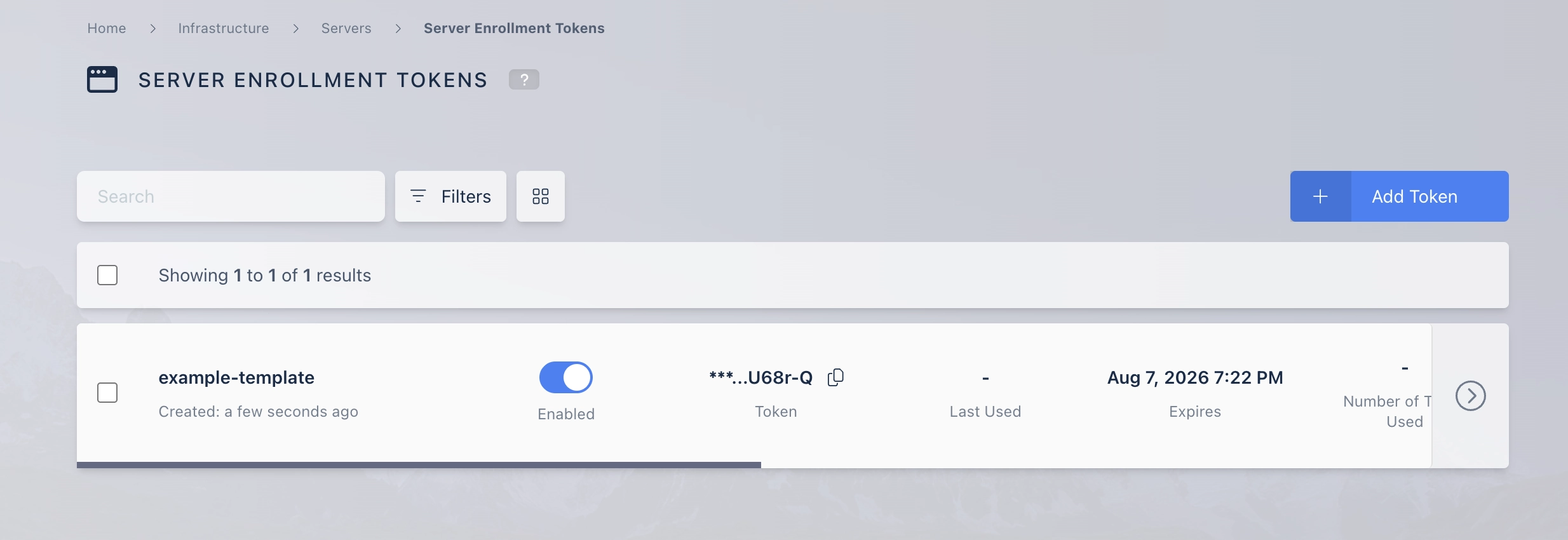
To monitor token usage, navigate to Infrastructure, then Servers, then Server Enrollment Tokens. Each token displays the number of times used, the maximum uses, and the expiration status.
To prevent further use of a token, navigate to the same location and disable or delete the token. Existing enrolled servers remain unaffected.
Treat enrollment tokens as sensitive credentials. Store tokens securely and rotate them regularly. Disabling or deleting a token does not affect servers previously enrolled with that token.
View deleted tokens
Deleted enrollment tokens remain viewable in the Admin UI for debugging. When you know the UUID of a deleted token, navigate to https://<kasm-host>/#/view_server_template/<uuid> to inspect its configuration.
Common troubleshooting steps
- Enrollment fails to connect. Confirm that the server is reachable by FQDN or request IP address and that the configured connection port is open.
- The token cannot be used. Confirm that the token is enabled, that Max Uses is not exhausted, and that the expiration date has not passed.
- Enrolled servers are not visible to users. Confirm that a Workspace targets the server and that the Workspace belongs to a group the users are in.