Advanced connection troubleshooting for Kasm Workspaces
Overview
Enterprise Kasm Workspaces deployments often place advanced Layer 7 firewalls, proxies, and other security devices in the connection path. The combinations of those configurations are effectively endless. This guide helps engineers isolate where an environment prevents Kasm Workspaces from streaming a session, so users reach their workspaces reliably. It covers the most common failure points, from browser behavior through to the KasmVNC server inside the workspace container.
When troubleshooting this issue, always test by creating new sessions after making changes. Resuming a session may not have the changes applied.
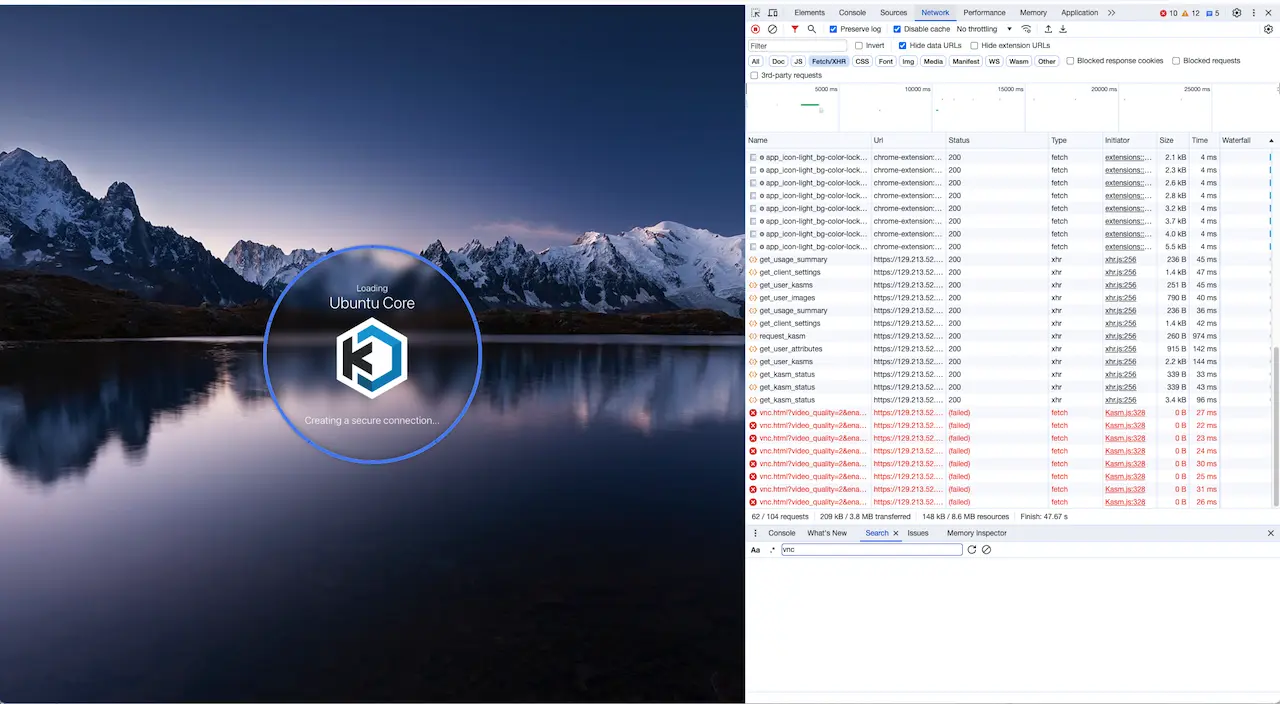
This guide assumes that users reach the Kasm Workspaces application and log in. Users create a session, and Kasm Workspaces provisions a container or VM session for them. The user typically sees the following connecting screen, which may loop. The screenshot below is shown with Chrome Developer Tools open.
Browser extensions
As a first step, open a new Incognito window. Ensure no other Incognito windows are open before opening a new one. This disables browser extensions. It also ensures cookie collisions do not occur. Use the Incognito window for all further testing as you progress through the following sections.
If the problem goes away immediately when using an Incognito window, try a normal window but disable all browser extensions. Enable the extensions one at a time until the issue appears again. If you cannot load a session with all browser extensions disabled, but you can load a session in an Incognito window, then the cause is likely a cookie issue. Follow the troubleshooting steps in the Validate session cookies, Cookie conflict, and Cookie transit sections.
Validate session port
Below is an expanded view of the earlier example, with the URL field extended. In this example, the port going to the KasmVNC session is 8443, while the Kasm web application appears to be on port 443. This mismatch is likely a misconfiguration. Many organizations configure Kasm Workspaces to run on a high port number internally, then proxy to the internet on port 443. This pattern is very common in the DoD and Federal sector, where DISA STIGs disallow the use of privileged low port numbers on internal servers.

The typical pattern is that Kasm Workspaces is installed internally on a high port number. Accessing Kasm Workspaces directly on the high port number works fine. Accessing it externally through a proxy on port 443 causes sessions to fail to load. The setting that applies here is the Zone proxy port setting. This port setting is relative to the client. If Kasm Workspaces runs internally on 8443 but is proxied by an F5, for example, on port 443, set the Zone Proxy Port setting to port 443. After changing the setting, destroy any existing sessions. Newly created sessions pick up the new port change.
Validate session cookies
Standard API calls use tokens in the JSON body of the request. Requests to KasmVNC instead use two cookies that authorize the connection. The cookies are validated at each hop in the path to the user's container. KasmVNC itself does not check the cookies. Instead, the last NGINX server in the path injects an HTTP Authorization header with a unique token. The client never has access to or knowledge of this token. Later sections walk through validating this process. This section focuses on confirming the cookies are present and reaching the last hop.
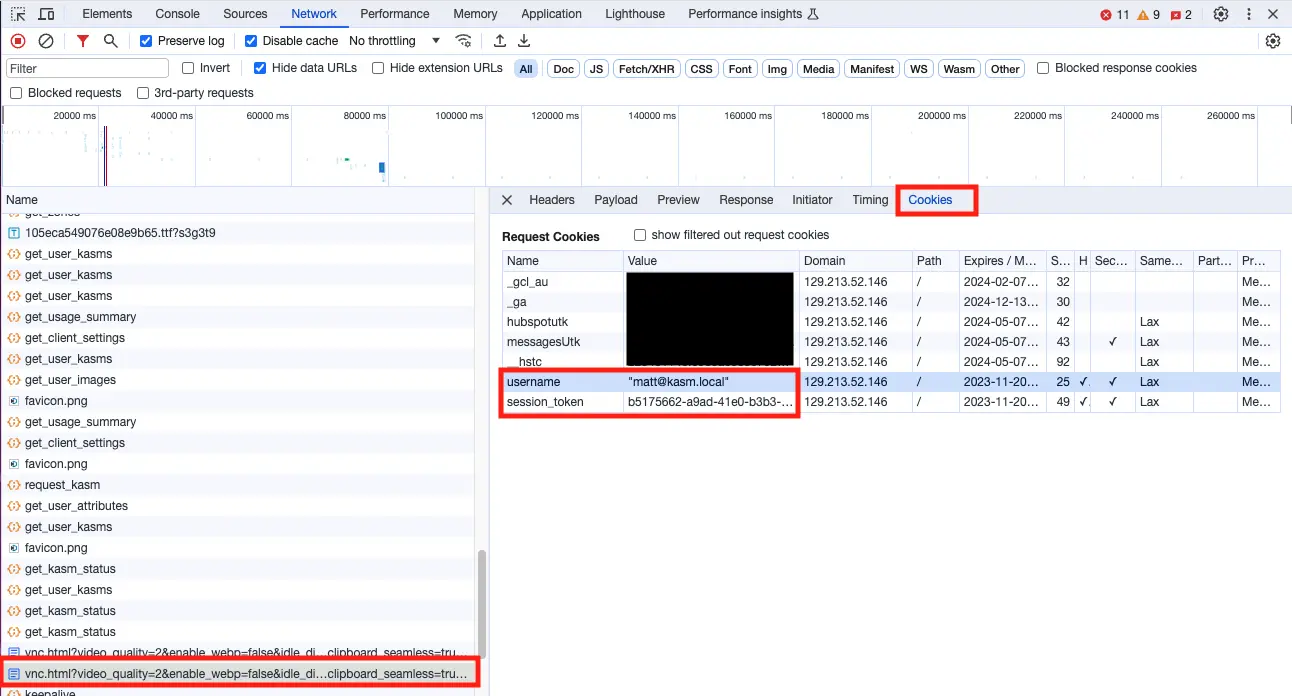
Using the screenshot above as an example, find the request to load vnc.html and select the request. On the Cookies sub tab for the request, ensure the checkbox show filtered out request cookies is unchecked. The username and session_token cookies are the ones required by Kasm Workspaces. Ensure there is only one of each.
If the username or session_token cookie is missing, select show filtered out request cookies to see whether the cookie is present but blocked by your browser. See the Browser blocking cookies section for troubleshooting this issue.
If there are multiple username or multiple session_token cookies, see the Cookie conflict section.
If both cookies are present and there is only one of each, continue to the Cookie transit section.
Cookie conflict
If you deploy Kasm Workspaces on a subdomain of your company's primary domain name, such as kasm.apps.acme.com, you may see a very long list of cookies. Your company may have hundreds of other websites under the apps.acme.com domain name. These applications may be configured insecurely by allowing their cookies to be sent to all applications under acme.com.
This can cause many issues. The first issue is that app.acme.com may also set a username or session_token cookie, causing overlapping cookies. To fix this, identify the offending applications. Make the domain field of cookies for the offending application more specific, so the cookies do not apply to all hostnames under the same domain.
Another issue is that other applications on your domain may not follow the specification for cookies. Kasm Technologies has identified multiple instances where other applications on a corporate domain both inappropriately set the domain field on the cookie and set cookies with invalid characters in the name. Unfortunately, browsers have chosen to be more amenable to servers that do not meet the specification. As a result, these invalid cookies are sent to all web applications on the corporate domain. Not all web servers handle invalid cookies as willingly as some browsers. The Kasm API service stops processing cookies on a request once it hits an invalid cookie. Fortunately, as of Kasm Workspaces 1.14.0, Kasm Workspaces blocks all cookies at the NGINX container that do not match any of the names of cookies that Kasm Workspaces sets.
As stated earlier, KasmVNC does not use cookies. The NGINX proxy in front of user containers uses the cookies to authorize the incoming request and places a session token in a header for KasmVNC. KasmVNC does not use cookies, but it is limited in the total length of any header, including the cookies header. In all supported versions of Kasm Workspaces, NGINX modifies the cookie header by dropping cookies that are not relevant to KasmVNC.
In conclusion, if a large number of cookies are being sent, ensure you are using a supported version of Kasm Workspaces. This resolves most issues but does not address cookie conflicts. If multiple cookies are present with the name username or session_token, follow the guidance above.
If you see multiple cookies with the name username or session_token, follow the guidance above.
Browser blocking cookies
Browsers can block cookies for a number of reasons. Browser extensions and security software can also block cookies for many reasons. A good place to start is the Console tab within DevTools. If the browser itself blocks the cookies, it usually lists the reason. Common reasons for the browser to block the cookie include Cross-Origin Resource Sharing security mechanisms. If Console tab output indicates CORS issues, ensure you are on the latest release of Kasm Workspaces. Kasm Workspaces 1.14.0 included better handling of CORS issues for common architectures.
CORS issues can arise when Kasm Workspaces is set up with multiple Zones, with each zone in a different region. Each zone has a different domain name. When a user navigates to the main site, such as kasm.acme.com, all requests go to the primary region's API servers. When a user creates a session, the iframe for the KasmVNC or RDP session goes to the region-specific hostname, such as us-east.kasm.acme.com. All zone domain names must be subdomains of the primary site, otherwise CORS issues occur. Do not, for example, make the primary application domain kasm.acme.com and a zone domain us-east.acme.com. Ensure that zone domain names are subdomains of the primary Kasm Workspaces domain name.
Cookie transit
After confirming that the required cookies are present and being sent by the browser, confirm the cookies are reaching Kasm Workspaces. Enterprises with complex architectures may have multiple security or proxy devices in the path. These devices can interfere with the transmission of cookies and other HTTP headers. The following guidance assumes a multi-server deployment. On a single-server deployment, you may skip some parts that do not apply.
Trace the request at each hop to ensure the cookie is received at all hops. First, create a session and do not destroy it. Go to the admin page in Kasm Workspaces and navigate to the sessions panel. Find your session and note which agent the session is on. You need to tail logs on all API servers and the agent server that your session is on. Load balancers typically spread requests across all WebApp servers, which makes troubleshooting more difficult. For this demonstration, the front-end load balancer is configured to send all requests to a single Kasm API (WebApp) server. Alternatively, repeat these steps on all API servers and tail the logs on all of them at once.
SSH to each API server and Agent and modify the NGINX configuration.
# Modify the NGINX logging to include the session token
sudo sed -i "s#cookie_username\",'#cookie_username\",'\n          '\"cookie_session_token\": \"\$cookie_session_token\",'#" /opt/kasm/current/conf/nginx/logging.conf

# Reload nginx
sudo docker exec -it kasm_proxy nginx -s reload
# You may get warnings in the output depending on your configuration, ensure no errors are present

# Tail the NGINX logs to find requests to load vnc.html.
# You can filter further by piping the results to another grep and looking for your username.
sudo tail -f /opt/kasm/current/log/nginx/access_json.log | grep -P 'request":"GET \S+?vnc\.html'
Here is an example log.
{"upstream_response_length": "6318","body_bytes_sent": "6318","server_addr": "172.18.0.9","server_port": "443","request_method": "GET","http_referer": "https://139.243.62.99/","http_user_agent": "Mozilla/5.0 (Macintosh; Intel Mac OS X 10_15_7) AppleWebKit/537.36 (KHTML, like Gecko) Chrome/119.0.0.0 Safari/537.36","http_x_forwarded_for": "","http_x_header": "","nginx_version": "1.25.1","server_protocol": "HTTP/1.1","request":"GET /desktop/3f712ec4-c6c5-49c9-a74b-eb3ba2939eab/vnc/vnc.html?video_quality=2&enable_webp=false&idle_disconnect=20&password=&autoconnect=1&path=desktop/3f712ec4-c6c5-49c9-a74b-eb3ba2939eab/vnc/websockify&cursor=true&resize=remote&clipboard_up=true&clipboard_down=true&clipboard_seamless=true&toggle_control_panel=null HTTP/1.1","request_length": "1336","request_time": "0.025","upstream_response_time": "0.021","request_host":"139.243.62.99","server_name": "ubuntu-base","remote_addr": "119.15.5.44","realip_remote_addr": "119.15.5.44","http_status": "200","time_local":"17/Nov/2023:15:03:26 +0000","time_iso8601":"2023-11-17T15:03:26+00:00","msec":"1700233406.024","upstream_addr": "172.18.0.9:443","upstream_connect_time": "0.001","upstream_response_time": "0.021","upstream_status": "200","uri": "/3f712ec4-c6c5-49c9-a74b-eb3ba2939eab/vnc/vnc.html","query_string": "video_quality=2&enable_webp=false&idle_disconnect=20&password=&autoconnect=1&path=desktop/3f712ec4-c6c5-49c9-a74b-eb3ba2939eab/vnc/websockify&cursor=true&resize=remote&clipboard_up=true&clipboard_down=true&clipboard_seamless=true&toggle_control_panel=null","remote_user": "","cookie_username": "\"matt@kasm.local\"","cookie_session_token": "b5175662-a9ad-41e0-b3b3-69f3cc4fa5bd","upstream_header_time": "0.020"}
Ensure that the cookie_username and cookie_session_token fields are in the JSON and contain valid values.
The following is an example log where the cookie values are not present. When the cookies are not present or otherwise not valid, there is no upstream_status. This is because NGINX never proxied the request, since the request authorization failed.
{"upstream_response_length": "","body_bytes_sent": "177","server_addr": "172.18.0.9","server_port": "443","request_method": "GET","http_referer": "https://139.243.62.99/","http_user_agent": "Mozilla/5.0 (Macintosh; Intel Mac OS X 10_15_7) AppleWebKit/537.36 (KHTML, like Gecko) Chrome/119.0.0.0 Safari/537.36","http_x_forwarded_for": "","http_x_header": "","nginx_version": "1.25.1","server_protocol": "HTTP/1.1","request":"GET /desktop/3f712ec4-c6c5-49c9-a74b-eb3ba2939eab/vnc/vnc.html?video_quality=2&enable_webp=false&idle_disconnect=20&password=&autoconnect=1&path=desktop/3f712ec4-c6c5-49c9-a74b-eb3ba2939eab/vnc/websockify&cursor=true&resize=remote&clipboard_up=true&clipboard_down=true&clipboard_seamless=true&toggle_control_panel=null HTTP/1.1","request_length": "870","request_time": "0.003","upstream_response_time": "","request_host":"139.243.62.99","server_name": "ubuntu-base","remote_addr": "119.15.5.44","realip_remote_addr": "119.15.5.44","http_status": "403","time_local":"17/Nov/2023:15:09:37 +0000","time_iso8601":"2023-11-17T15:09:37+00:00","msec":"1700233777.141","upstream_addr": "","upstream_connect_time": "","upstream_response_time": "","upstream_status": "","uri": "/3f712ec4-c6c5-49c9-a74b-eb3ba2939eab/vnc/vnc.html","query_string": "video_quality=2&enable_webp=false&idle_disconnect=20&password=&autoconnect=1&path=desktop/3f712ec4-c6c5-49c9-a74b-eb3ba2939eab/vnc/websockify&cursor=true&resize=remote&clipboard_up=true&clipboard_down=true&clipboard_seamless=true&toggle_control_panel=null","remote_user": "","cookie_username": "","cookie_session_token": "","upstream_header_time": ""}
Ensure this test passes on all API servers and the agent server that the session's container is on. If the session_token or username values are empty in the logs of any API server, then something between the user's browser and the Kasm WebApp server, not including the WebApp server itself, is interfering. This can include the user's own systems, since security software installed on the client's system can intercept communications, either in transit or as a browser extension. Devices between the client and the Kasm WebApp server can also interfere with HTTP headers, such as the cookie header. Inspect the logs of any security or proxy devices in the network path to ensure the cookies are not blocked. If possible, output the cookies within the logs of each device, as done for NGINX, to confirm that each device in the path receives the logs.
If you saw the request come into the API server, and the cookies were present with valid values, but the request was denied with a 403 in the http_status field, then proceed to the Validate session authorization section. Also proceed to that section if you saw the request come in at the Agent server but it returned any status code other than a 200 series.
If you saw the request come into the API server, and the cookies were present with valid values, but the request returned a 502 or 504, there is likely a connectivity issue to the agent. Use curl to check the health of each agent from each of the API servers.
curl -k https://<agent_ip>:443/agent/__healthcheck
{"ok": true}
If all the API servers can reach the agent, then proceed to the Validate session authorization section.
Validate session authorization
When a user's request travels to their session container, it traverses a WebApp server's nginx container. It then travels to the agent server that the container is on, traverses an nginx container, and finally reaches the user's container. On both servers, the NGINX container makes an API call to the kasm_api container. For the WebApp server, this kasm_api container resides on the same server as nginx and in the same docker network. The WebApp server's NGINX container makes a call to /api/kasm_connect to retrieve the details of where to forward the request. In a distributed architecture, the agent can be anywhere and be privately addressed. The client does not have the IP address or hostname of the agent, nor does the user's HTTP request contain this information. NGINX calls the kasm_connect API to retrieve the required information. Run the following command to check that the API container receives the request and that it returns a 202 status code.
sudo docker logs -f --tail 10 kasm_api 2>&1 | grep /api/kasm_connect
2023-11-17 18:31:01,529 [INFO] cherrypy.access.140087972390848: 172.18.0.9 - - [17/Nov/2023:18:31:01] "GET /api/kasm_connect/ HTTP/1.0" 202 - "https://kasm.example.com/" "Mozilla/5.0 (Macintosh; Intel Mac OS X 10_15_7) AppleWebKit/537.36 (KHTML, like Gecko) Chrome/119.0.0.0 Safari/537.36"
In the example above, the /api/kasm_connect API call was received and a status code 202 was returned, indicating it should have been successful. Ensure that the target agent is reachable from each API server. NGINX receives the same IP or hostname that is shown in the Kasm Admin UI under Infrastructure > Docker Agents. Use the address listed there in the curl example below to ensure the API server can reach the agent in question.
curl -k https://<agent_ip>:443/agent/__healthcheck
{"ok": true}
The Agent server sends API calls to the Kasm WebApp server to authorize the incoming request. This can sometimes cause issues in complex environments. First, check your deployment's configuration. Go to the Kasm Admin UI and navigate to Infrastructure > Zones, then edit the applicable Zone. In the Zone settings is the Upstream Auth Address. For a multi-server deployment, the default value is $request_host$, which is a Kasm variable that gets replaced at runtime with the hostname of the incoming request. Walk through the following example.
Client --> Load Balancer (kasm.example.com) --> Layer 7 Firewall --> Kasm WebApp Servers --> Agent
A client connects to Kasm Workspaces at https://kasm.example.com. The load balancer then forwards that to one of 4 Kasm WebApp servers, which forward the request to the agent that the user's container is on. When the agent receives the request, it needs to authorize the request. With default Zone settings on a multi-server deployment, it sends that API call to https://kasm.example.com/api/internal_auth. This default behavior works for many deployments. In this example, however, the domain name kasm.example.com does not point directly to the WebApp servers. It points to a public load balancer in a DMZ elsewhere in the enterprise. The Kasm agents may not have access to send API calls there, or the calls might be subject to a forward proxy with SSL inspection. To validate whether your agent can reach the API servers through this default setting, run the following command.
# success
curl -k https://kasm.example.com/api/__healthcheck
{"ok": true}

# name resolution fails
curl -k https://kasm.example.com/api/__healthcheck
curl: (6) Could not resolve host: kasm.example.com

# invalid host
curl -k https://kasm.example.com/api/__healthcheck
curl: (7) Failed to connect to 10.0.0.251 port 443 after 3074 ms: No route to host
If you do not get the JSON response shown in the first example above, then your agent likely cannot reach the WebApp server through the same domain name that your clients use to access Kasm Workspaces. A better architecture for enterprise-grade deployments uses an internal load balancer with a hostname. Change the Zone Upstream Auth Address to the hostname of the internal load balancer. Ensure you can curl the API health check through the internal load balancer from the agents. Another approach uses an internal DNS name that points to all 4 WebApp servers, with the Zone's Upstream Auth Address changed to point to that internal hostname. After changing this setting, delete any created sessions. Any newly created sessions have the new setting.
Finally, confirm that an API server actually received the internal_auth API request and what it did with the request. Run the command below on each WebApp server to inspect the API container logs for internal_auth requests.
sudo docker logs -f kasm_api 2>&1 | grep internal_auth
2023-11-15 18:43:18,076 [INFO] cherrypy.access.140168522947744: 172.18.0.9 - - [15/Nov/2023:18:43:18] "GET /api/internal_auth/ HTTP/1.1" 202 - "https://kasm.example.com/" "Mozilla/5.0 (Macintosh; Intel Mac OS X 10_15_7) AppleWebKit/537.36 (KHTML, like Gecko) Chrome/119.0.0.0 Safari/537.36"
The example log above shows a 202 response, indicating the request was both received and authorized.
WebSockets
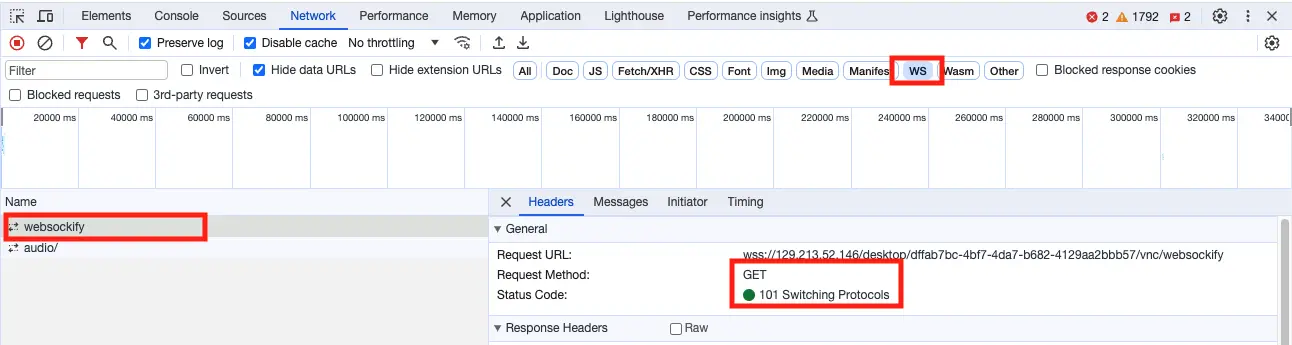
The actual stream of the desktop session goes through a WebSocket connection. WebSocket connections are handled differently and may be blocked or otherwise disrupted by security software installed on the client system or by security devices in the path from the client to the Kasm WebApp servers. First, make sure the client sends the request for the WebSocket connection in the first place. Open DevTools in the browser, go to the Network tab, and then attempt to connect to a session. Click the WS filter, shown in the screenshot below, to get just the WebSocket connections, and look for the websockify request.
Also check the Console tab in DevTools and ensure you do not see errors.
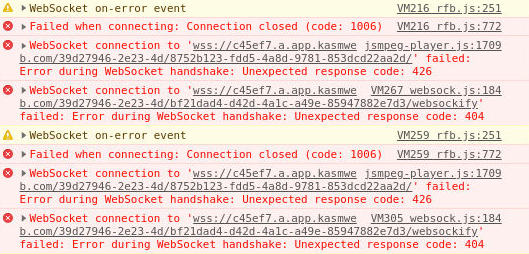
Next, determine whether the websockify request reaches the target agent. The easiest way to quickly determine whether the WebSocket connection reaches the agent is to run the following command on the agent.
sudo docker logs -f kasm_proxy 2>&1 | grep '/websockify ' | grep -v -P '(internal_auth|kasm_connect)'
123.123.123.123 - - [15/Nov/2023:18:50:20 +0000] "GET /desktop/72248a05-922d-4518-b92f-7a9d1ea529eb/vnc/websockify HTTP/1.1" 101 3104787 "-" "Mozilla/5.0 (Macintosh; Intel Mac OS X 10_15_7) AppleWebKit/537.36 (KHTML, like Gecko) Chrome/119.0.0.0 Safari/537.36" "-"
In the example above, the request was received and the response code was 101, which is what should happen. If you see this request come in on the agent, then the WebSocket has traversed all the way through the stack to the agent. In this case, proceed to the next section.
If you do not see any output from the command above on the Agent, then something in your stack, prior to Kasm Workspaces, is interfering with the WebSocket connection.
KasmVNC troubleshooting
If you have verified all the steps above, the next step is to troubleshoot KasmVNC. First, enable debug logging on the user container.
- In the Kasm Admin UI, navigate to Workspaces > Workspaces.
- Find the target Workspace in the list and click the Edit button.
- Scroll down to the Docker Run Config Override field and paste in the following:
{ "environment": { "KASM_DEBUG": 1 } }. - Launch a new session.
Now SSH to the agent that the session was provisioned on and run the following command to get a shell inside the container.
# Get a list of running containers and identify your session container, the name of the container contains your partial username and session ID.
sudo docker ps
CONTAINER ID   IMAGE                                                               COMMAND                  CREATED         STATUS                PORTS                                           NAMES
125348fe9990   kasmweb/core-ubuntu-jammy-private:feature_KASM-5078_multi-monitor   "/dockerstartup/kasm…"   3 minutes ago   Up 3 minutes          4901/tcp, 5901/tcp, 6901/tcp                    mattkasm.loc_4f8ada7f

# Get a shell inside of the container
sudo docker exec -it 125348fe9990 /bin/bash
default:~$

# Tail the KasmVNC logs
default:~$ tail -f .vnc/125348fe9990\:1.log
With the tail of the logs running, try to connect to the session. You see a number of normal HTTP requests that load the static page resources, such as vnc.html, JavaScript, stylesheets, and similar files. They look like the following:
 2023-11-17 14:51:07,525 [DEBUG] websocket 141: BasicAuth matched
 2023-11-17 14:51:07,525 [INFO] websocket 141: /websockify request failed websocket checks, not a GET request, or missing Upgrade header
 2023-11-17 14:51:07,525 [DEBUG] websocket 141: Invalid WS request, maybe a HTTP one
 2023-11-17 14:51:07,525 [DEBUG] websocket 141: Requested file '/app/sounds/bell.oga'
 2023-11-17 14:51:07,525 [INFO] websocket 141: 172.18.0.9 71.62.47.171 kasm_user "GET /app/sounds/bell.oga HTTP/1.1" 200 8701
 2023-11-17 14:51:07,525 [DEBUG] websocket 141: No connection after handshake
 2023-11-17 14:51:07,525 [DEBUG] websocket 141: handler exit
The first field is the date and time. After the time is a comma, followed by a number, and that number is an HTTP request ID. Group each request by ID, so that you have all logs for a specific request. In the example above, all the logs were produced for the request for /app/sounds/bell.oga. The log message "/websockify request failed websocket checks, not a GET request, or missing Upgrade header" is misleading. This is not, in and of itself, an issue. It merely means the incoming request was not a WebSocket request. In the beginning, KasmVNC only had a WebSocket server and it did not handle other types of web requests. The message is only relevant if the requested file was /websockify. If you saw the message "/websockify request failed websocket checks, not a GET request, or missing Upgrade header" for the /websockify file, then KasmVNC was unable to identify the request as a valid WebSocket connection.
Below is an example of what you should see for the WebSocket connection. Note the message "using protocol HyBi/IETF 6455 13", which indicates that KasmVNC correctly identified the exact WebSocket specification used by the browser.
 2023-11-17 14:51:07,526 [DEBUG] websocket 142: using SSL socket
 2023-11-17 14:51:07,526 [DEBUG] websocket 142: X-Forwarded-For ip '71.62.47.171'
 2023-11-17 14:51:07,529 [DEBUG] websocket 142: BasicAuth matched
 2023-11-17 14:51:07,529 [DEBUG] websocket 142: using protocol HyBi/IETF 6455 13
 2023-11-17 14:51:07,529 [DEBUG] websocket 142: connecting to VNC target
 2023-11-17 14:51:07,529 [DEBUG] XserverDesktop: new client, sock 32
In some cases, KasmVNC could have a bug. In the recent past, KasmVNC would crash due to large cookies or if the WebSocket connection was not exactly to the spec. These issues have since been corrected. However, there is no end to the combination of devices and services that sit between users and Kasm Workspaces. In some cases, these security devices or services manipulate the HTTP requests in a way that brings them out of compliance with the specification. This can cause improper handling by KasmVNC. The following is an example of what a crash looks like in the KasmVNC logs.
(EE)
(EE) Backtrace:
(EE) 0: /usr/bin/Xvnc (xorg_backtrace+0x4d) [0x5e48dd]
(EE) 1: /usr/bin/Xvnc (0x400000+0x1e8259) [0x5e8259]
(EE) 2: /lib/x86_64-linux-gnu/libpthread.so.0 (0x7f5a57ef6000+0x12980) [0x7f5a57f08980]
(EE) 3: /lib/x86_64-linux-gnu/libc.so.6 (epoll_wait+0x57) [0x7f5a552eca47]
(EE) 4: /usr/bin/Xvnc (ospoll_wait+0x37) [0x5e8d07]
(EE) 5: /usr/bin/Xvnc (WaitForSomething+0x1c3) [0x5e2813]
(EE) 6: /usr/bin/Xvnc (Dispatch+0xa7) [0x597007]
(EE) 7: /usr/bin/Xvnc (dix_main+0x36e) [0x59b1fe]
(EE) 8: /lib/x86_64-linux-gnu/libc.so.6 (__libc_start_main+0xe7) [0x7f5a551ecbf7]
(EE) 9: /usr/bin/Xvnc (_start+0x2a) [0x46048a]
(EE)
(EE) Received signal 11 sent by process 17182, uid 0
(EE)
Fatal server error:
(EE) Caught signal 11 (Segmentation fault). Server aborting
(EE)
The container's entrypoint script restarts KasmVNC automatically, so you may see this repeat. Copy the backtrace output and provide it to Kasm support, along with the output of the following command.
sudo docker exec -it 125348fe9990 Xvnc -version

Xvnc KasmVNC 1.2.0.e4a5004f4b89b9da78c9b5f5aee59c08c662ccec - built Oct 31 2023 11:22:56
Copyright (C) 1999-2018 KasmVNC Team and many others (see README.me)
See http://kasmweb.com for information on KasmVNC.
Underlying X server release 12008000, The X.Org Foundation
With the information above, Kasm support can symbolize the backtrace and potentially identify the issue.
nginx proxy log collection
The OTel Collector on the proxy node collects nginx access and error logs via a filelog receiver. Use the steps in this section to troubleshoot missing nginx logs in ClickHouse.
Verifying nginx proxy log collection
Step 1 — Check the volume mount:
docker inspect kasm_otel_collector | grep -A5 nginx
Expect /opt/kasm/current/log/nginx → /var/log/nginx/external.
Step 2 — Confirm the log file exists on the host:
ls -la /opt/kasm/current/log/nginx/access_json.log
Step 3 — Check collector filelog errors:
docker logs kasm_otel_collector 2>&1 | grep -i filelog
Step 4 — Query ClickHouse for nginx records:
SELECT count(), max(Timestamp)
FROM kasm_otel.otel_logs
WHERE ResourceAttributes['service.name'] = 'kasm-proxy'
  AND Timestamp > now() - INTERVAL 1 HOUR;
nginx request-level traces: nginx emits a trace span for every proxied request in otel_traces. Session-connect requests additionally carry kasm.kasm.id and kasm.kasm.user_name span attributes.
Server configuration issues
The following sections cover configuration issues on individual servers. These issues are at the host OS level, so they are not with Kasm Workspaces itself, but with the configuration of the host operating system or its dependencies.
Confirm local connectivity
Sometimes during troubleshooting, if individual Kasm service containers are started, stopped, or restarted, the Kasm proxy container may lose the local hostname resolution of the other containers. First, stop and start the Kasm services to refresh hostname resolution and to ensure that all containers start in the proper order.
sudo systemctl restart kasm
Next, confirm that all services are up, running, and healthy. The following output shows that all services are up, running, and healthy. This output is from a single-server deployment.
sudo docker ps -a
CONTAINER ID   IMAGE                             COMMAND                  CREATED      STATUS                PORTS                                           NAMES
401963ee87a0   kasmweb/proxy:1.19.0              "/docker-entrypoint.…"   6 days ago   Up 6 days             80/tcp, 0.0.0.0:443->443/tcp, :::443->443/tcp   kasm_proxy
0eb604899140   kasmweb/agent:1.19.0              "/bin/sh -c '/usr/bi…"   6 days ago   Up 6 days (healthy)   4444/tcp                                        kasm_agent
140660c3c201   kasmweb/manager:1.19.0            "/bin/sh -c '/usr/bi…"   6 days ago   Up 6 days (healthy)   8181/tcp                                        kasm_manager
1ed22b860c6b   kasmweb/kasm-guac:1.19.0          "/dockerentrypoint.sh"   6 days ago   Up 6 days (healthy)                                                   kasm_guac
109bf1f9fa3d   kasmweb/rdp-https-gateway:1.19.0  "/opt/rdpgw/rdpgw"       6 days ago   Up 6 days (healthy)   0.0.0.0:9443->9443/tcp, :::9443->9443/tcp       kasm_rdp_https_gateway
dfffa127e9c5   kasmweb/rdp-gateway:1.19.0        "/start.sh"              6 days ago   Up 6 days (healthy)   0.0.0.0:3389->3389/tcp, :::3389->3389/tcp       kasm_rdp_gateway
5759e5692a85   kasmweb/api:1.19.0                "/bin/sh -c 'python3…"   6 days ago   Up 6 days             8080/tcp                                        kasm_api
670da792ed27   postgres:14-alpine                "docker-entrypoint.s…"   7 days ago   Up 7 days (healthy)   5432/tcp                                        kasm_db
For a WebApp server on a multi-server deployment, the output should look like the following.
sudo docker ps -a
CONTAINER ID   IMAGE                       COMMAND                  CREATED      STATUS                PORTS                                           NAMES
401963ee87a0   kasmweb/proxy:1.19.0        "/docker-entrypoint.…"   6 days ago   Up 6 days             80/tcp, 0.0.0.0:443->443/tcp, :::443->443/tcp   kasm_proxy
140660c3c201   kasmweb/manager:1.19.0      "/bin/sh -c '/usr/bi…"   6 days ago   Up 6 days (healthy)   8181/tcp                                        kasm_manager
5759e5692a85   kasmweb/api:1.19.0          "/bin/sh -c 'python3…"   6 days ago   Up 6 days             8080/tcp                                        kasm_api
For an Agent server on a multi-server deployment, the output should look like the following.
sudo docker ps -a
CONTAINER ID   IMAGE                       COMMAND                  CREATED      STATUS                PORTS                                           NAMES
401963ee87a0   kasmweb/proxy:1.19.0        "/docker-entrypoint.…"   6 days ago   Up 6 days             80/tcp, 0.0.0.0:443->443/tcp, :::443->443/tcp   kasm_proxy
0eb604899140   kasmweb/agent:1.19.0        "/bin/sh -c '/usr/bi…"   6 days ago   Up 6 days (healthy)   4444/tcp                                        kasm_agent
Note the port number in the output of the kasm_proxy container. From the examples above, you can see 0.0.0.0:443->443/tcp, which indicates that the host's port 443 is mapped to the container's port 443. This indicates that Kasm Workspaces was installed on port 443. Ensure this matches your expectation.
Next, ensure that a program is listening on the target port.
ss -ltn
State               Recv-Q              Send-Q                            Local Address:Port                              Peer Address:Port              Process
LISTEN              0                   4096                                    0.0.0.0:111                                    0.0.0.0:*
LISTEN              0                   4096                              127.0.0.53%lo:53                                     0.0.0.0:*
LISTEN              0                   128                                     0.0.0.0:22                                     0.0.0.0:*
LISTEN              0                   4096                                    0.0.0.0:443                                    0.0.0.0:*
LISTEN              0                   511                                   127.0.0.1:35521                                  0.0.0.0:*
LISTEN              0                   511                                     0.0.0.0:9001                                   0.0.0.0:*
LISTEN              0                   4096                                       [::]:111                                       [::]:*
LISTEN              0                   128                                        [::]:22                                        [::]:*
LISTEN              0                   4096                                       [::]:443                                       [::]:*
The output above shows that the server is listening on port 443 on both IPv4 and IPv6.
Next, get the local IP address of the user-facing network interface.
ubuntu@roles-matt:~$ ip add
1: lo: <LOOPBACK,UP,LOWER_UP> mtu 65536 qdisc noqueue state UNKNOWN group default qlen 1000
    link/loopback 00:00:00:00:00:00 brd 00:00:00:00:00:00
    inet 127.0.0.1/8 scope host lo
       valid_lft forever preferred_lft forever
    inet6 ::1/128 scope host
       valid_lft forever preferred_lft forever
2: ens3: <BROADCAST,MULTICAST,UP,LOWER_UP> mtu 9000 qdisc pfifo_fast state UP group default qlen 1000
    link/ether 02:00:17:0f:8c:19 brd ff:ff:ff:ff:ff:ff
    altname enp0s3
    inet 10.0.0.106/24 metric 100 brd 10.0.0.255 scope global ens3
       valid_lft forever preferred_lft forever
    inet6 fe80::17ff:fe0f:8c19/64 scope link
       valid_lft forever preferred_lft forever
Ignore loopback interfaces, docker0, bridge interfaces, and any other interfaces without an IP address. In the example above, the IP address is 10.0.0.106. Curl the IP address using HTTPS on the expected port number.
# Correct Output
curl -k https://10.0.0.106:443/api/__healthcheck
{"ok": true}

# Failure
curl -k https://10.0.0.106:443/api/__healthcheck
curl: (7) Failed to connect to 10.0.0.106 port 443 after 0 ms: Connection refused
If that command either hung or immediately returned a Connection refused message, as shown in the failure case above, then your local system likely has a firewall running. See the next section.
Host-based firewalls
Host-based firewalls such as McAfee HBSS, and even the Linux default UFW, can interfere with communications. Docker manages iptables rules, and other firewalls and security products either apply additional rules or use iptables as well. This can result in corrupt iptables rules.
If you have UFW installed, run the following to allow HTTPS on port 443. See the UFW documentation on how to make this rule permanent, add alternative ports, or for additional usage instructions.
sudo ufw status

sudo ufw allow https
The following commands completely clear IP tables rules and any NAT rules.
Ensure you know what you are doing before running these commands.
# shut down kasm
sudo systemctl stop kasm

# Accept all traffic first to avoid ssh lockdown  via iptables firewall rules #
iptables -P INPUT ACCEPT
iptables -P FORWARD ACCEPT
iptables -P OUTPUT ACCEPT

# Flush All Iptables Chains/Firewall rules #
iptables -F

# Delete all Iptables Chains #
iptables -X

# Flush all counters too #
iptables -Z
# Flush and delete all nat and  mangle #
iptables -t nat -F
iptables -t nat -X
iptables -t mangle -F
iptables -t mangle -X
iptables -t raw -F
iptables -t raw -X

# Restarting docker will regenerate the iptables rules that docker needs
sudo systemctl restart docker

# Bring Kasm back up
sudo systemctl start kasm
If the steps above fix your issues, the fix may only be temporary. You may have security or configuration management software installed on your server that eventually re-applies the offending rules. Consult the documentation of your offending software for remediation.