Fix the No Resources Available error in Kasm Workspaces
The No Resources Available error appears when a user launches a Workspace and no Kasm Agent can fulfill the request. This guide walks through the most common causes and their resolutions, from offline Agents and resource exhaustion to missing or misnamed Workspace images. Resolving the error restores reliable Workspace launches for your users.
Overview
The error has several possible causes. The most common ones are covered below. Each section diagnoses one cause and provides the steps to correct it.
Video tutorial
Before troubleshooting, this video provides an overview of resource allocation within Kasm Workspaces.
Check that the Agents are online
An Administrator may have created enough Docker Agents without enabling all of them. In the admin UI, select Infrastructure, then select Docker Agents. The page displays a table of all Agents registered with the system. One column shows whether each Agent is enabled. If Agents that should be enabled are listed as disabled, that may be the cause of the No Resources Available error. Enable the Agents and try again after a few minutes. The table below shows both an enabled and a disabled Agent.
Disabled Agents do not download new images until they are re-enabled. After you enable an Agent, that Agent might require some time to download the latest images.

If every Agent that should be enabled is enabled, the cause may be a communication problem. The table on the Docker Agents page also displays a column for the last time the Agent reported in to Kasm Workspaces. The heartbeat interval is configurable in the Agent config (in milliseconds) at /opt/kasm/current/conf/app/agent/agent.app.config.yaml on each Agent server. The default is 30 seconds. In the screenshot below, one Agent has not reported for more than three days.

If an Agent is not reporting in to Kasm Workspaces, first verify that the Agent is powered on and that the Kasm Agent container is running. After confirming the Agent is powered on, SSH into the Agent and run sudo docker ps to verify the Kasm Agent Docker container is running. The output below shows both the kasm_agent and kasm_proxy containers up and healthy. If either container is not running, restart the Kasm service by running sudo systemctl restart kasm. After running this command, run sudo docker ps again to confirm the containers have started properly and show a healthy status. Once the containers are running and healthy, try launching the Workspace again.

If the Agent is powered on and the kasm_agent and kasm_proxy containers are running, the cause is likely a communication problem between the Agent and the Kasm Manager or Web App server.
A quick diagnostic is a simple curl between the Agent and the Manager. SSH into the Agent and exec into the Agent container with sudo docker exec -it kasm_agent bash. Then run curl -v -k https://<manager_ip>/manager_api/__healthcheck, filling in the correct Manager IP. Output like the example below confirms basic connectivity between the Agent and the Manager. Otherwise, troubleshoot the cause of the disruption in communication.
root@04721c171946:/src/provision_agent# curl -v -k https://<manager_ip>/manager_api/__healthcheck
*   Trying <manager_ip>:443...
* TCP_NODELAY set
* Connected to <manager_ip> (<manager_ip>) port 443 (#0)
* ALPN, offering h2
* ALPN, offering http/1.1
* successfully set certificate verify locations:
*   CAfile: /etc/ssl/certs/ca-certificates.crt
 CApath: /etc/ssl/certs
* TLSv1.3 (OUT), TLS handshake, Client hello (1):
* TLSv1.3 (IN), TLS handshake, Server hello (2):
* TLSv1.3 (IN), TLS handshake, Encrypted Extensions (8):
* TLSv1.3 (IN), TLS handshake, Certificate (11):
* TLSv1.3 (IN), TLS handshake, CERT verify (15):
* TLSv1.3 (IN), TLS handshake, Finished (20):
* TLSv1.3 (OUT), TLS change cipher, Change cipher spec (1):
* TLSv1.3 (OUT), TLS handshake, Finished (20):
* SSL connection using TLSv1.3 / TLS_AES_256_GCM_SHA384
* ALPN, server accepted to use http/1.1
* Server certificate:
*  subject: C=US; ST=VA; L=None; O=None; OU=DoFu; CN=dev-deployment; emailAddress=none@none.none
*  start date: Jan  5 17:44:03 2023 GMT
*  expire date: Jan  4 17:44:03 2028 GMT
*  issuer: C=US; ST=VA; L=None; O=None; OU=DoFu; CN=dev-deployment; emailAddress=none@none.none
*  SSL certificate verify result: self signed certificate (18), continuing anyway.
> GET /manager_api/__healthcheck HTTP/1.1
> Host: <manager_ip>
> User-Agent: curl/7.68.0
> Accept: */*
>
* TLSv1.3 (IN), TLS handshake, Newsession Ticket (4):
* TLSv1.3 (IN), TLS handshake, Newsession Ticket (4):
* old SSL session ID is stale, removing
* Mark bundle as not supporting multiuse
< HTTP/1.1 200 OK
< Server: nginx
< Date: Tue, 31 Jan 2023 18:03:34 GMT
< Content-Type: application/json; charset=UTF-8
< Content-Length: 12
< Connection: keep-alive
< Etag: "9463df0cbfa20eb19a5b7d1fa0b99cf9a0cbf56f"
< Strict-Transport-Security: max-age=63072000
<
* Connection #0 to host <manager_ip> left intact
{"ok": true}
When experiencing communication issues, verify the following items:
- Misconfigured cloud provider firewall.
- Misconfigured firewall on the Agent.
- Misconfigured firewall on the Web App servers.
- Misconfigured DNS.
Not enough free resources
If all Agents are enabled and the No Resources Available error persists, none of the available Agents may have enough free resources to provision the Workspace container. CPUs, memory, and GPUs are specified when the Workspace is defined. An Agent must have at least that number of CPUs, memory, and GPUs available to start the Workspace. If no Agent has the required resources free, there are three options for increasing available resources.
- Override the Agents to simulate additional resources.
- An Agent has two sets of resources: the actual physical resources assigned to the Agent and the resources the Administrator specifies that Kasm Workspaces should consider the Agent has. The second set is called overriding. The linked documentation has more information on what overriding is and how to use it.
- Even with resource overrides, Docker cannot start a container that requires more resources than the Agent host has physically available.
- Add additional resources to the Agent VMs.
- If your Agents are virtual machines rather than bare metal hardware, you can add additional resources to the individual VMs the Agents are installed on. After modifying the VM assigned resources, restart the VM. When the Kasm Agent starts, it automatically picks up the increased resources available. If you have any overrides configured on that Agent, update those overrides to reflect the new available resources.
- Add additional Agents.
- If you have already added resource overrides to your Agents and increased the physical resources available to the Agent VMs, the next best option is to create additional VMs and configure them as additional Kasm Agents. For details, see the multi-server installation guide.
- Kasm Workspaces can dynamically create additional Agents to satisfy demand. For more details, see the AutoScale documentation.
You can also adjust the resources that a Workspace requires. Lowering the resources assigned to a Workspace container has performance implications for users.
These options give Kasm Administrators considerable flexibility in how they architect their Kasm Workspaces solution to ensure enough resources are available for users. Account for not only the nominal usage case but also the maximum expected usage in both users and sessions, so that adequate resources are available. The Kasm Workspaces deployment and sizing guide can help you decide on the best architecture.
The Agent does not have the requested image
After an image is added to Kasm Workspaces, each Agent needs to download it. The download time depends on the available bandwidth and the size of the image. An error can also prevent Agents from downloading the image, such as a typographical error in the image name. To determine whether that is the case, review the logs for errors similar to this:
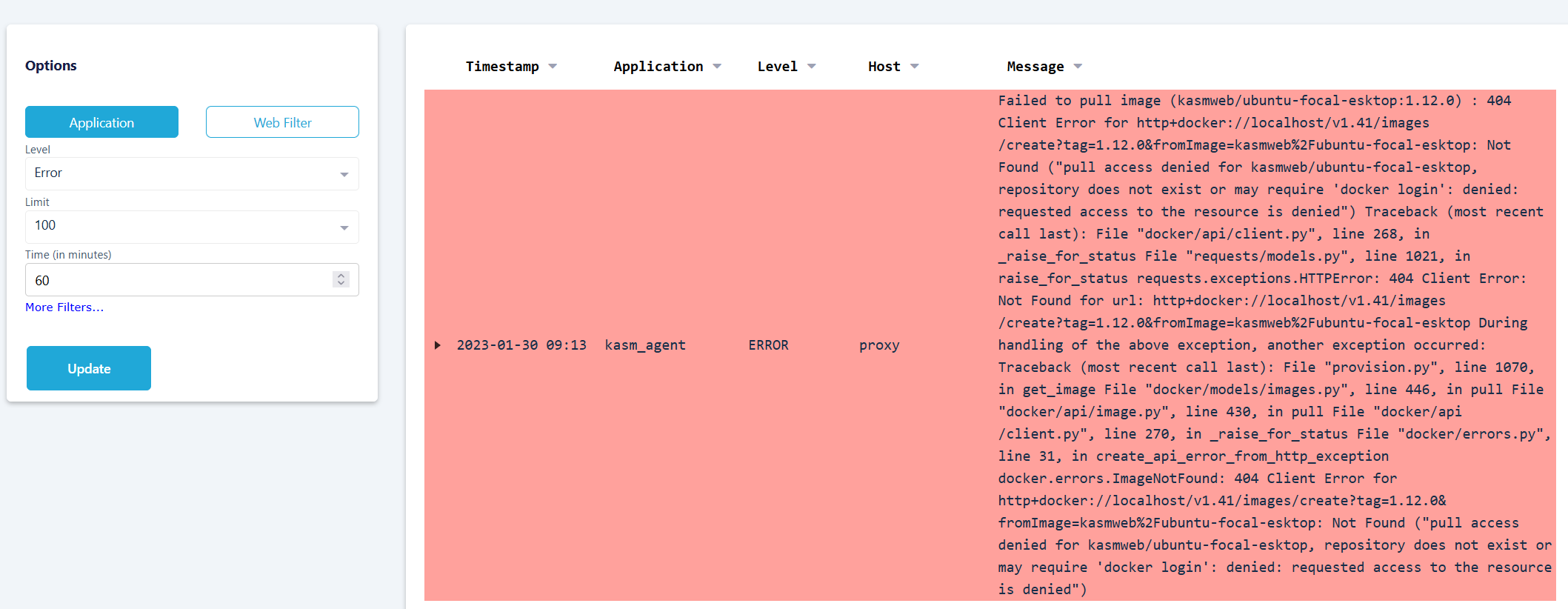
In this case, the error message shows that kasmweb/ubuntu-focal-esktop is misspelled and is missing the d in desktop. The Agent cannot pull this image because it does not exist, which results in the No Resources Available error.
When the Workspace definition is valid, the Kasm Agent produces two messages: one for pulling the image and one for when the image has successfully pulled. If the successful pull message is absent and no error log is present, the Agent has likely not yet finished pulling the image. Wait for the Agent to successfully pull the image to resolve the No Resources Available error.

To verify that the image is present on the Kasm Agents, SSH to each Agent and run sudo docker image ls | grep ubuntu, substituting ubuntu for the name of the image you are looking for.
Another problem can occur when the image specified in the Workspace configuration is of a different architecture than the Agent it is trying to run on.