Web App Gateway
Overview
Internal and external web applications often need controlled access that protects the underlying network and data. This guide configures Kasm Workspaces as a web app gateway that delivers a target web application inside an isolated browser container. Users reach the application through the strong authentication, security, and data loss prevention (DLP) protections of Kasm Workspaces, while the application itself stays insulated from the user's device. Any web application that the deployment can reach over the network works the same way.
Prerequisites
Before you begin, confirm the following:
- Administrator access to the Kasm Workspaces deployment, with permission to manage Workspaces.
- A browser-based Workspace to clone, such as Chrome, Chromium, Brave, Vivaldi, or Edge.
- Network access from the deployment to the target web application.
- The URL of the web application you want to deliver, for example
https://wikipedia.org.
Solution approach
This guide progresses through the following phases:
- Configure a browser-based workspace that opens the target application.
- Apply kiosk or app mode to refine the user experience.
- Assign a web filter policy to restrict access to approved sites.
Detailed steps
Configure a browser-based workspace
-
Log into the Kasm Workspaces UI as an administrator.
-
Select Workspaces > Workspaces.
-
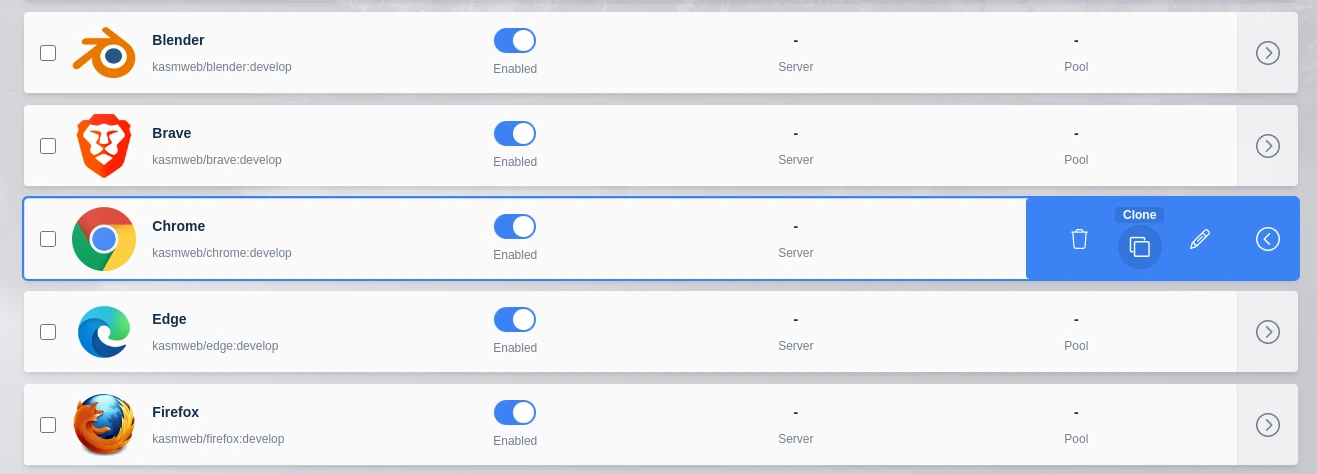
Select Clone next to one of the browser-based Workspaces from the arrow menu, for example Chrome.
-
Give the workspace a Friendly Name. This example configures the workspace to open Wikipedia, so use that as the name. Changing the icon is optional, but it is a nice touch. The website's favicon is often a good choice, for example
https://www.wikipedia.org/favicon.ico. -
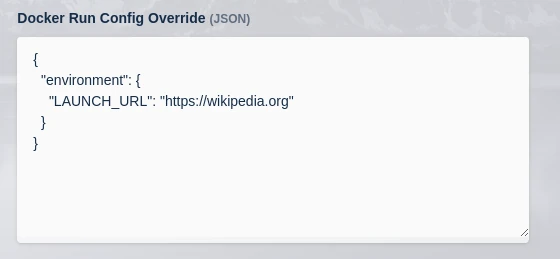
In the Docker Run Config, replace the contents with the following entry. The entry defines a
LAUNCH_URLthat automatically navigates the browser to the desired page, for examplehttps://wikipedia.org. Click Save.
{
  "environment": {
    "LAUNCH_URL": "https://wikipedia.org"
  }
}
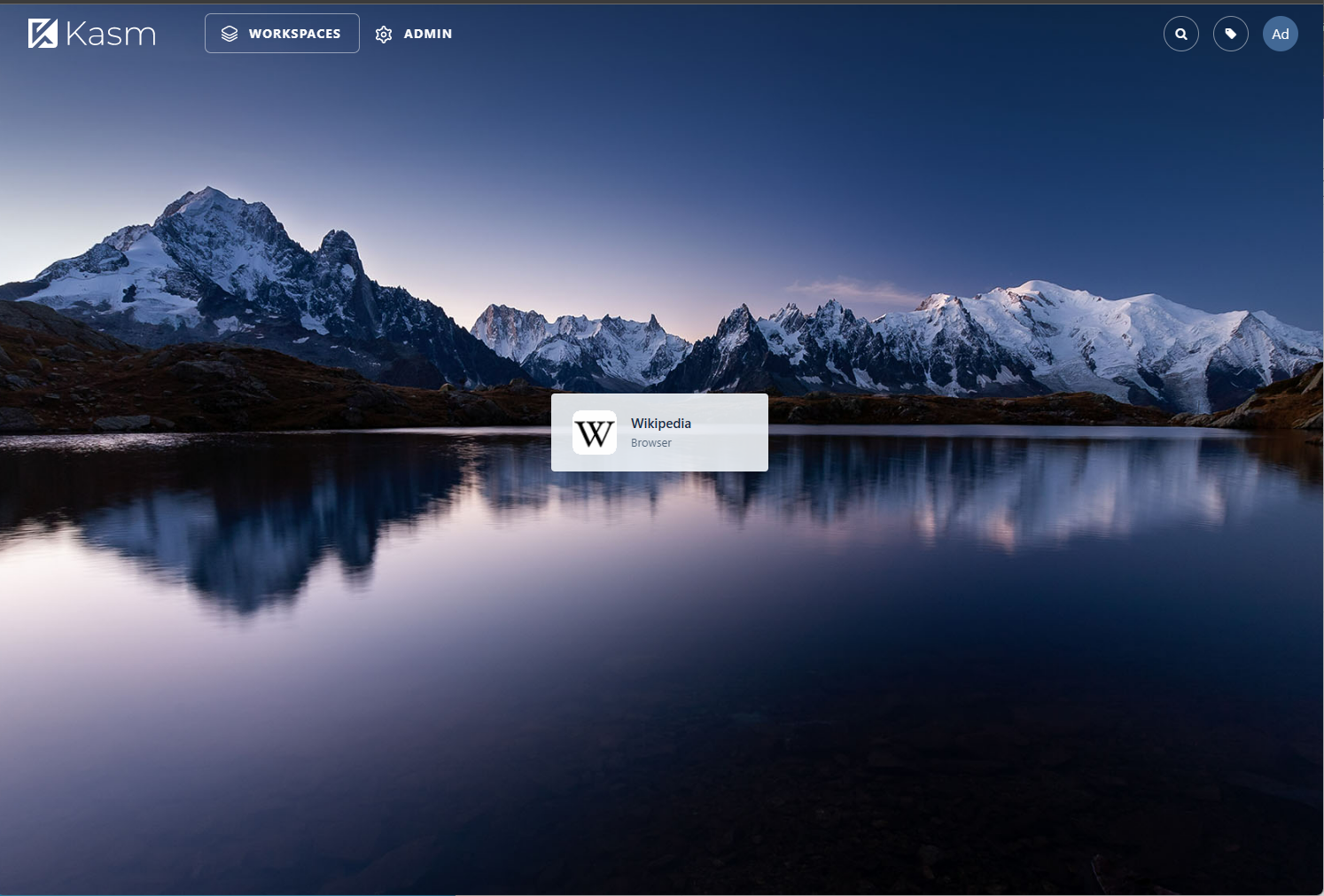
- Return to the launcher. The Workspace is now shown.
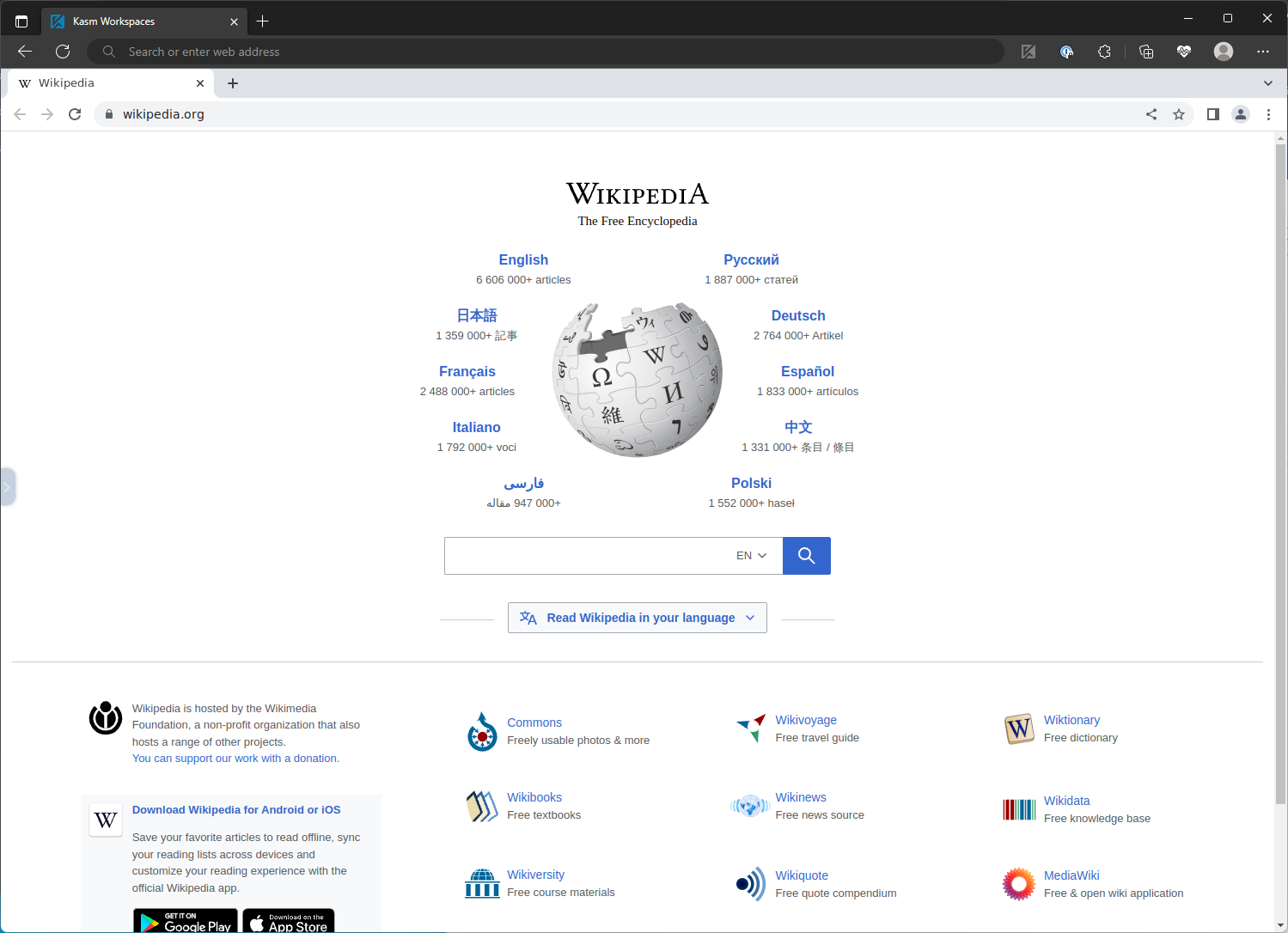
- Launch the Workspace. The Chrome browser launches inside the session and navigates directly to the desired webpage, for example
https://wikipedia.org.
Apply kiosk and app modes
In the previous example, the user sees a "browser in browser" view because the full Chrome browser is presented inside the session container. You may wish to change this user experience and run the Chrome browser in kiosk mode. Kiosk mode and app mode, discussed later, are supported by all Chromium-based browsers, for example Chromium, Chrome, Brave, Vivaldi, and Edge.
Use kiosk mode with care. Kiosk mode may confuse users who do not understand that they are operating in a Kasm session.
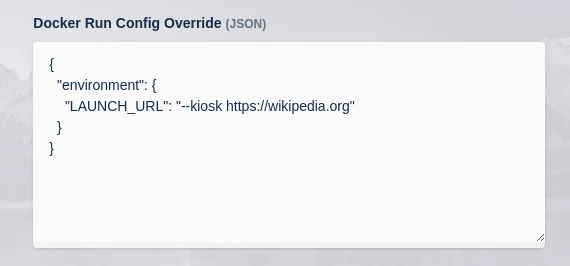
- Update the previously created Workspace. Update the
LAUNCH_URLvariable in the Docker Run Config to include--kiosk.
{
  "environment": {
    "LAUNCH_URL": "--kiosk https://wikipedia.org"
  }
}
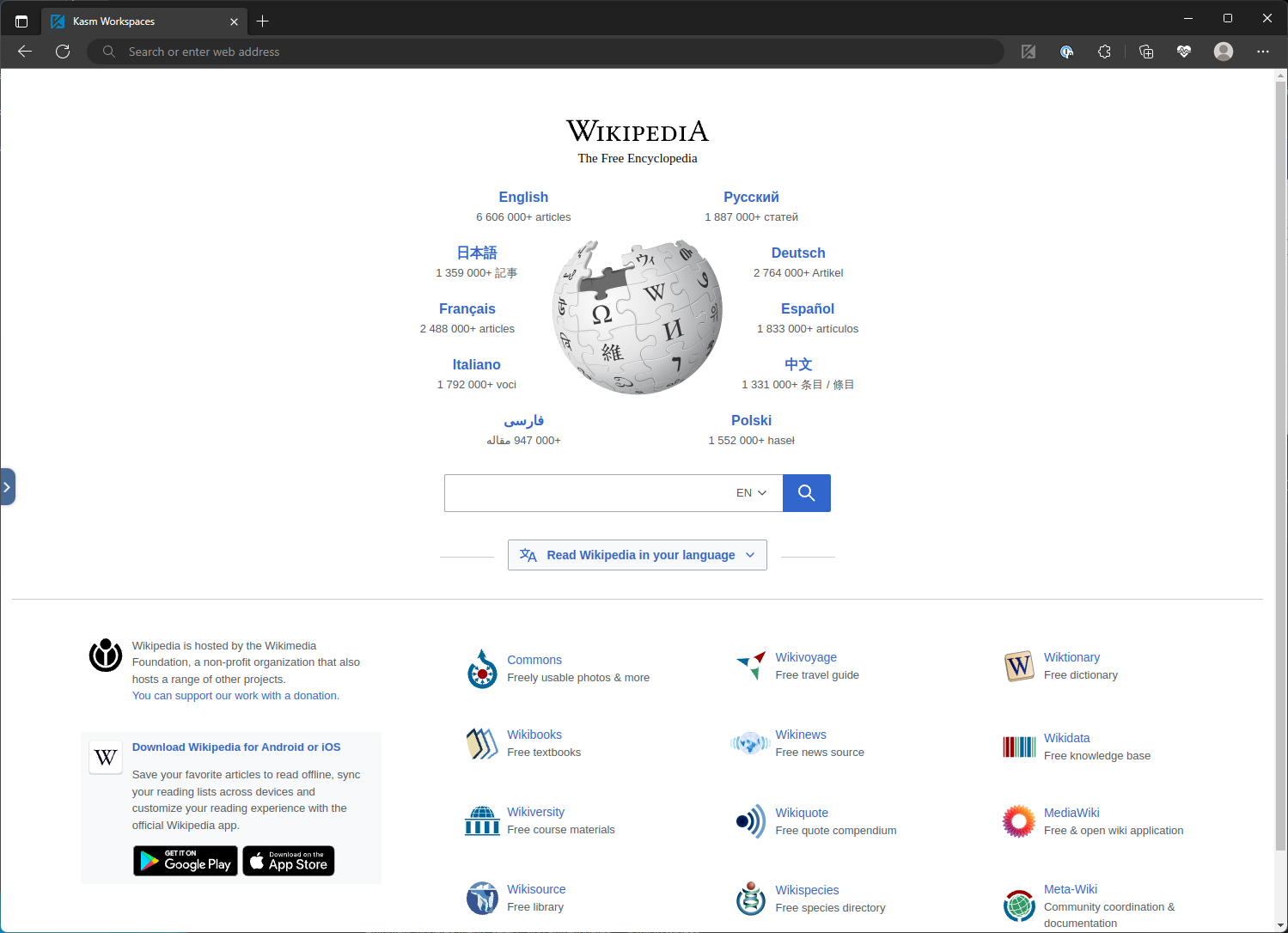
- Launch a new instance of the Workspace from the launcher. Notice that the Chrome browser navigation bar is no longer shown.
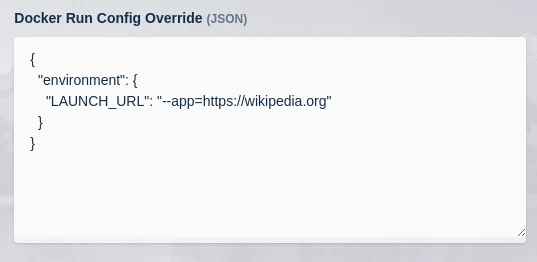
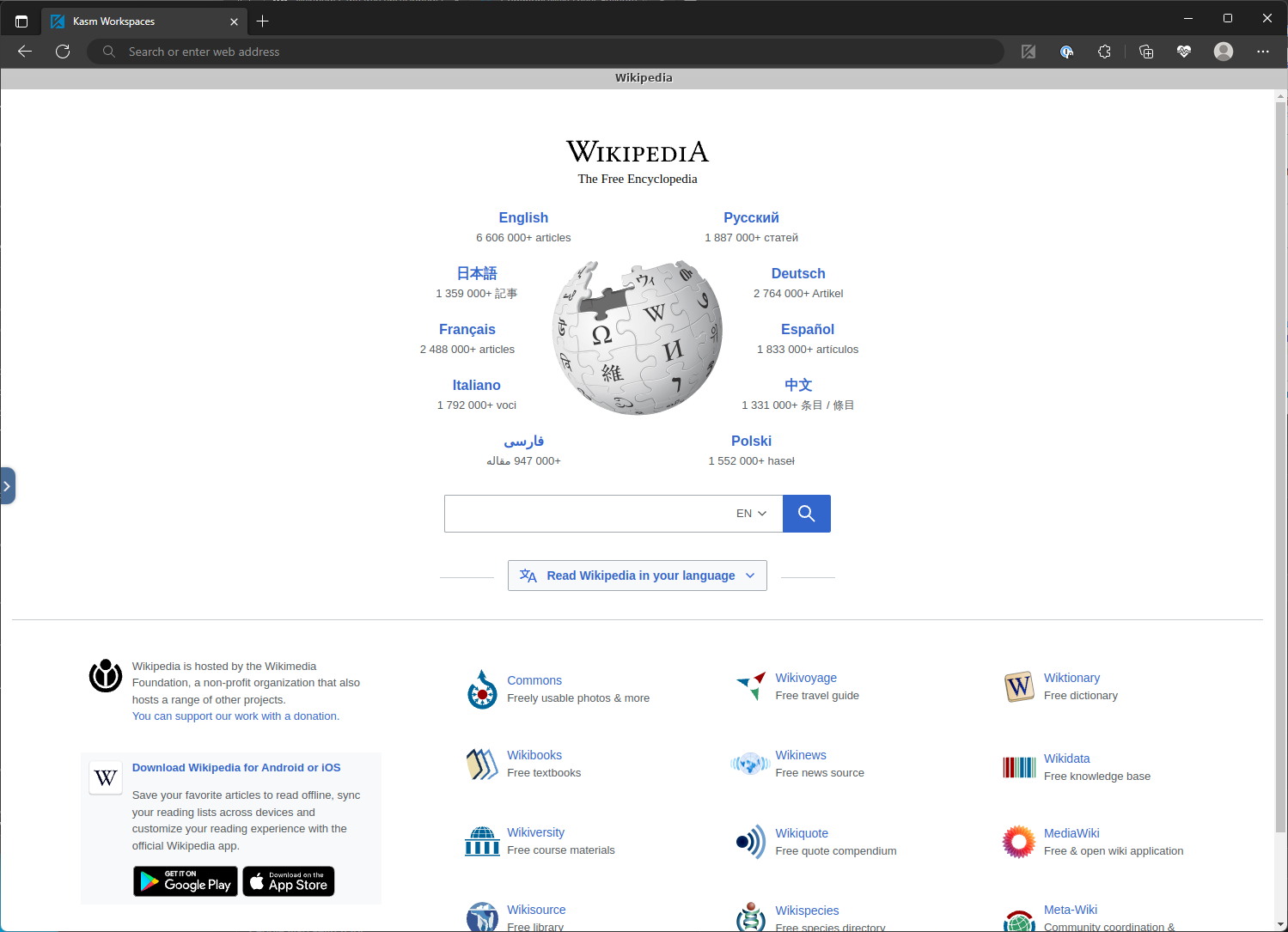
- Chrome also offers an app mode, which is similar to kiosk mode but adds a title bar. Update the
LAUNCH_URLvariable with--app=.
{
  "environment": {
    "LAUNCH_URL": "--app=https://wikipedia.org"
  }
}
Assign a web filter policy
When creating web app based workspaces, it is often desirable to restrict the user to only the specific site. To accomplish this, create a Web Filter Policy that denies all sites by default and allows only a small subset to be visited.
For details, see Configuring a Web Filter Policy.
Websites often load resources from additional domains. Wikipedia, for example, loads additional resources from wikimedia.org, so this domain must also be added to the Web Filter Policy. Inspect the behavior of your site to ensure all needed domains are allowed for the site to fully function.
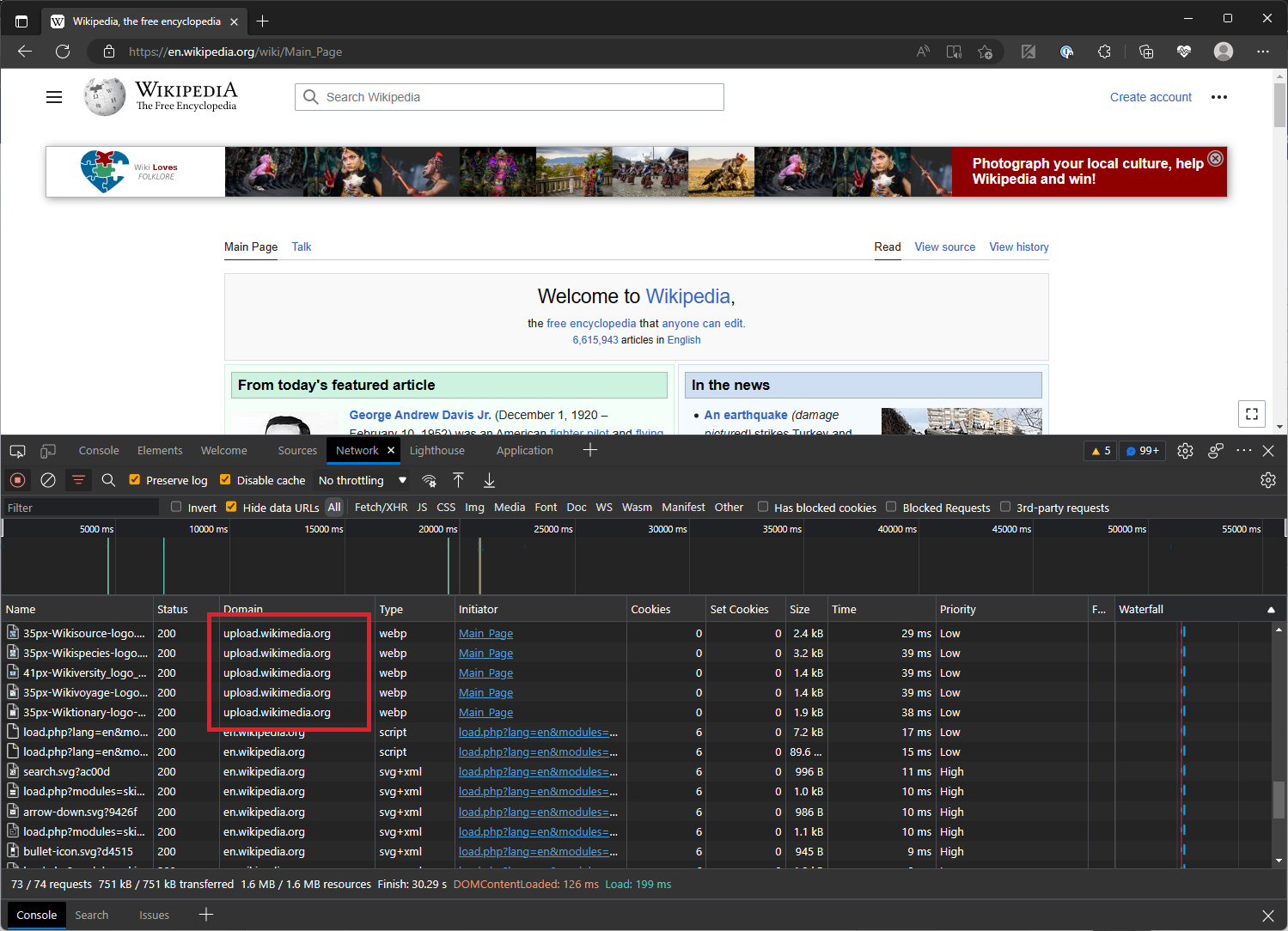
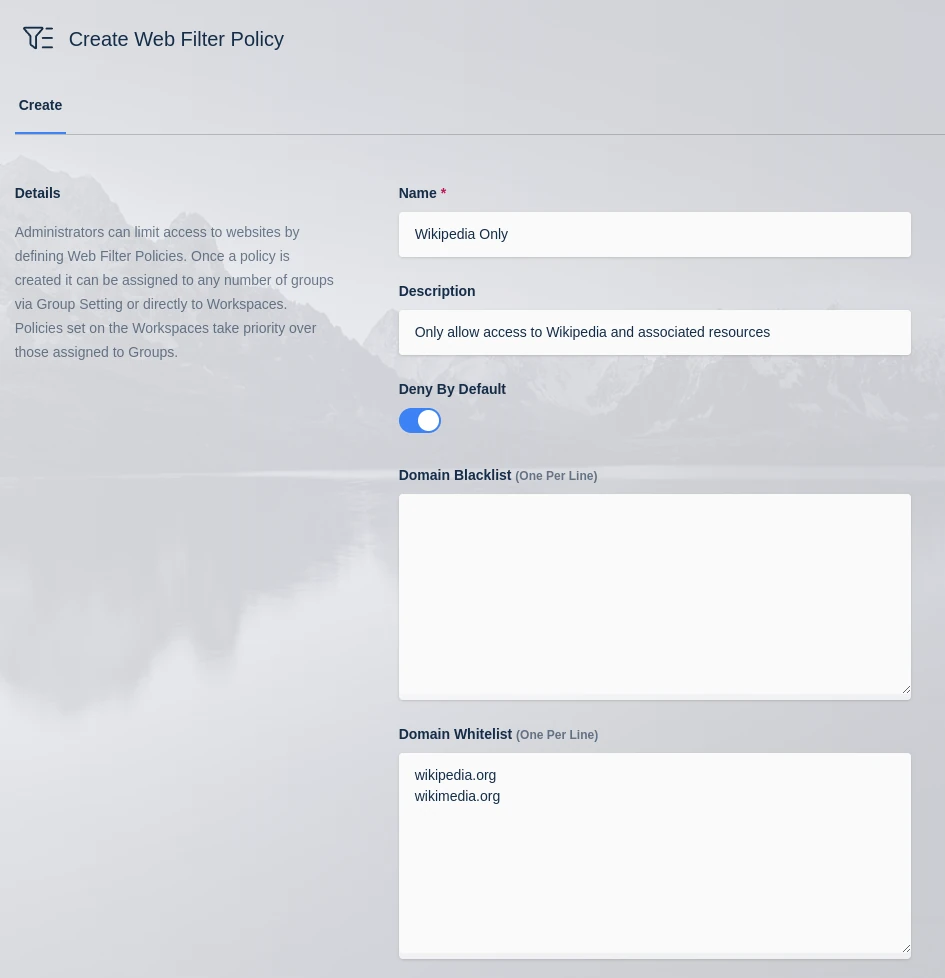
Once the policy is defined, update the Workspace definition to use the Web Filter Policy.

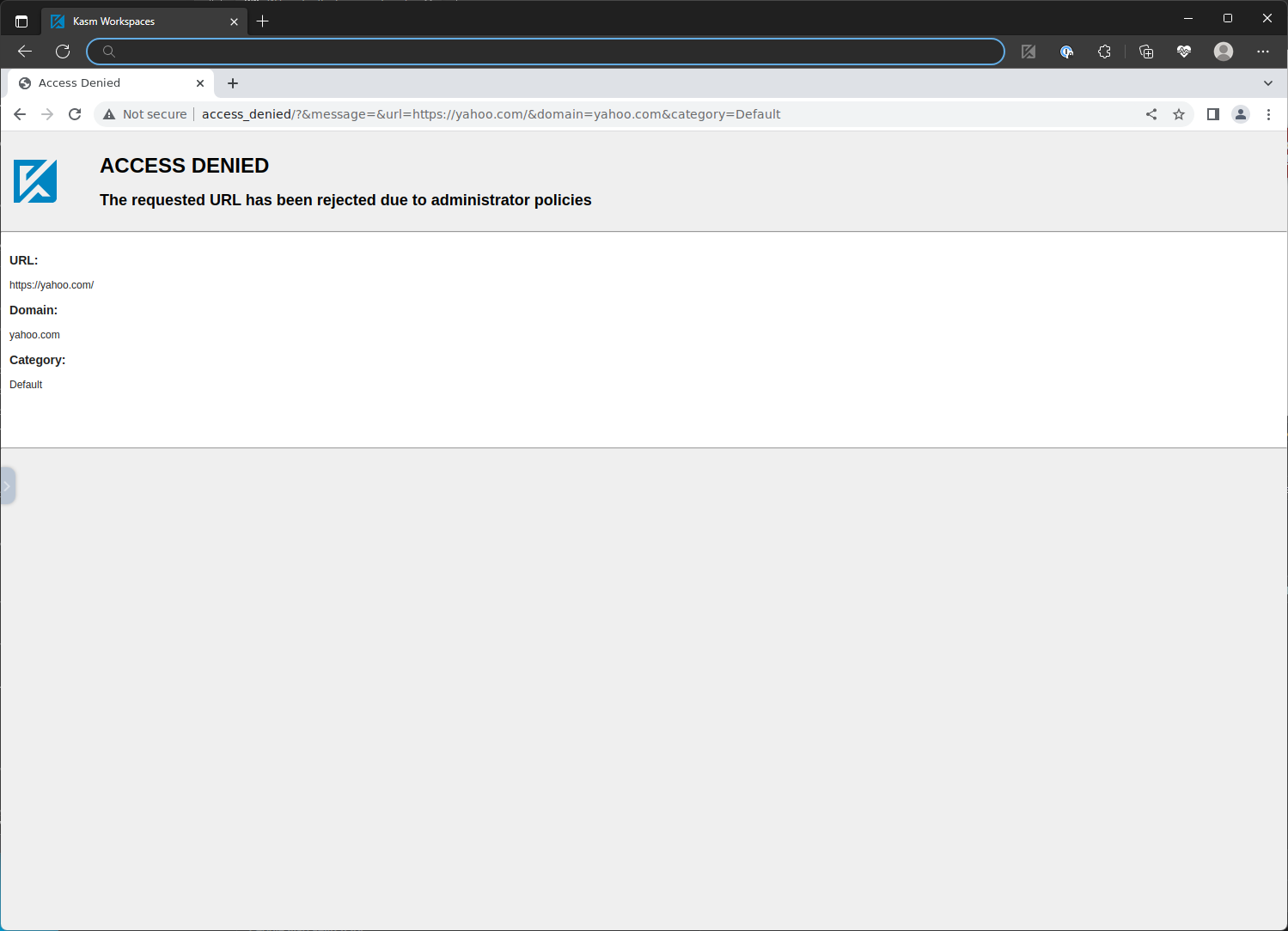
An attempt to access a site that the policy does not approve results in an Access Denied page.
Common troubleshooting steps
- The browser does not open the target page. Confirm that the
LAUNCH_URLvalue in the Docker Run Config is a valid URL and that the JSON is well formed. Save the Workspace and launch a new instance. - The page loads partially or shows missing content. The site likely loads resources from additional domains. Inspect the site and add every required domain to the Web Filter Policy.
- The user sees an Access Denied page on an expected site. The Web Filter Policy does not include the requested domain. Add the domain to the policy, then relaunch the Workspace.
- Kiosk or app mode does not take effect. Confirm that the workspace uses a Chromium-based browser and that the flag is placed correctly, with
--kioskbefore the URL or--app=immediately before the URL.