Running Workspaces as root
Overview
By default, every Kasm container runs as a non-privileged user with a UID of 1000. That user can launch programs and run typical workloads, but cannot install packages with the system package manager. This guide shows how to grant root privileges to a Workspace so an Administrator can install software, using the Docker Run Config, sudo through the Docker Exec Config, or a custom image. The result is a Workspace that can run privileged commands when a task genuinely requires them.
Running a container as root is not recommended. Root access removes one layer of protection that prevents a user from breaking out of the container and reaching the host system. Grant root only when a task requires it, and prefer a custom image over a live, root-enabled session.
Packages installed in a running container do not persist when the container is destroyed. To install a package permanently, an Administrator builds it into a custom Workspace. For details, see the Custom Images Guide.
Prerequisites
Before you begin, confirm the following:
- Administrator access to the Kasm Workspaces Admin UI, with permission to edit Workspaces.
- A Workspace to modify, or permission to create a new one.
- Network access from the Kasm session to the package repositories the chosen distribution uses, such as the Ubuntu repositories.
Solution approach
This guide progresses through the following phases:
- Run the whole container as root with the Docker Run Config.
- Install and configure sudo at launch with the Docker Exec Config.
- Build sudo into a custom Workspace image.
Each phase is an independent method. Choose the one that fits the task, rather than completing them in sequence.
Detailed steps
Run the whole container as root
Running the whole container as root is the easiest method, because it only requires altering the Docker Run Config. The method comes with some limitations:
- If the desktop session refuses to start and enters a looping screen of "Creating secure connection", you may have to disable PulseAudio.
- Some programs, such as Mozilla Firefox, refuse to start as root.
- Enter the Kasm Workspaces Admin UI and select Workspaces > Workspaces.
- Edit the Workspace you want to run as root, or create a new Workspace.
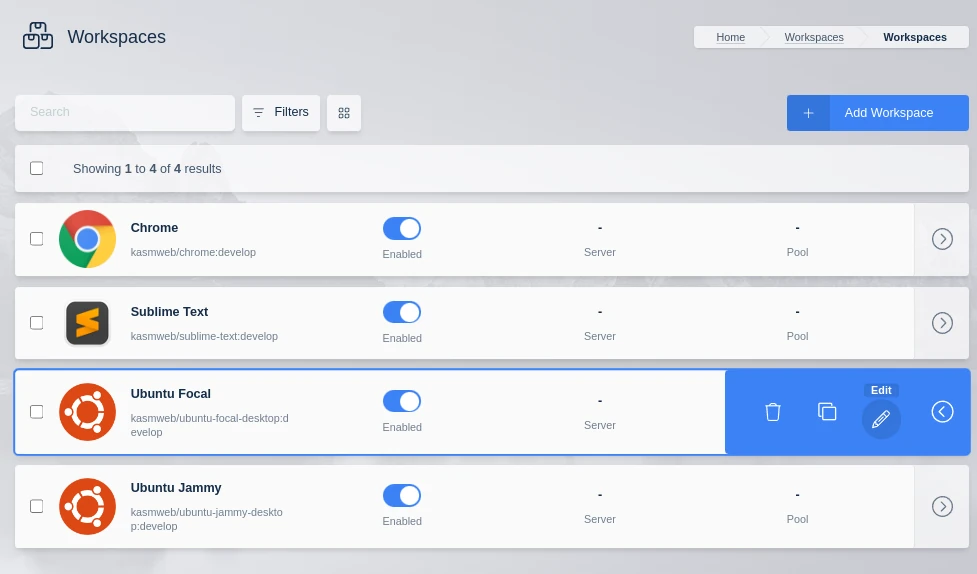
- Modify the Docker Run Config Override field to include
"user":"root". For example:
{
    "hostname":"kasm",
    "user":"root"
}
- Test launching the Workspace. Running
whoamidisplays "root".
If the Workspace fails to launch and instead cycles through a "Creating Workspace" message and a black screen, edit Docker Run Config Override to disable PulseAudio. The resulting field looks like the following example:
{
    "hostname":"kasm",
    "user":"root",
    "environment" : {"START_PULSEAUDIO" : "0"}
}
When the Workspace launches and whoami shows "root", the configuration change is successful and all commands run as root.
Install and configure sudo via Docker Exec
This method installs sudo the first time the Workspace launches, then lets a user run individual commands as root. It requires the Kasm session to have access to the Ubuntu repositories. Modify the script to work on other distributions.
- Enter the Kasm Workspaces Admin UI and select Workspaces > Workspaces.
- Edit the Workspace you want to run as root, or create a new Workspace.
- Modify the Docker Exec Config field to include the following example. The script installs sudo and configures it to not require a password.
{
 "first_launch":{
      "user":"root",
      "cmd":"bash -c '/usr/bin/desktop_ready && apt-get update && apt-get install -y sudo && echo \"kasm-user  ALL=(ALL) NOPASSWD: ALL\" >> /etc/sudoers'"
  }
}
- Test launching the Workspace. Installing and configuring sudo may take a few moments. After that, use sudo from a terminal.
Build a Workspace with sudo
For a permanent result, build sudo directly into a custom image. This phase covers only the configuration required to get the sudo command working. For detailed instructions on building custom images, see the Custom Images Guide.
- Follow the Custom Images Guide to create a custom Workspace.
- Add the following to the section of the Dockerfile marked "###Customize Container Here###".
RUN apt-get update \
    && apt-get install -y sudo \
    && echo 'kasm-user ALL=(ALL) NOPASSWD: ALL' >> /etc/sudoers \
    && rm -rf /var/lib/apt/list/*
- Test the Workspace. Running
sudo whoamishows "root".
Run commands as root by prepending them with sudo.
Common troubleshooting steps
- The desktop session loops on "Creating secure connection". Disable PulseAudio by adding
"environment" : {"START_PULSEAUDIO" : "0"}to the Docker Run Config Override. - The Workspace cycles through "Creating Workspace" and a black screen. This is the same PulseAudio issue. Add the
START_PULSEAUDIOenvironment variable shown above. - A program refuses to start as root. Some programs, such as Mozilla Firefox, will not run as root. Use the sudo method instead so the program runs as the standard user.
- sudo is not available after launch. Installing and configuring sudo through the Docker Exec Config takes a few moments after first launch. Confirm that the Kasm session can reach the Ubuntu repositories, and adjust the script for other distributions.
- An installed package disappears after the session ends. Packages installed in a running container do not persist. Build the package into a custom Workspace image, as described in the Custom Images Guide.