Gamepad passthrough
Overview
Users who run games, simulators, or input-heavy applications in a workspace need their physical controllers to work inside the browser-streamed session. This guide enables gamepad passthrough so that up to four local USB or Bluetooth gamepads map into a Kasm Workspaces session. The browser captures controller input through the GamepadAPI and forwards it to virtual devices inside the container. As a result, applications that read the udev or sdl2 interfaces respond to the controllers as though the devices were attached locally.
Prerequisites
Before you begin, confirm the following:
- Administrator access to the Kasm Workspaces deployment, with permission to edit the Group Settings that apply to the target users.
- A workspace image that supports gamepad input. The
kasmweb/ubuntu-focal-desktopandkasmweb/ubuntu-jammy-desktopimages include gamepad testing utilities and work well for validation. - One or more USB or Bluetooth gamepads connected to the local device that streams the session.
- A supported operating system and kernel on the Kasm Agent host. For current support, see the system requirements.
Solution approach
This guide progresses through the following phases:
- Enable the gamepad Group Setting.
- Connect and map gamepads in the session.
- Adjust the virtual device mapping if needed.
Detailed steps
Enable the gamepad Group Setting
- In the Kasm Workspaces UI, set the
allow_kasm_gamepadGroup Setting totruefor the target group. - Apply the setting before any affected user launches a session, because the value is read at session launch.
Participants in a shared session can also pass through gamepads once the setting is enabled for their group.
The kasmweb/ubuntu-focal-desktop and kasmweb/ubuntu-jammy-desktop images include gamepad testing utilities that help with troubleshooting. Use the :develop tag or a versioned tag greater than or equal to :1.12.0.
- Use
jstest-gtkto test theudevinterface. - Use
gamepadtoolto test thesdl2interface. This utility is available on amd64 images only.
Connect and map gamepads in the session
- Launch a Kasm session as a user in the configured group.
- Open the control panel on the left side of the session and select Gamepads.
- Press any button on each connected Bluetooth or USB gamepad.
When the browser detects a gamepad, the panel lists an entry for that device. A dropdown next to each device shows the virtual device port and index, in the range 0 to 3, mapped inside the session.
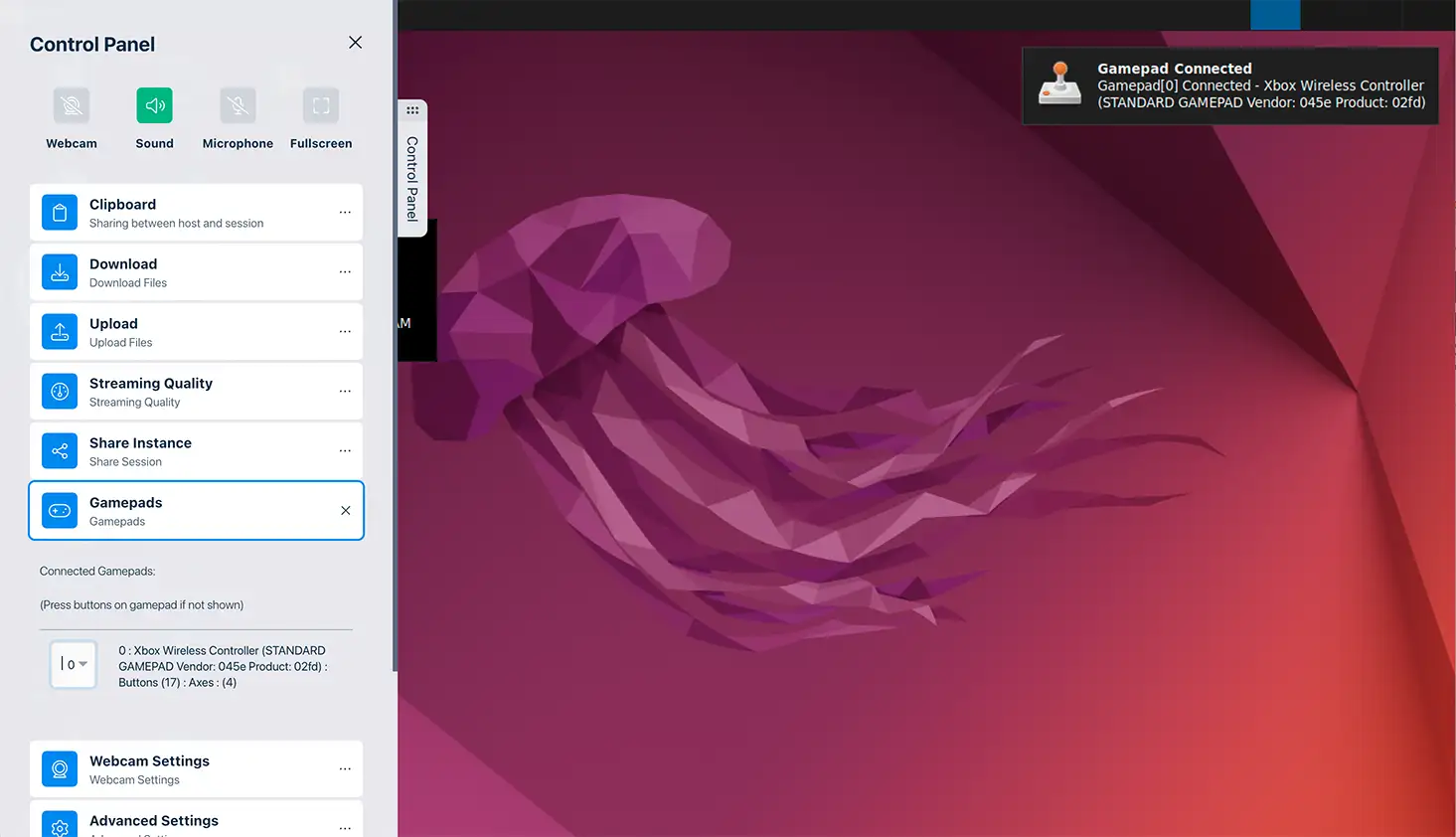
Adjust the virtual device mapping
- In the Gamepads panel, open the dropdown next to a detected device.
- Select the virtual device port and index, from 0 to 3, that the application expects.
- Repeat for each additional gamepad to set a distinct port for each device.
The session exposes virtual gamepad devices using Xbox controller attributes and a standard mapping that follows the GamepadAPI standard mapping specification. A default sdl2 mapping environment variable is defined within the Workspaces images. To override it, build a custom image or update the variable through the Docker Run Config.
SDL_GAMECONTROLLERCONFIG="030000005e040000be02000014010000,XInput Controller,platform:Linux,a:b0,b:b1,x:b2,y:b3,back:b8,guide:b16,start:b9,leftstick:b10,rightstick:b11,leftshoulder:b4,rightshoulder:b5,dpup:b12,dpdown:b13,dpleft:b14,dpright:b15,leftx:a0,lefty:a1,rightx:a2,righty:a3,lefttrigger:b6,righttrigger:b7"
How gamepad passthrough works
The feature connects to local USB or Bluetooth gamepads through the browser GamepadAPI. It then forwards the gamepad events, such as button presses, to virtual devices mapped inside the container. Programs within the session container that support the udev or sdl2 interfaces can read the virtual gamepads.
Common troubleshooting steps
- The browser does not detect a gamepad. A gamepad is not visible if another program, browser, or tab is already using it. Close those programs, then reopen the current browser. To confirm the gamepad is detectable, test it with a browser-based gamepad testing utility.
- Only one gamepad works in a Chromium browser inside the session. Chromium-based browsers running inside a Kasm session detect a single gamepad on port and index 3 only.
- The L2 or R2 triggers report digital input. The L2 and R2 triggers map as buttons that report pressed or not pressed, rather than as an analog axis.
- Rumble or haptic feedback does not work. Rumble and haptic feedback are not supported.
- Gamepad passthrough fails on TrueNAS or Unraid. The feature is not supported on Docker in Docker (DinD) installations, including TrueNAS and Unraid integrations.
- Gamepad passthrough fails on an older host. The feature is not supported on older Linux distributions or kernels. For current supported operating systems, see the system requirements.