Enable Input Method Editor (IME)
Overview
An Input Method Editor (IME) lets users type characters that a standard QWERTY keyboard does not represent, such as Chinese, Japanese, and Korean text. This guide shows how to enable IME input mode in a Kasm Workspaces session. You can enable IME for a single client from the in-session control panel, or enable it automatically for every user in a group. As a result, multilingual users compose text in their native language without leaving the browser-based workspace.
Prerequisites
Before you begin, confirm the following:
- A running Kasm Workspaces session, or access to start one.
- An IME configured in the operating system you use to access the session.
- Administrator access with permission to edit group settings, if you enable IME at the group level. For background, see group settings.
Solution approach
This guide progresses through the following phases:
- Enable IME for a single client from the control panel.
- Enable IME for an entire group with a group setting.
- Verify IME input in the session.
Detailed steps
Enable IME for a single client
Client-side activation applies to the current session only. Each user enables IME from the in-session control panel.
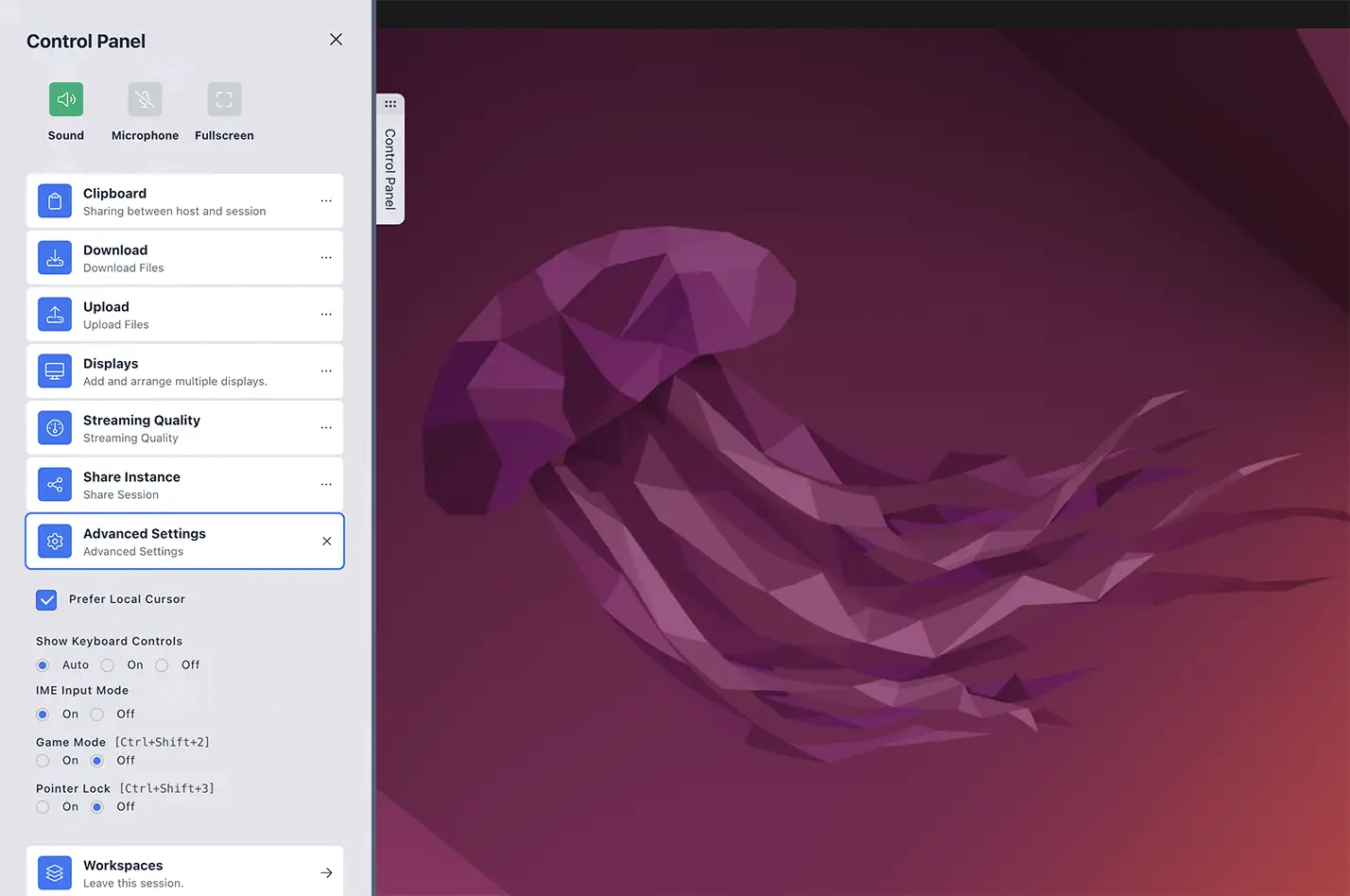
- Open the control panel on the left side of the Kasm Desktop session using the three dots.
- Select Configure.
- Enable IME Input Mode.
Enable IME for an entire group
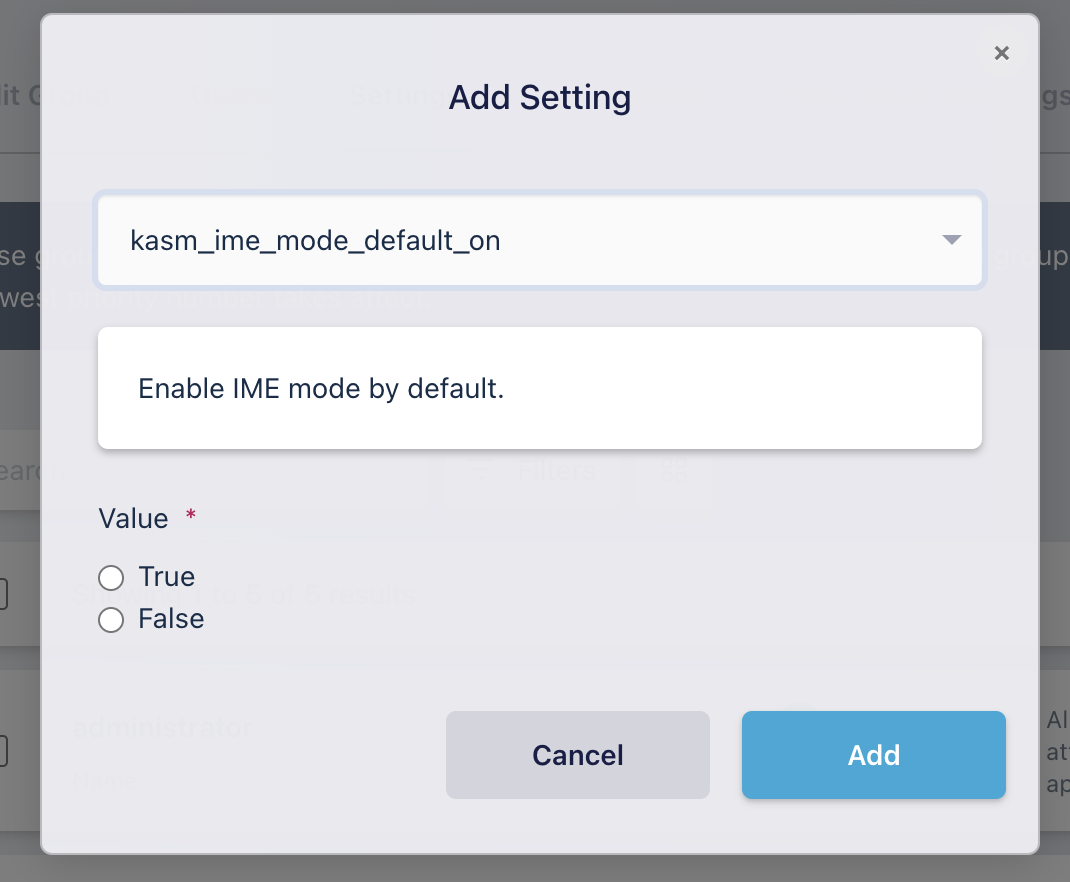
Server-side activation applies to every user in a group. The group setting kasm_ime_mode_default_on controls this behavior.
- As an Administrator, open the target group's settings. For navigation details, see group settings.
- Set
kasm_ime_mode_default_ontotrue. - Save the group setting.
Kasm now enables IME input mode automatically for any user in the group when they start a session.
Verify IME input
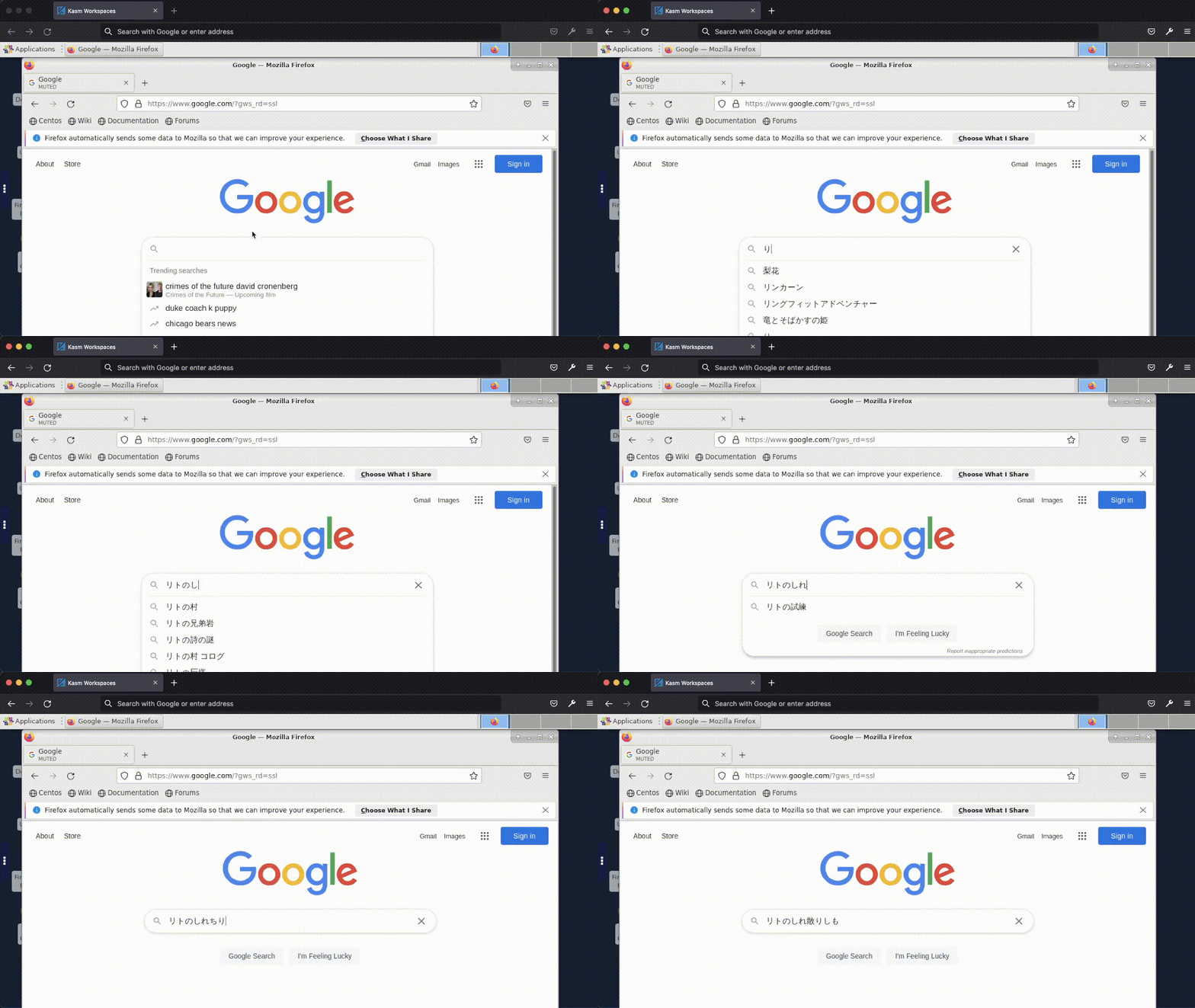
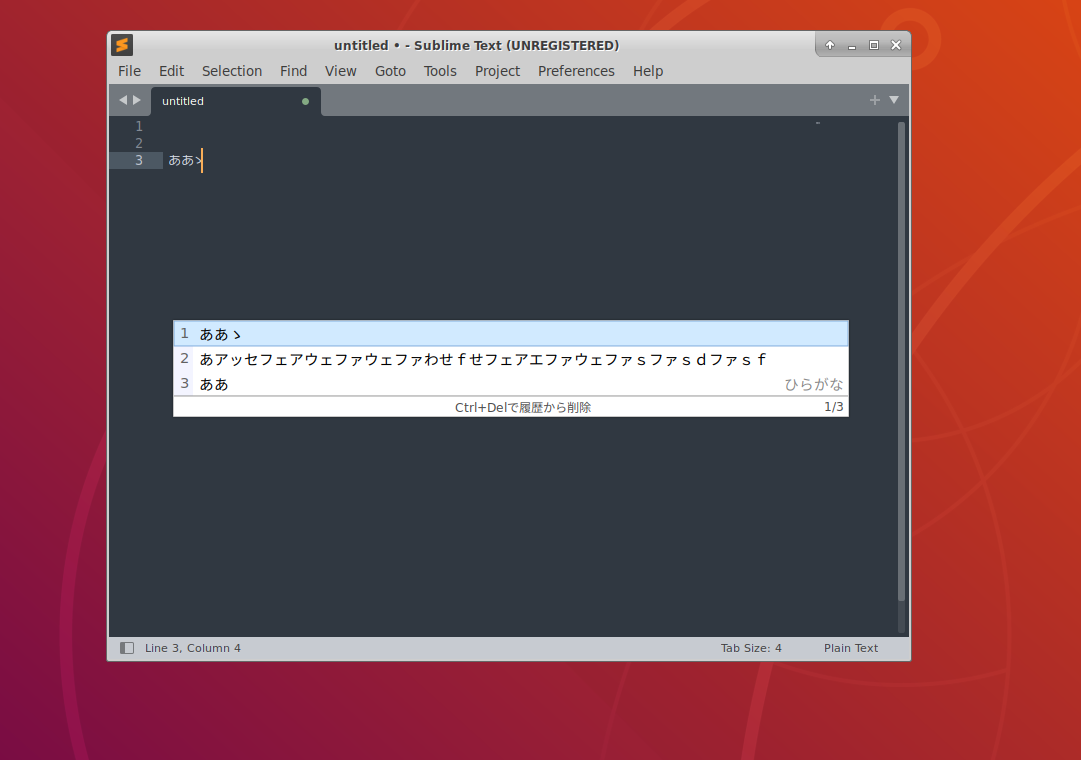
After you enable IME by either method, confirm that the input method works inside the session.
- Start or reconnect to a Kasm Workspaces session.
- Open a text editor or input field in the session.
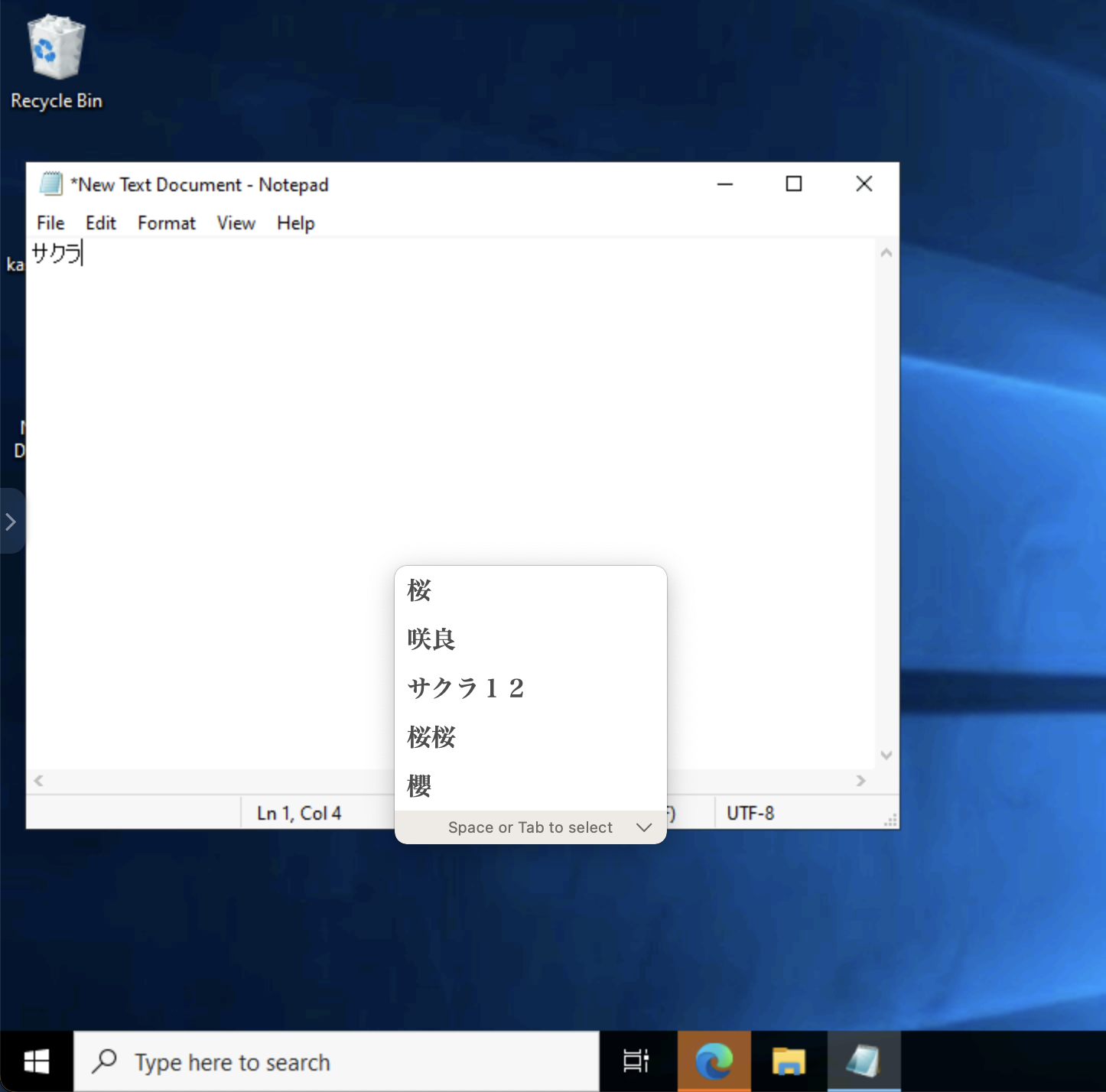
- Begin typing. The operating system's IME should now appear as you type.
Common troubleshooting steps
- The IME does not appear when typing. Confirm that IME input mode is enabled for the session, either through the control panel Configure option or the
kasm_ime_mode_default_ongroup setting. Start a new session after changing the group setting. - Group members do not get IME automatically. Confirm that
kasm_ime_mode_default_onis set totrueon the correct group and that the affected users belong to that group. The setting applies when a user starts a new session, not to sessions already running. - No input method is available to select. Confirm that an IME is configured in the operating system you use to access the session. Kasm uses the IME provided by your local operating system.