Embed Kasm Workspaces in an iframe
Overview
Embedding a workspace directly in your own web application gives users a streamed desktop or app without leaving the host page. This guide embeds a single-server Kasm Workspaces deployment in a simple iframe on a separate web page. You configure cookie handling through the Kasm Auth Domain, then grant the iframe permissions it needs. As a result, users authenticate, launch a session, and use the microphone, camera, and clipboard inside the embedded workspace.
The examples assume a Kasm Workspaces deployment at 10.10.0.10 with the hostname kasm.example.com. A separate Nginx server at 10.10.0.11 with the hostname app.example.com hosts the page that contains the iframe.
Prerequisites
Before you begin, confirm the following:
- A working single-server Kasm Workspaces deployment, reachable over HTTPS at its hostname.
- Administrator access to the Kasm Workspaces deployment, with permission to edit global settings.
- A web server, such as Nginx, that hosts the page containing the iframe.
- Control over DNS so that Kasm Workspaces and the host page resolve as sibling domains or sub-domains.
- Trusted TLS certificates for the Kasm Workspaces deployment. Self-signed certificates require an extra browser step described below.
Solution approach
This guide progresses through the following phases:
- Plan the domain layout for cookie handling.
- Create the host page with a basic iframe.
- Configure the Kasm Auth Domain.
- Grant the iframe the required permissions.
Detailed steps
Plan the domain layout for cookie handling
The Kasm authentication request sets two cookies when a user connects to a running session: the username cookie and the token cookie. When the session runs inside an iframe, browsers block those cookies by default. Choose a domain layout that lets both cookies remain valid for the host page and Kasm Workspaces.
The most reliable layout uses sibling domains. Sibling domains sit at the same level under a shared parent domain:
app.example.comhosts the application that contains the iframe.kasm.example.comhosts the Kasm Workspaces deployment.
Configure your web server to host the application on the new domain name, for example app.example.com. Use your existing Kasm Workspaces hostname, which is kasm.example.com in this guide.
Sub-domains also work for cookie handling. For example:
app.example.comhosts the application that contains the iframe.kasm.app.example.comhosts the Kasm Workspaces deployment.
This layout works across all browsers when one level separates the two domains. When more than one level separates them, some browsers, most notably Safari, do not work. The following layout is likely to break, because Kasm Workspaces is two levels below the domain that hosts the iframe:
example.comhosts the application that contains the iframe.kasm.app.example.comhosts the Kasm Workspaces deployment.
Create the host page with a basic iframe
-
Create an HTML page that hosts an iframe pointing to your Kasm Workspaces hostname.
<!DOCTYPE html><html><head></head><body><h1>Embedded Kasm</h1><iframe src="https://kasm.example.com" height= "1000" width= "1500"></iframe></body></html> -
Save the HTML file into the root of the web server, then browse to it.
You see the login page for the Kasm Workspaces deployment. You can log in and browse the deployment. However, when you launch a workspace image, the connection to the session fails, and the browser returns you to the Workspaces dashboard. The failure occurs because Kasm Workspaces cannot set the username and token cookies after authentication. The next phase resolves this issue.
Configure the Kasm Auth Domain
- Go to Settings > Global and scroll down to the Kasm Auth Domain field.
- Set the field to the parent domain, which is
example.comin this example. The response cookies are then valid for both the host page and Kasm Workspaces.
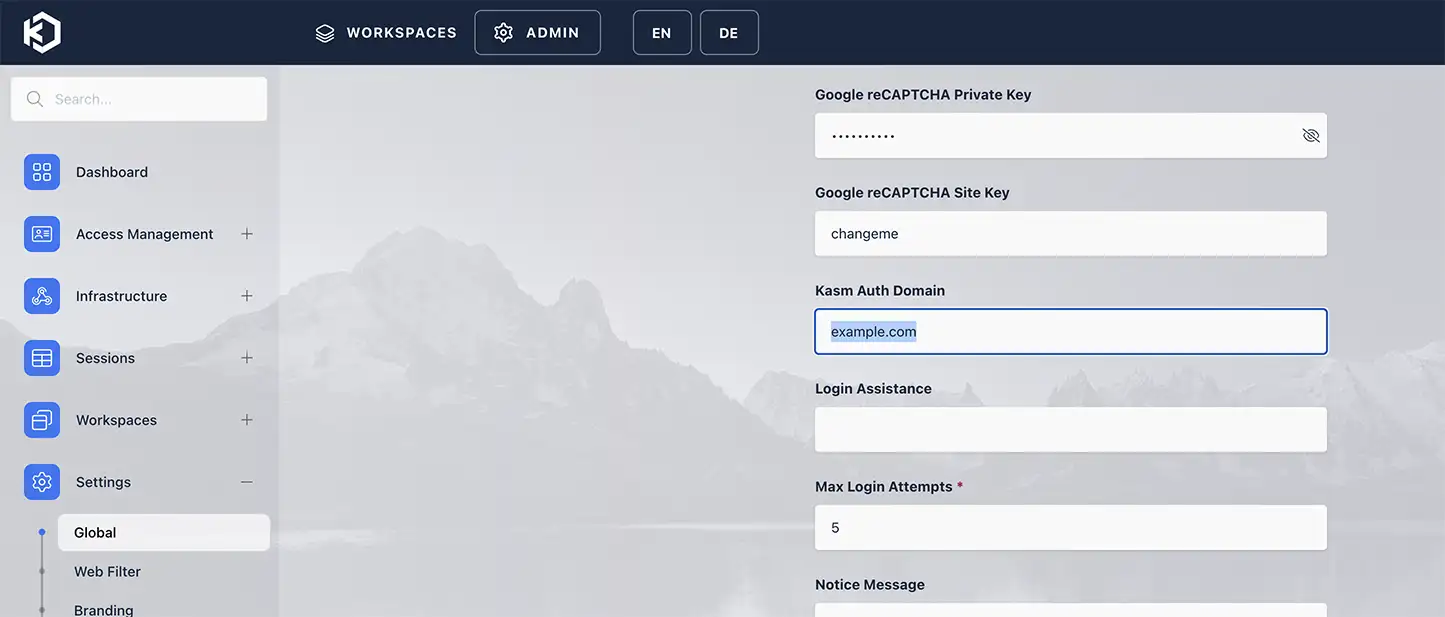
If you do not see the Kasm Workspaces login screen, the deployment may use self-signed certificates. Browse directly to the deployment and accept the certificates in your browser before using the iframe. Use trusted certificates for all Kasm Workspaces deployments.
Browse to the test page again. The Kasm Workspaces deployment now renders inside the iframe. You can log in and launch a session.
Grant the iframe the required permissions
After the connection succeeds, you may notice that some features do not work as expected. For example, the microphone may be inaccessible, and the seamless clipboard experience may not function. These features require permissions that you grant explicitly through the iframe allow attribute.
Add the following values to the allow attribute on the iframe:
autoplaylets audio from a session start playing without user interaction. Without this permission, the user must interact with the iframe before audio plays.microphonelets Kasm Workspaces within the iframe request the microphone permission. Without it, microphone capability is unusable.cameralets Kasm Workspaces request access to the user's camera or webcam.clipboard-readlets Kasm Workspaces read text from the client clipboard.clipboard-writelets Kasm Workspaces write text to the client clipboard.window-managementlets Kasm Workspaces detect the state of the user's monitors, including how many there are and where they are placed. This streamlines the multi-monitor options.selfpasses the previous permissions to iframes nested within the iframe it is set on. This matters because the session connection is an iframe within the Kasm Web App.https://kasm.example.comis the origin of the Kasm Workspaces deployment.
Apply the permissions to the iframe allow attribute:
<!DOCTYPE html>
<html>
<head>
</head>
<body>
<h1>Embedded Kasm</h1>
<iframe src="https://kasm.example.com" height= "1000" width= "1500" allow="autoplay; microphone; camera; clipboard-read; clipboard-write; window-management; self; https://kasm.example.com"></iframe>
</body>
</html>
Browse to the site again. The embedded workspace now has the full set of session capabilities.
Common troubleshooting steps
- The login screen does not appear. The deployment may use self-signed certificates. Browse directly to the Kasm Workspaces hostname, accept the certificates, then reload the host page. Use trusted certificates for production deployments.
- The session fails and returns to the dashboard. The username and token cookies are blocked. Confirm that the Kasm Auth Domain is set to the parent domain shared by the host page and the Kasm Workspaces hostname.
- Cookies are blocked in Safari. More than one level may separate the two domains. Use sibling domains or a sub-domain layout with only one level of separation.
- The microphone, camera, or clipboard does not work. The required permissions are missing. Confirm that the iframe
allowattribute includesautoplay,microphone,camera,clipboard-read,clipboard-write,window-management,self, and the Kasm Workspaces origin.