Image maintenance
Overview
Administrators often maintain a library of Kasm workspaces with custom software and configurations. Keeping those images patched by hand is slow and error-prone, and it risks user downtime. This guide builds a DevOps process that automatically builds, tests, and publishes custom Docker images to a Kasm Workspaces deployment. As a result, the deployment stays current with the latest software patches for improved security and reliability, and users experience no interruption.
Prerequisites
Before you begin, confirm the following:
- Administrator access to the Kasm Workspaces deployment, with permission to manage Workspaces and Groups.
- A Version Control System that hosts your Dockerfiles, such as GitLab or Bitbucket.
- A CI/CD toolchain, such as the pipelines built into the Version Control System or a standalone tool such as Jenkins.
- A Docker container registry that all Kasm Agents can reach, along with any credentials required to authenticate to it.
- Familiarity with building custom images.
Solution approach
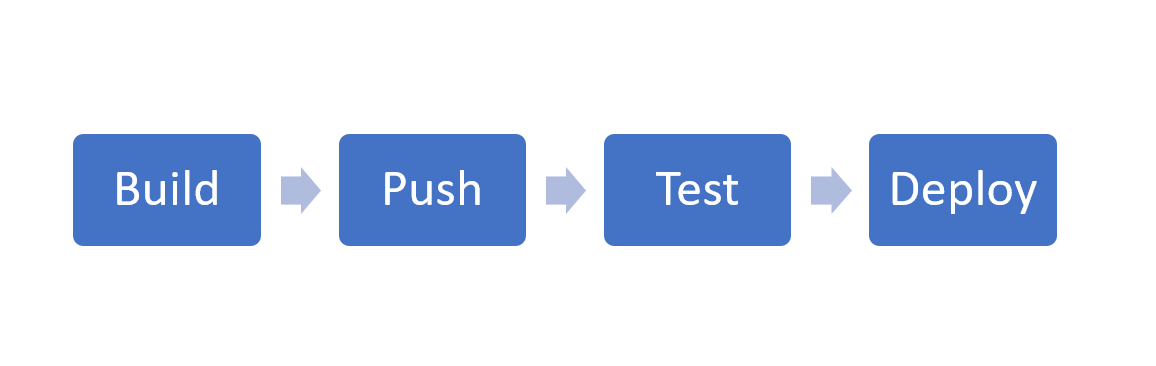
This guide progresses through the following phases:
- Build the custom images automatically.
- Push the images to a Docker container registry.
- Test a candidate image against a controlled group.
- Deploy the verified image to users.
The following diagram shows the general steps that orchestrate an image maintenance process.
Detailed steps
Build the custom images automatically
- Create a repository inside your Version Control System to host the custom image Dockerfiles.
- Configure a CI/CD toolchain to build the images automatically on a schedule. Use the pipelines built into the Version Control System, or a standalone tool such as Jenkins.
For details on image creation, see Building Custom Images.
The following references describe common pipeline tooling:
Push the images to a Docker container registry
- Configure the CI/CD toolchain to push the built images to a Docker container registry. The registry can be a public registry such as Docker Hub, or a private registry such as those provided by GitLab, AWS, or Digital Ocean.
- Confirm that the registry is accessible by all Kasm Agents, so they can pull the images automatically.
- When you define the Workspaces in the Kasm UI, supply the custom Docker image name, the registry, and a username and password or access token if the registry is private.
Consider the naming convention of the Docker image tags. Pushing an image with multiple tags can be beneficial. One tag represents something unique, such as the current date and time myimage:11302020. Another tag represents a moving target, such as myimage:latest. Review the Pull Behavior section and how it affects the desired process.
The following references describe common container registries:
- Docker Registry
- GitLab Container Registry
- Digital Ocean Container Registry
- Amazon Elastic Container Registry
- Google Cloud Artifact Registry
Test a candidate image against a controlled group
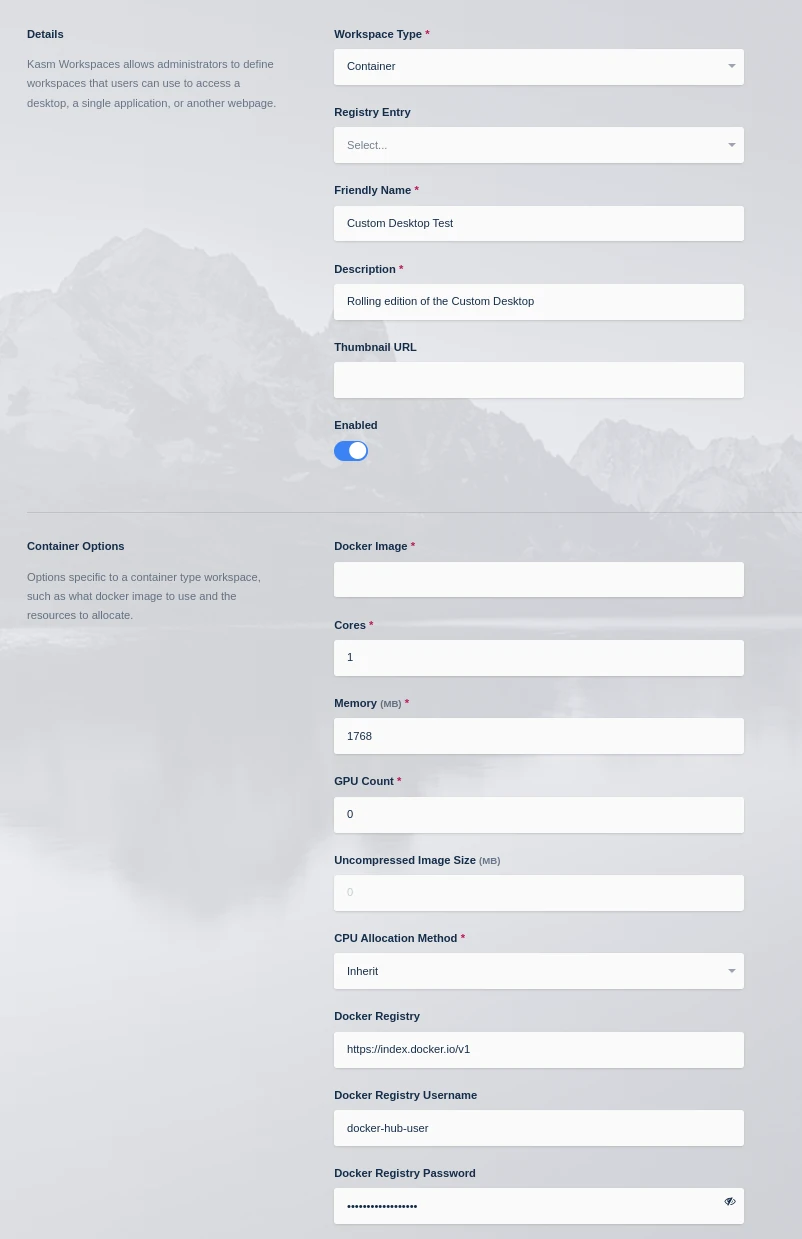
- Create a new Workspace and set the Docker image name, the Docker Registry, and the Docker Registry Username and Password if authentication is used.
- Wait a few minutes for the Agents to pull the image from the defined registry.
- Assign the image to a testing Group, and verify the desired functionality.
Deploy the verified image to users
- When the candidate image is verified, update the user-facing Workspaces to use the verified Docker image name and tag.
- Confirm the change. The next time a user creates a session, the new image is used.
Pull behavior
Kasm Agents check in with the Kasm Web App service every 30 seconds, which informs each Agent about the images defined in the system. If an Agent does not currently have an image, it immediately issues a docker pull. The default maximum number of image pulls is 2, which is configurable in the Changing MAX Concurrent Docker Pulls section below. Separately, each Agent issues a pull every hour for those images, even when they are already present, to fetch an updated version if one is available. In either case, a pull occurs only when a Docker Registry is defined on the Workspace.
Some registries such as Docker Hub have implemented Pull Rate Limiting. Administrators should authenticate to the registry to raise those limits by using the Docker Registry Username and Docker Registry Password options when registering an image.
For the Google Cloud Artifact Registry or Google Cloud Container Registry, enter a JSON Service Account Key in the Docker Registry Password field and set the Docker Registry Username to _json_key.
For the Google Cloud Artifact Registry, a base64-encoded key can be used instead, with the Docker Registry Username of _json_key_base64.
Changing MAX Concurrent Docker Pulls
By default, each Kasm Agent pulls a maximum of 2 Docker images at a time. For deployments that run in environments with more available resources, you may want to increase this value to satisfy your needs.
Changing the MAX Concurrent Docker Pulls requires restarting the Kasm Agent services and results in an interruption in service.
Log in to each server with the agent role and complete the following steps.
-
Stop the Agent services.
sudo systemctl stop kasm -
Replace the value of
max_concurrent_docker_pullsin the agent config with the new value.sudo vi /opt/kasm/current/conf/app/agent/agent.app.config.yaml -
Start the Agent services.
sudo systemctl start kasm
After 30 seconds, tail the logs of the Agent. If multiple images are pending, you see notifications of images now being pulled.
sudo docker logs -f kasm_agent
Common troubleshooting steps
- Agents do not pull a new image. A pull occurs only when a Docker Registry is defined on the Workspace. Confirm that the Workspace specifies the Docker image name and the registry.
- Pulls fail with a rate-limit error. Public registries such as Docker Hub enforce pull rate limits. Authenticate to the registry with the Docker Registry Username and Docker Registry Password to raise those limits.
- Authentication to a private registry fails. Confirm the credentials on the Workspace. For Google Cloud Artifact Registry or Container Registry, set the Docker Registry Username to _json_key and enter the JSON Service Account Key in the Docker Registry Password field.
- An updated image does not appear on Agents. Each Agent pulls hourly for defined images and on check-in for missing images. Confirm that the new tag is pushed to the registry and that the Workspace references that tag.
- Concurrent pulls are slower than expected. Each Agent pulls a maximum of
2images at a time by default. Increasemax_concurrent_docker_pullsas described in Changing MAX Concurrent Docker Pulls, then restart the Agent services.