Manage and use Kasm Workspaces Workspace Registries
Overview
A Workspace Registry lets administrators install workspaces without filling in lengthy configuration fields by hand. This guide adds registries, installs workspaces from them, keeps them updated, searches and filters the catalog, and builds your own registry. Kasm Workspaces ships with a first-party registry and also supports trusted third-party registries, so teams can expand the catalog while keeping control of what runs on their agents. The result is faster, repeatable workspace deployment across the deployment.
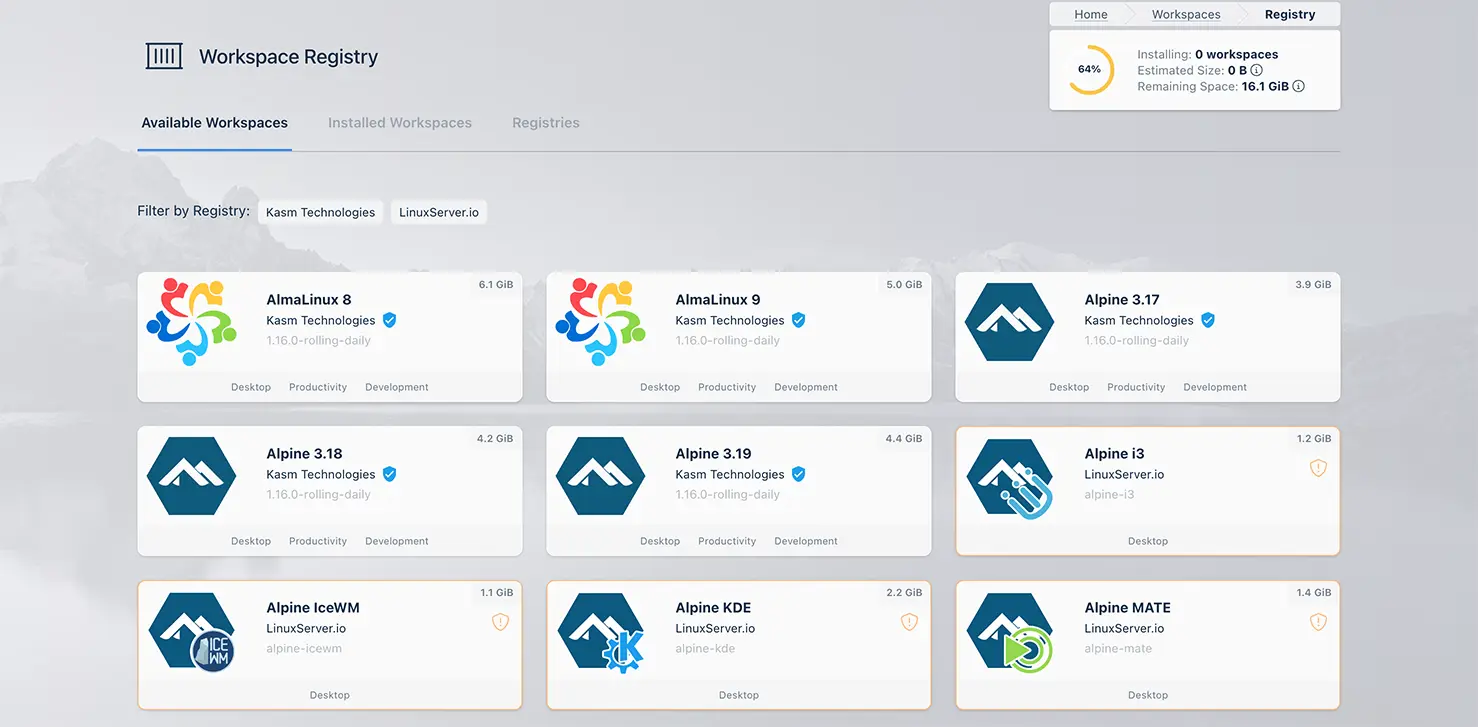
The registry mechanism has two goals. First, it makes adding workspaces simple, without requiring many configuration fields. Second, it lets anyone publish their own registry, so Kasm Technologies does not act as a gatekeeper.
Video tutorial
Prerequisites
Before you begin, confirm the following:
- Administrator access to a Kasm Workspaces deployment, version 1.13.0 or later for the pre-installed first-party registry.
- Permission to install and manage workspaces and registries.
- Sufficient disk space on the agents that will host the installed workspace images.
- The registry link for any third-party registry you intend to add, from a source you trust.
Solution approach
This guide progresses through the following phases:
- Review the first-party and third-party registries.
- Add a registry to the deployment.
- Install workspaces and interpret configuration warnings.
- Update, search, and filter registries.
- Build your own workspace registry.
Detailed steps
Review the first-party and third-party registries
The first-party registry comes pre-installed in Kasm Workspaces 1.13.0 or later. It makes it simple to install any Kasm workspace that is not already present on your system.
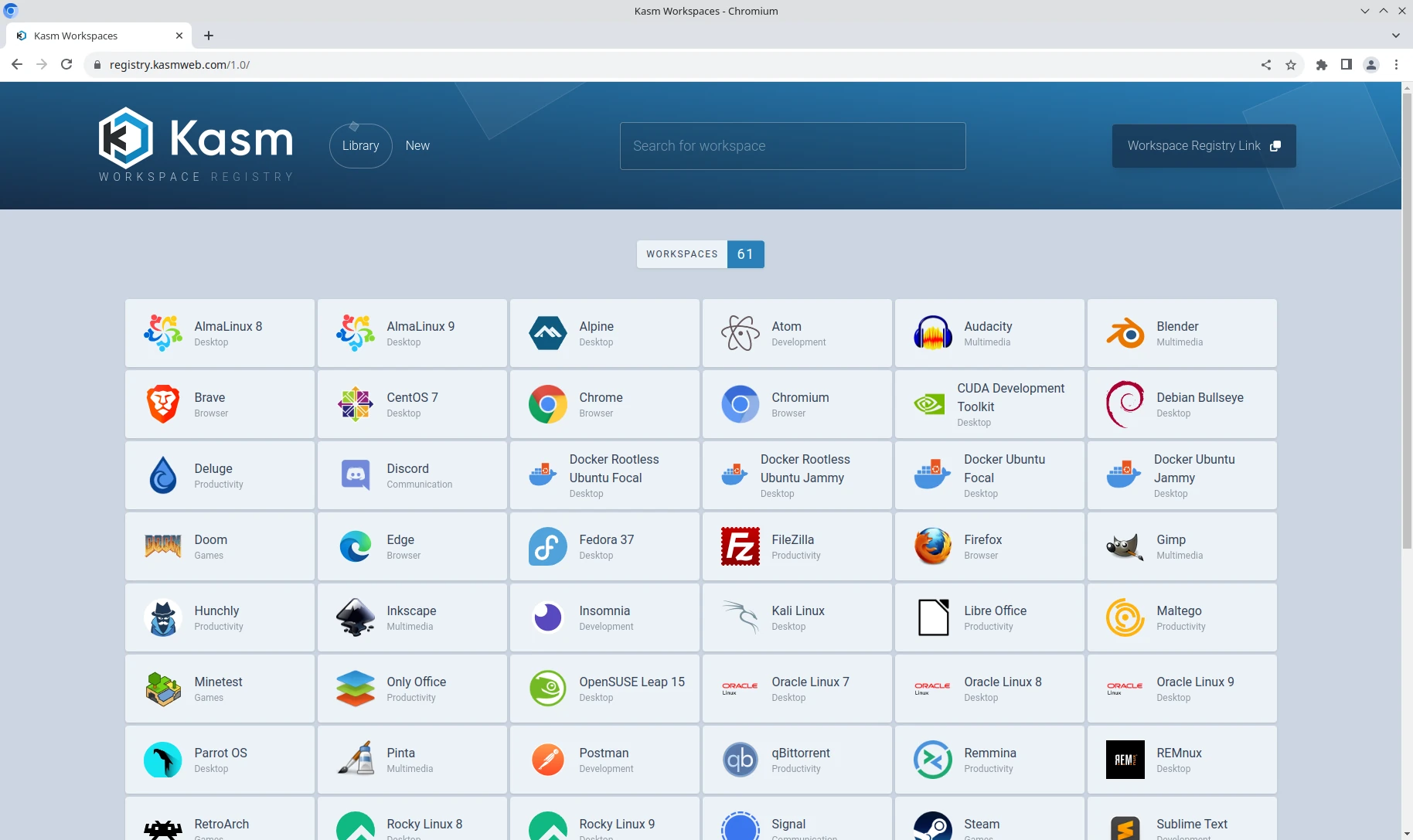
If you remove the first-party registry and want it back, the registry storefront is located at https://registry.kasmweb.com/.
Third-party registries allow external developers to publish workspaces that work seamlessly with Kasm Workspaces.
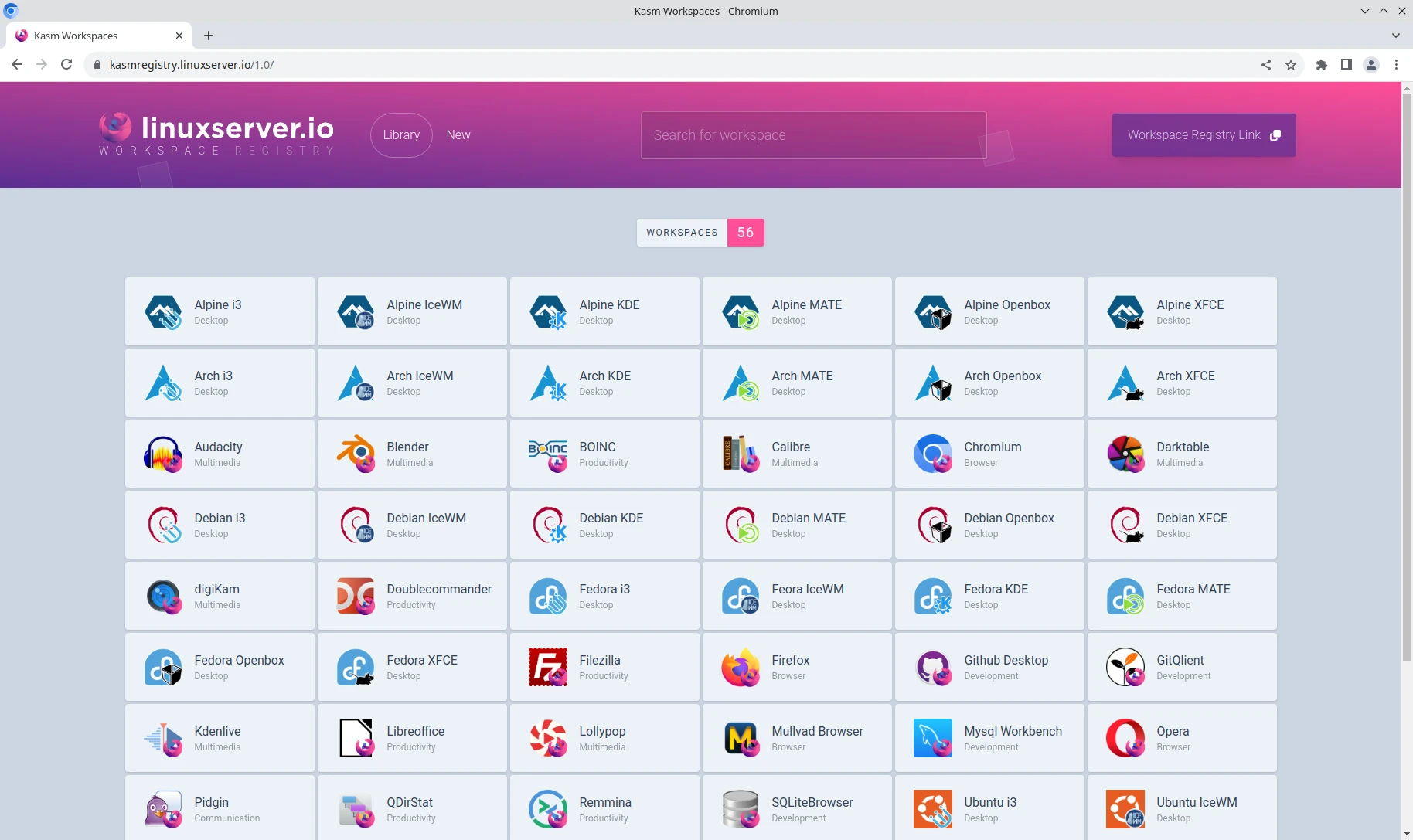
Install workspace registries only from third parties that you fully trust. Even then, always review what runs inside the workspace before installing it. Arbitrary commands can execute in several ways when you use a third-party workspace, and not all of them are visible in the workspace configuration fields.
Inspect a workspace definition in either of two ways:
- Click a workspace tile, then click Edit instead of Install.
- From the registry page where you found the Workspace Registry Link, click a workspace to open a page that displays the full JSON for that workspace. You can also reach this page through the registry logo in the list of registries at the top of the page.
Both options show the workspace configuration that is being set. Pay particular attention to the Docker Run Config Override (JSON) field (run_config in the workspace JSON) and the Docker Exec Config (JSON) field (exec_config in the workspace JSON). These fields allow arbitrary commands to run. If either field is populated and you are unsure what it does, ask the third party to clarify before installing.
Even when both run_config and exec_config are empty, the container image itself may contain malicious or unwanted behavior. A custom image may include the following:
- Malicious startup scripts baked into the image.
- Embedded binaries or background processes that execute automatically when a session starts.
This behavior is defined inside the image, so it may not be visible from the workspace JSON alone. The only reliable way to understand what executes at session startup is to review the image source, such as the Dockerfile, build scripts, and startup logic. When in doubt, proceed with caution and install only images you fully trust.
Add a registry to the deployment
The Workspace Registry mechanism is designed to make adding and removing registries straightforward.
- Find a workspace registry.
- Click the Workspace Registry Link button.
- In Kasm Workspaces, click the Workspaces navigation link.
- Click the Workspace Registry button.
- Click the Add new link at the top, paste the link into the text box, then click the Add button.
Install workspaces and interpret configuration warnings

To install a workspace, click the workspace you want, then click the Install button that appears. When the registry has channels, a dropdown presents the available options with the default pre-selected. To see exactly what is being installed, click the Edit button instead.

After you click Install, the estimated required space is added to the size widget at the top of the screen, next to the list of stores. As workspaces finish installing, the sizes recalculate based on the actual space used.

The estimated size is the uncompressed size, so it represents a worst-case figure. Duplicate layers lower the amount of space actually used. The space remaining is based on the combined remaining space across every agent. By default, workspaces install on all available agents, so the total space used may be higher than expected.
Interpret configuration warnings
A workspace with an orange border and an orange exclamation shield icon to the right of its name is flagged as requiring review before installation.

The flag means the workspace defines a configuration that may grant elevated privileges or access. It does not mean the workspace has a problem. It means you should review what the workspace does before you install it.
For example, many linuxserver.io workspaces carry a warning. Hover over the exclamation icon to see a tooltip with more information. The tooltip indicates that you should click Edit instead of Install, open the Docker Run Config Override (JSON) section, and review the value of the security_opt property that triggered the warning.
In this example, several properties are set. The user property is set to 1000, so it does not cause a flag. The entrypoint property is set but is on the list of ignored properties, so it also does not cause a flag. The security_opt property is not on the ignored list, so it does cause a flag. Because no specific information is included for security_opt, the flag uses the generic flag_property identifier. This identifier appears as the last item in the tooltip and links to this page so you can look up the meaning in the table below.
In this specific case, the workspace requires a minimum version of libseccomp to run. For convenience, the linuxserver.io workspaces add "security_opt":["seccomp=unconfined"] so that users can click Install and get a functioning workspace. The trade-off is that the workspace runs without the Docker seccomp sandbox, which significantly reduces the protection Kasm Workspaces can provide.
Multiple properties may trigger a warning, and the tooltip lists all of them. After each flagged property, a link points to this page with a value to look up in the table below.
| Property | Description |
|---|---|
| user_error | A user is defined and is not set to 1000. This often means the user is set to root. Some workspaces must run as root to function correctly, so it is not necessarily a major concern. Be more cautious and understand that the workspace has elevated privileges. |
| privilege | The workspace runs in privileged mode, which grants the workspace root capabilities to all devices on the host. |
| flag_property | This is a generic flag. The flagged property is not in the list of ignored or safe properties, and specific information has not been added for it yet. Look up what the property does and determine manually whether it is a concern. |
Update, search, and filter registries
Update a registry

Automatic updates are on by default for the official Kasm registry and off for third-party registries. To change this, click the ellipsis button on a registry, then select or clear Automatic Updates. When automatic updates are on, the registry updates each time you open the registry list page. Whether automatic updates are on or off, a button is available to update the registry manually.
Updating a registry pulls the latest available workspaces and any updated configuration. It does not affect any currently installed workspaces.
When a registry has channels, a dropdown appears. Selecting a channel from the dropdown changes the default channel used for all workspaces in that registry. You can still override the choice on an individual workspace.
Search and filter
On the registry page, the search and category options in the top right match those on the workspaces page. Use them to search for specific workspaces or categories.

When more than one registry is installed, an option to filter by registry appears. Click a registry name, or click the mini workspace icons under a registry name, to show only that registry's workspaces. When you finish, click the Clear Filters button next to Available Workspaces to bring back all the options.
Build your own workspace registry
Kasm Technologies provides tooling to help third-party developers build and maintain their own Workspace Registries. Use the GitHub template repository as the basis for your own registry. The README in that repository includes full instructions for creating a registry.
Schema
Current version: 1.1
| Property | Required | Description |
|---|---|---|
| friendly_name | True | The name to show. |
| description | True | A short description of the workspace. |
| image_src | True | The name of the workspace icon used. |
| architecture | True | JSON list containing either "amd64", "arm64", or both. |
| compatability | True | A list of dictionaries, each containing version, image, uncompressed_size_in_mb, and available_tags. |
| categories | False | JSON list containing the categories the workspace belongs to. Limit this to a maximum of 3. |
| docker_registry | False | Which Docker registry to use. |
| run_config | False | Any additional parameters to add to the run config. |
| exec_config | False | Any additional parameters to add to the exec config. |
| notes | False | Notes about running the workspace, such as whether it requires libseccomp. |
| cores | False | The number of cores to use for this workspace. |
| memory | False | The amount of memory to use for this workspace. |
| gpu_count | False | The number of NVIDIA CUDA GPUs to use for this workspace. |
| cpu_allocation_method | False | The CPU allocation method for this workspace. Can be "Inherit", "Quotas", or "Shares". |
The compatibility property is an array of objects and needs more explanation.
  "compatibility": [
    {
      "version": "1.16.x",
      "image": "kasmweb/chromium:1.16.0-rolling-daily",
      "uncompressed_size_mb": 2643,
      "available_tags": [
        "develop",
        "1.16.0",
        "1.16.0-rolling-weekly",
        "1.16.0-rolling-daily"
      ]
    }
  ]
- version — the version of Kasm Workspaces the entry is compatible with.
- image — the Docker image. The tag is included for purposes such as estimating the size and is used when there are no available_tags.
- uncompressed_size_mb — an integer for the approximate uncompressed size of the workspace in MB. This does not account for layers. For example, for an image of 2.46 GB, enter 2460.
- available_tags — these values determine the available channels on the front end. To omit channels, remove the available_tags section completely. Do not mix and match. When you specify available_tags for one workspace, specify it for all of them. Each workspace does not need the same tags. A workspace with only develop tags shows only when develop is the selected channel.
Common troubleshooting steps
- A workspace shows an orange warning border. The workspace defines a configuration that may grant elevated privileges. Click Edit, review the flagged property in the
Docker Run Config Override (JSON)field, and consult the property table above before installing. - A workspace uses more disk space than estimated. The estimated size is uncompressed and does not account for shared layers. By default, workspaces install on all available agents, so confirm the target agents and remaining space across the deployment.
- A third-party registry does not show new workspaces. Automatic updates are off by default for third-party registries. Click the ellipsis button on the registry and update it manually, or select Automatic Updates.
- Channels do not appear for a registry. Channels are driven by the available_tags values in each workspace's compatibility entry. Confirm that available_tags are defined consistently across the registry's workspaces.
- A registry link fails to add. Confirm that you pasted the full Workspace Registry Link from a trusted source and that the deployment can reach the registry host.