Custom Chrome extensions
Overview
Distributing an internal or unsigned Chrome extension to users one machine at a time does not scale. This guide configures a Kasm Workspaces container-based workspace to load a custom Chrome extension automatically on every launch. You upload the extension with file mapping, extract it during workspace startup, and pass it to Chrome through a Docker Run Config override. As a result, users open a workspace that already has the extension installed, with no manual setup and no reliance on the Chrome Web Store.
Prerequisites
Before you begin, confirm the following:
- Administrator access to the Kasm Workspaces deployment, with permission to edit Workspaces.
- A container-based Chrome or Chromium workspace to customize.
- The source directory of the extension you want to load, packaged as a
.ziparchive. - Familiarity with file mapping. For background, see the file mappings guide.
Solution approach
This guide progresses through the following phases:
- Package the extension source directory.
- Upload the package with a file mapping.
- Pass the extension to Chrome with a Docker Run Config override.
- Extract the package on launch with a Docker Exec Config.
- Verify that the extension loads.
Detailed steps
Package the extension source directory
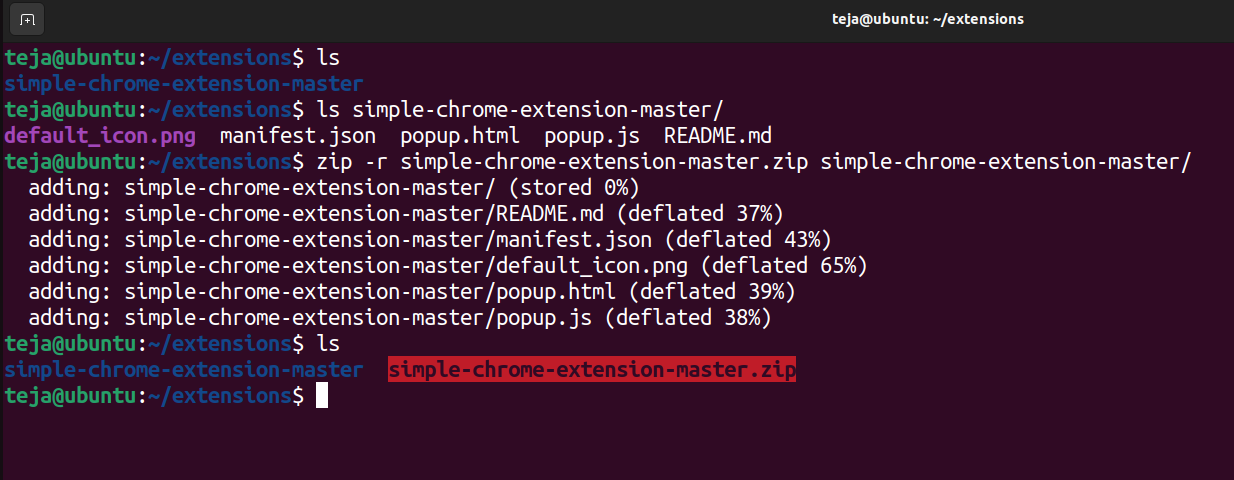
Chrome loads an unpacked extension from a directory, so the upload must contain the directory rather than the loose source files.
- Compress the extension source directory into a
.ziparchive. Zip the directory itself, not the individual source files inside it.
Upload the package with a file mapping
A file mapping delivers the archive into the workspace filesystem each time a session starts.
- In the Kasm Workspaces UI, go to Admin > Workspaces, then Edit the target workspace.
- Open the File Mapping tab and click Add File Mapping.
- Set the type to File Upload and give it a descriptive name and description.
- Set the Destination Path to a location such as
/tmp/extension/your-extension.zip. - Set both Writable and Executable to Disabled, then save the changes.
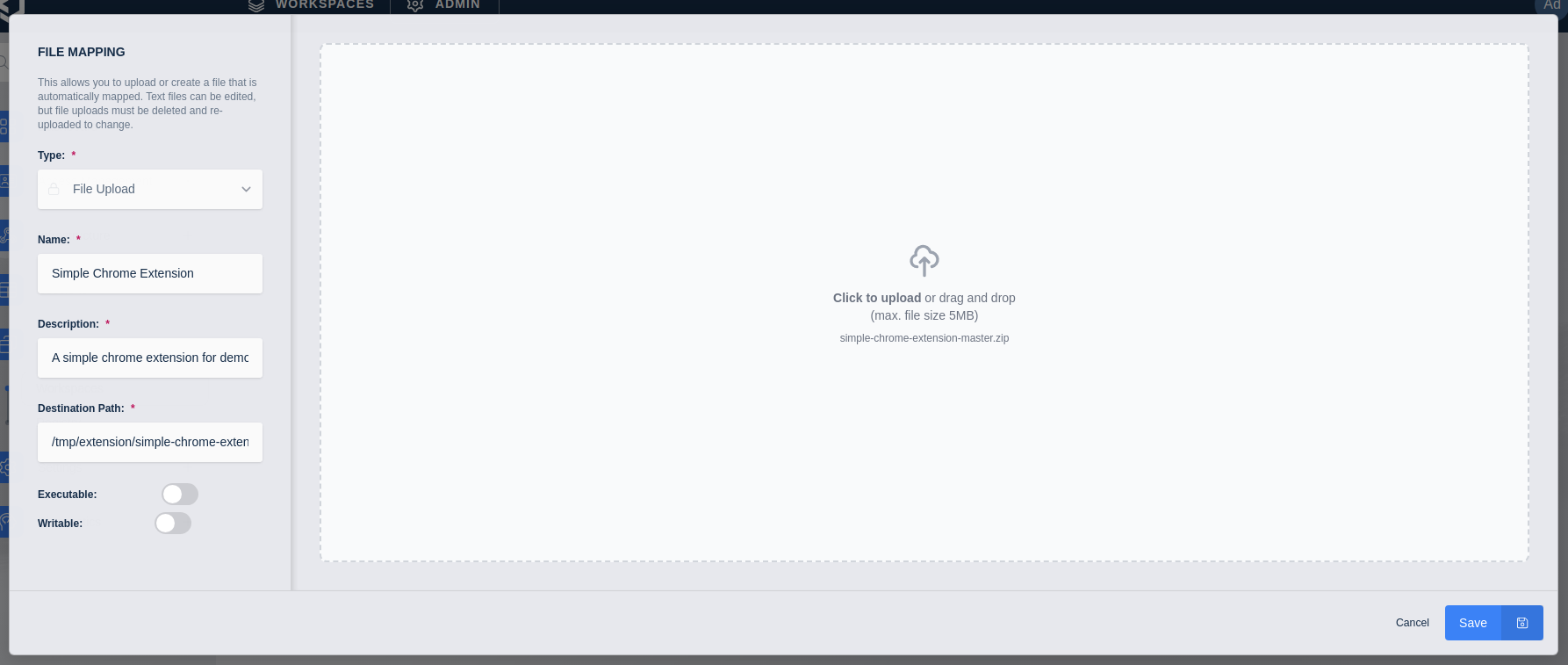
File mapping can be set at both the workspace level and the group level.
Pass the extension to Chrome with a Docker Run Config override
The Docker Run Config override sets the application arguments that tell Chrome where to find the unpacked extension.
- In the workspace editor, open the Docker Run Config Override field.
- Enter the following configuration. Replace the extension name and path with your own values.
{
  "hostname": "kasm",
  "environment": {
    "APP_ARGS": "--load-extension=/tmp/extension/your-extension"
  }
}
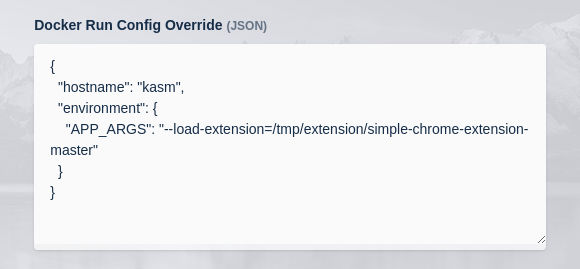
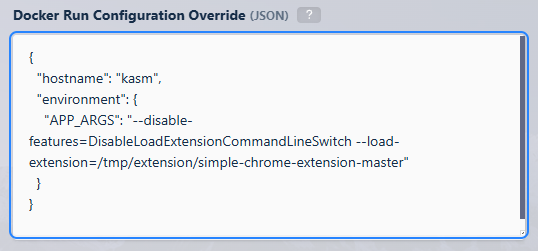
Chrome removed --load-extension in Chrome 137. The argument still works on Chromium. On Chrome it works for now with --disable-features=DisableLoadExtensionCommandLineSwitch, but that workaround will be removed in a future Chrome version.
To keep loading the extension on a current Chrome version, add the --disable-features argument as shown below.
{
  "hostname": "kasm",
  "environment": {
    "APP_ARGS": "--disable-features=DisableLoadExtensionCommandLineSwitch --load-extension=/tmp/extension/your-extension"
  }
}
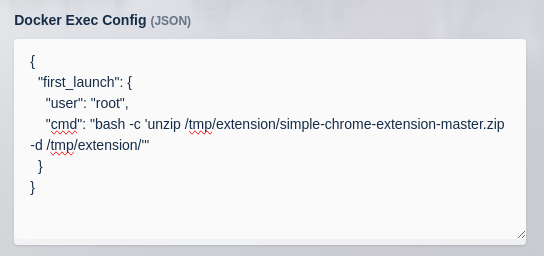
Extract the package on launch with a Docker Exec Config
The uploaded archive must be unpacked before Chrome can load it. A Docker Exec Config runs the extraction command at first launch.
- In the workspace editor, open the Docker Exec Config field.
- Enter the following configuration. Replace the archive name and path with your own values.
{
  "first_launch": {
    "user": "root",
    "cmd": "bash -c 'unzip /tmp/extension/simple-chrome-extension-master.zip -d /tmp/extension/'"
  }
}
Verify that the extension loads
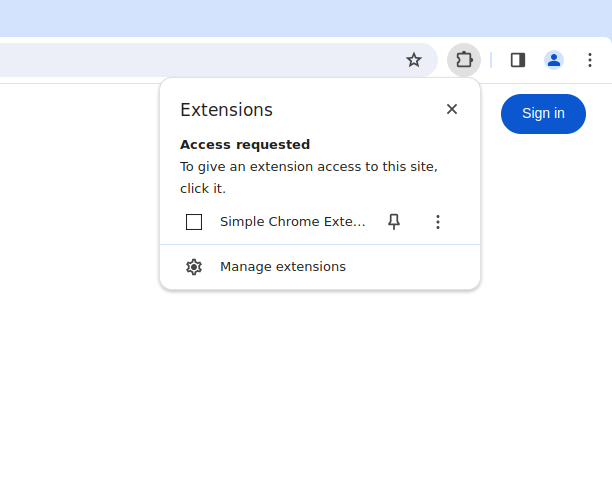
- Launch a new session of the workspace.
- Confirm that Google Chrome opens with the custom extension already loaded.
Common troubleshooting steps
- The extension does not appear in Chrome. Confirm that the
--load-extensionpath matches the extracted directory, not the.ziparchive. The path passed to Chrome must point to the unpacked extension folder. - The extension loads on Chromium but not on Chrome 137 or later. Chrome removed
--load-extensionin version 137. Add--disable-features=DisableLoadExtensionCommandLineSwitchtoAPP_ARGS, and plan to migrate before that workaround is removed. - The Docker Exec Config command fails to extract the archive. Confirm that the archive name and destination path in the
unzipcommand match the Destination Path set in the file mapping. - The archive uploads but Chrome finds no extension files. Confirm that the
.zipcontains the extension directory rather than the loose source files. Repackage the directory if needed.